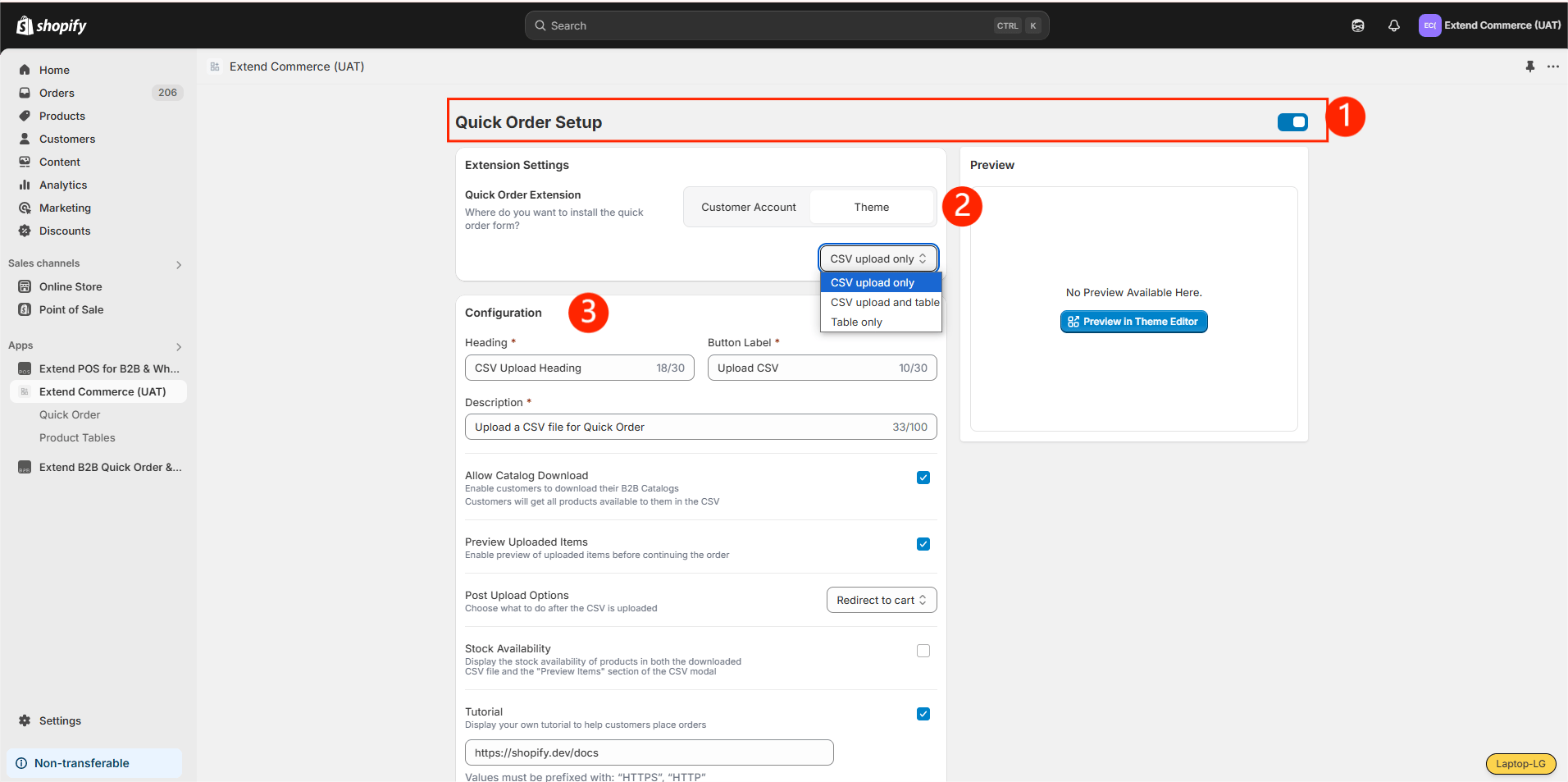
Step 1: Enable the Quick Order Setup
Go to the Admin section and Enable the Quick Order SetupStep 2: Choose Install Option for Quick Order Form
Choose Theme in the Quick Order Extension sectionStep 3: Choose a Display Option
In the Theme section of the admin app, select one of the following display modes:- CSV Upload Only
- CSV Upload + Table
- Table Only
Option 1: CSV Upload Only
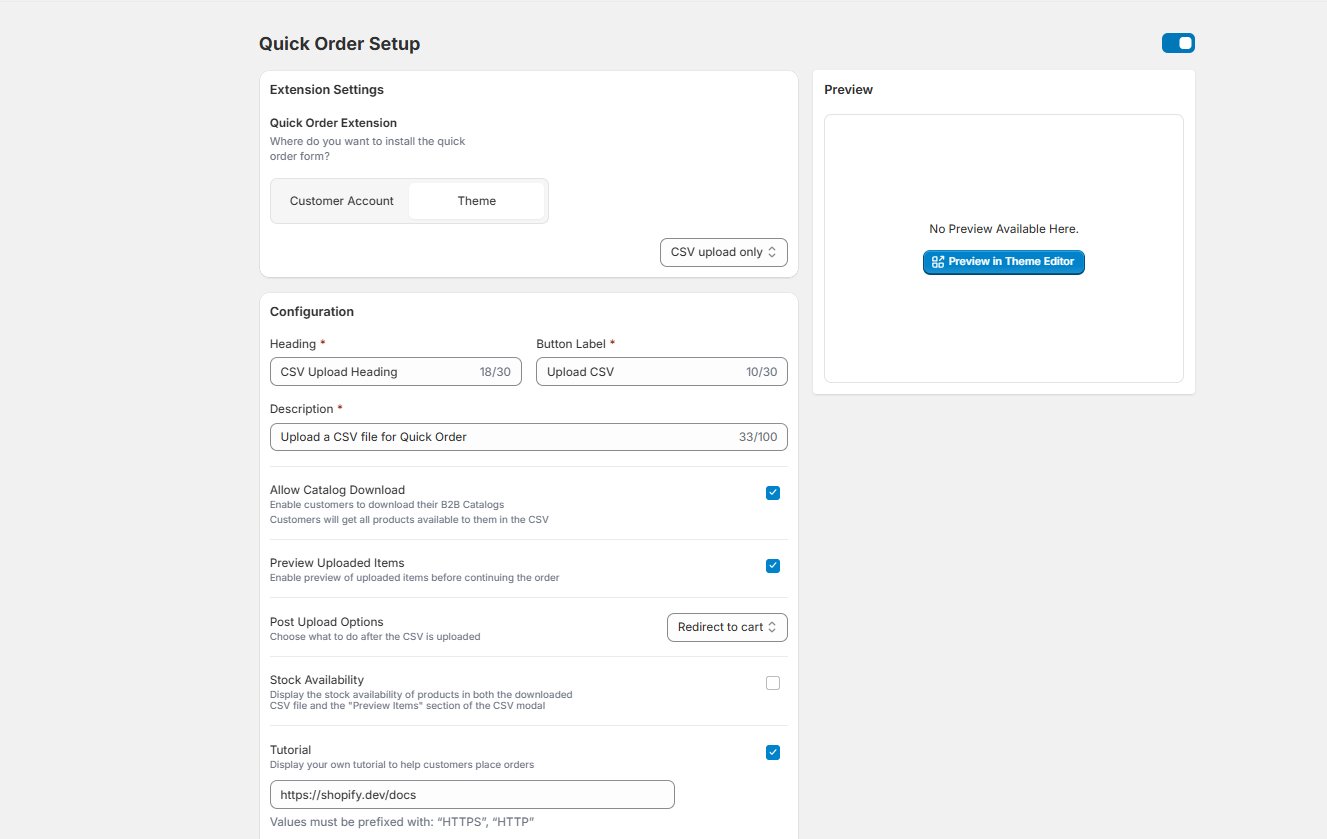
With this option, only the CSV upload modal will appear on the store. Customers will be able to place orders exclusively by uploading a CSV file.Configuration Settings
-
Heading, Button Text & Description
Customize the text that appears in your CSV upload modal. A live preview will be shown on the right. -
Allow Catalog Download
Enable this option to let customers download a catalog template in CSV format. A “Download Catalog” button will appear in the CSV upload dialog box once enabled. -
Preview Uploaded Items
Allow customers to preview the uploaded CSV items before proceeding to cart/checkout. -
Post Upload Options
Decide what happens after CSV upload: redirect to Cart or directly to Checkout. -
Stock Availability
Show the current stock quantity in both the downloaded CSV and preview modal. -
Tutorial
Enabling this will display a “How to Use” link in the CSV upload dialog box, redirecting customers to your tutorial.
Option 2: CSV Upload + Table
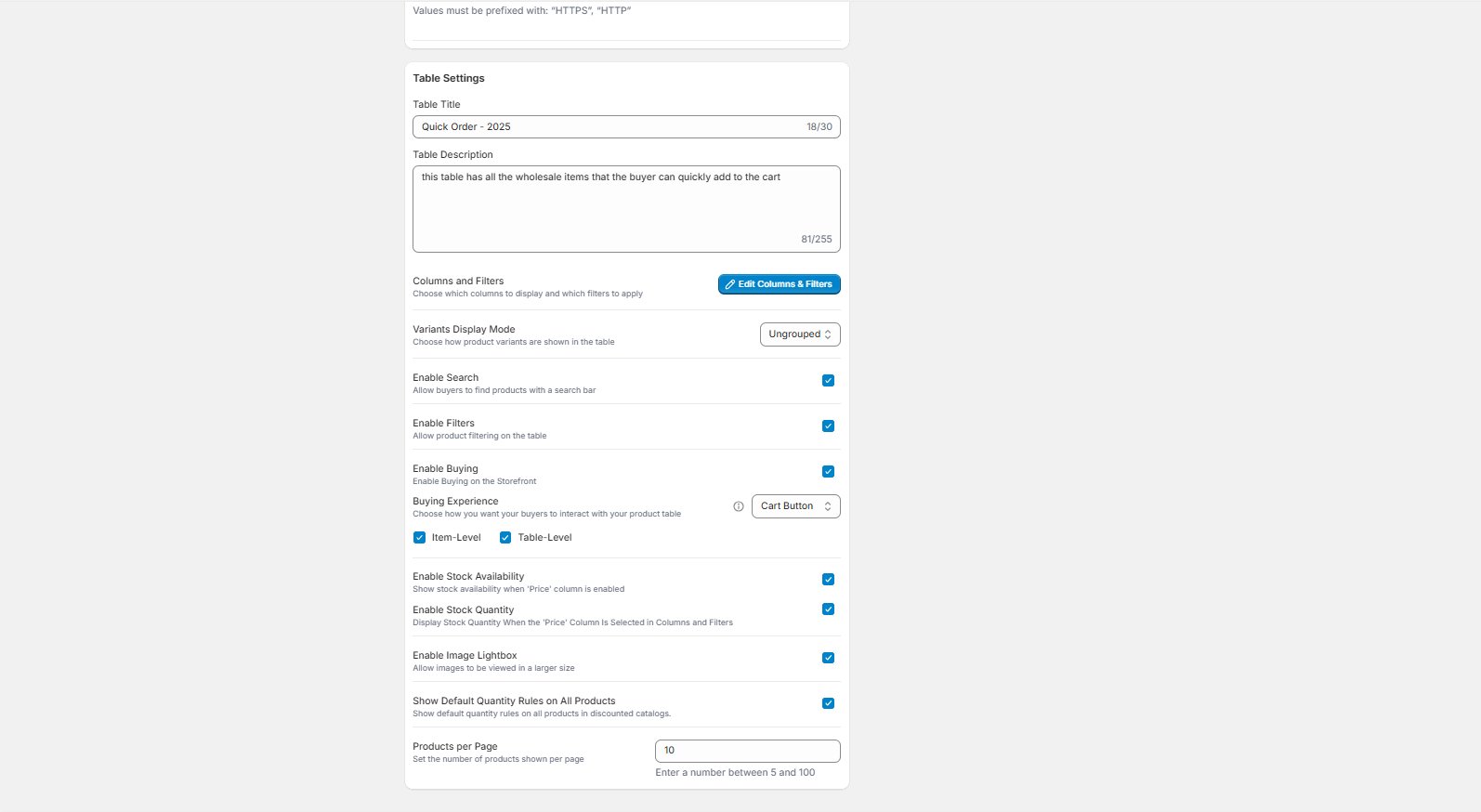
This option displays both the CSV Option and a product table with all available products. Customers can choose to place orders by uploading a CSV file or by quickly adding items directly from the table.CSV Upload Configuration
Same settings as described in CSV Upload Only (above).Table Settings
-
Table Title & Description
Add a meaningful title and optional description for your product table. -
Available Columns
Choose product attributes and metafields to display in the table. -
Columns and Filters
Choose which columns to display. Customize column names, enable filters, and toggle visibility per column. Rearrange columns by drag-and-drop and remove unnecessary ones. Note: the Title column is mandatory and cannot be removed. -
Variant Display Mode
Choose how product variants are shown:- Ungrouped – All variants appear as separate items
- Grouped – Add a variant selector column
- Folded – Show variants in an expandable accordion
-
Search & Filters
Allow customers to search and filter products within the table. -
Buying Experience
Enable cart functionality:- Cart Button – Add to cart button at item or table level
- Auto Add – Auto-add items to cart when quantity is entered
-
Image Lightbox
Enable to let customers view larger product images. -
Stock Display Options
- Show Availability – Display “In Stock” / “Out of Stock”
- Show Stock Quantity – Show exact stock numbers (requires inventory tracking)
-
Show Default Quantity Rules on All Products – If enabled, display of
Min: 1, Increment: 1will be shown even if custom rules aren’t set. -
Products per Page
Set how many products to show per page.
Option 3: Table Only
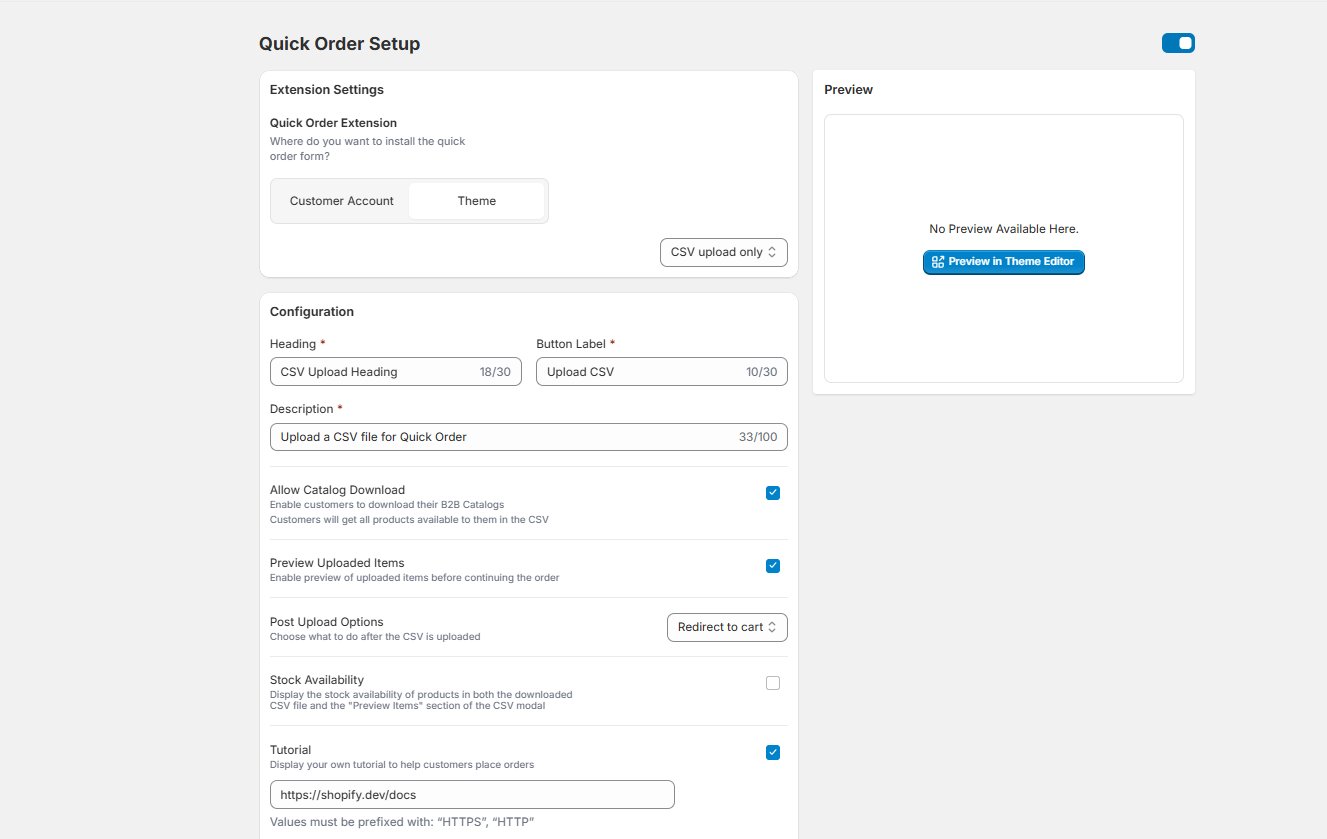
Use this to display products in a table, allowing customers to quickly add items to their cart without using CSV upload.Table Settings
Same as CSV Upload + Product Table, except CSV-related settings are excluded.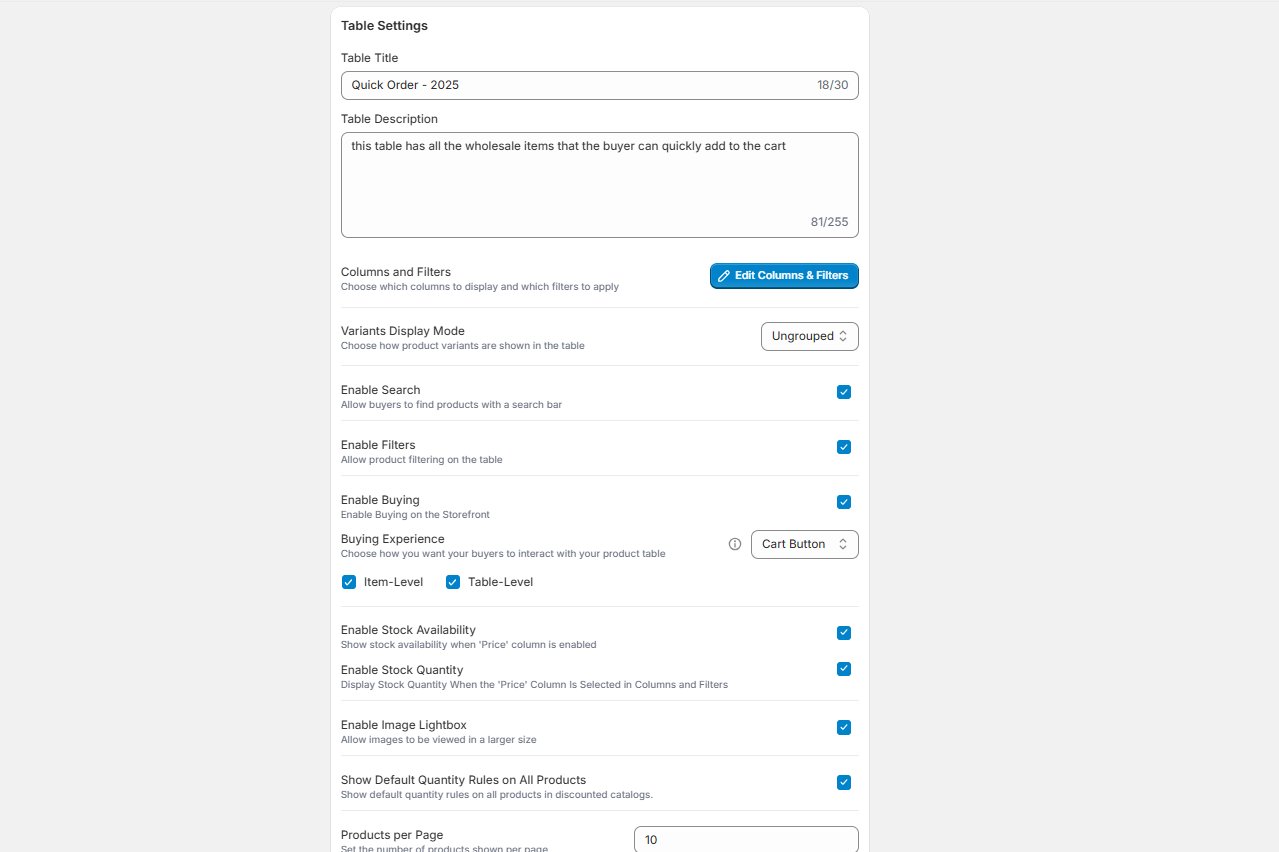
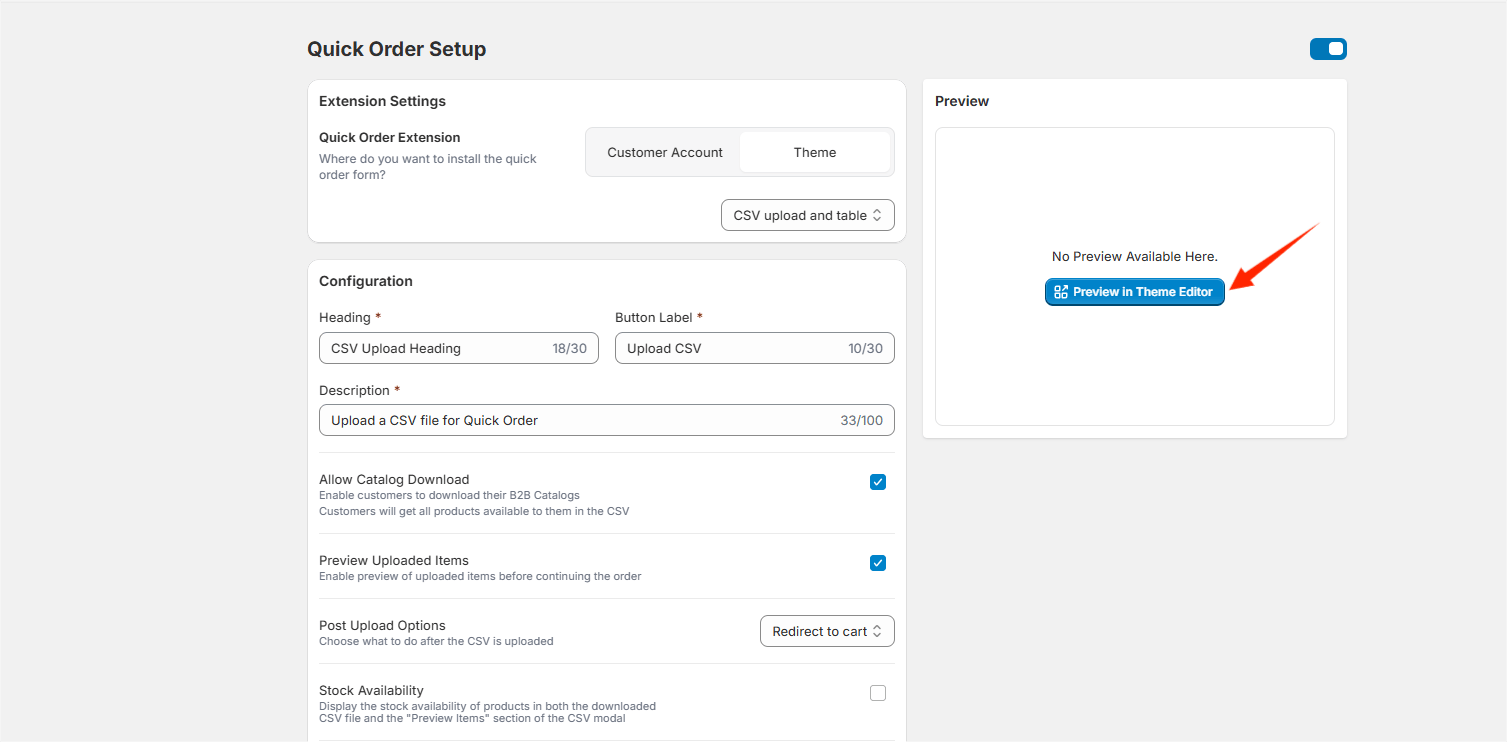
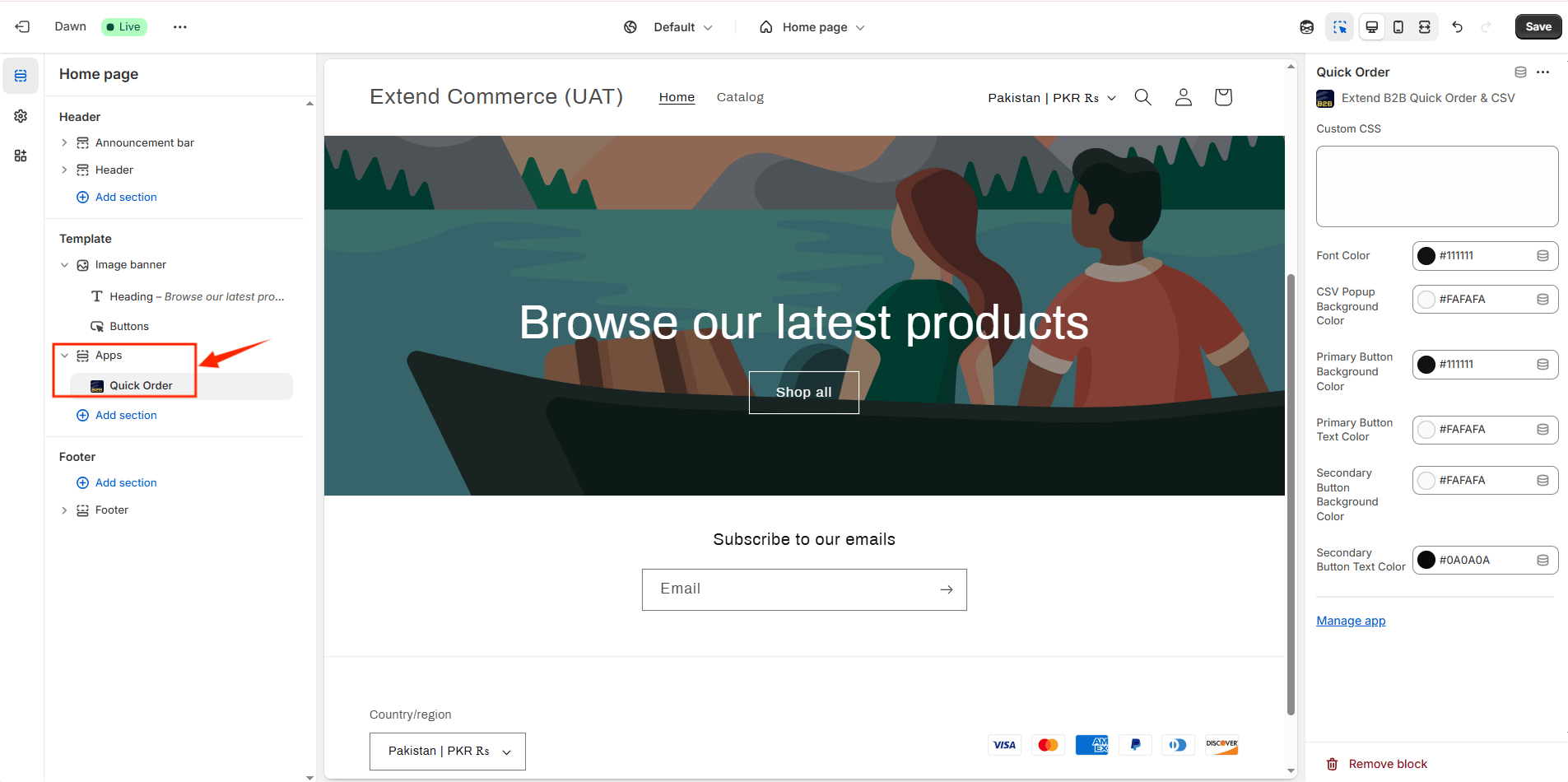
Step 4: Adding Quick Order App in Theme
- Click Save to apply your configuration.
- Click on Preview in Theme Editor
Step 5: Customize the Quick Order Form Appearance
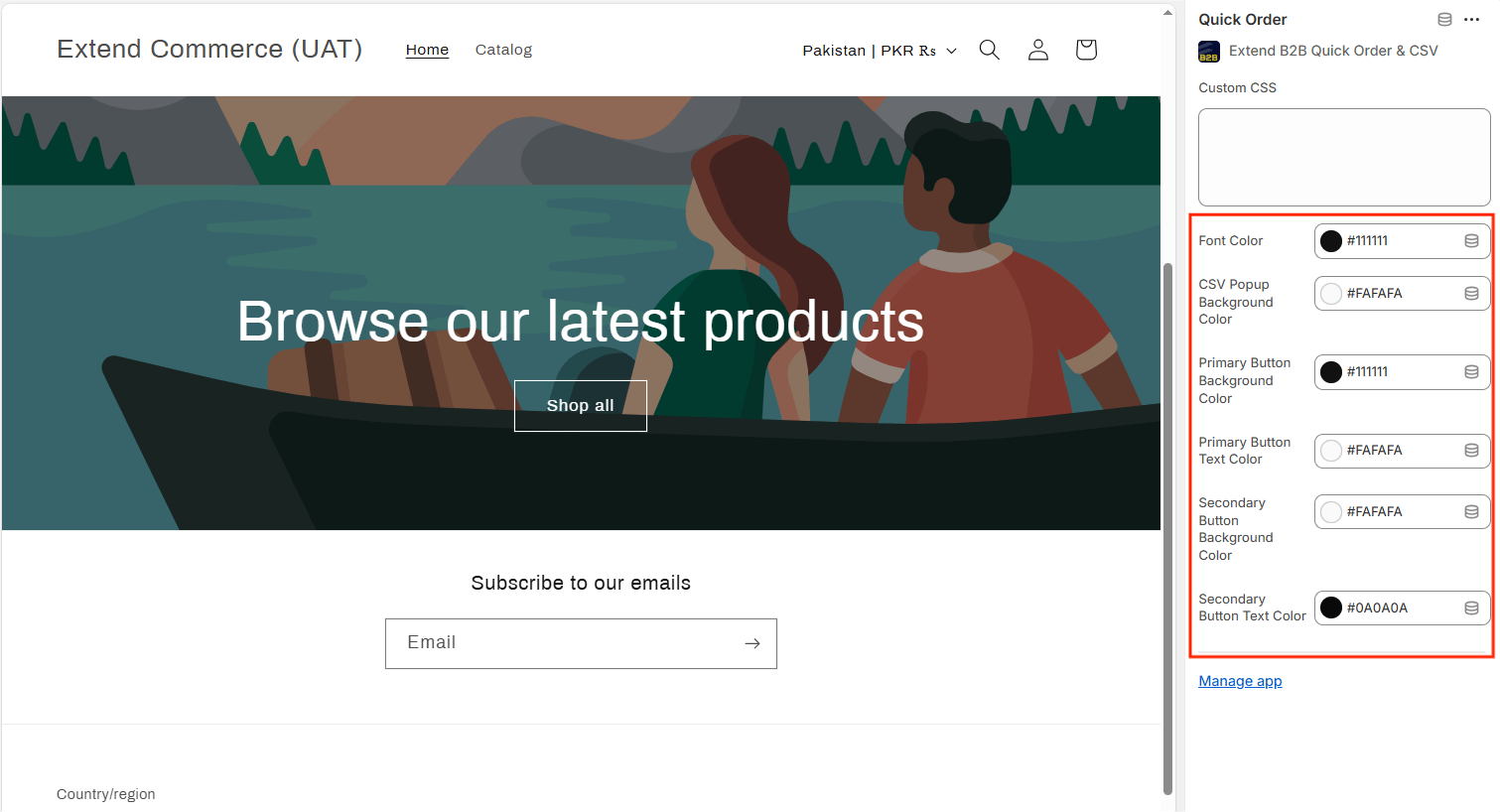
To customize the font, button style, or CSV dialog box colors of your Quick Order form, go to the Theme Customizer. On the right-hand side, under the “Quick Order” settings, you’ll find customization options.