Step 1: Configure the CSV Modal in the Admin App
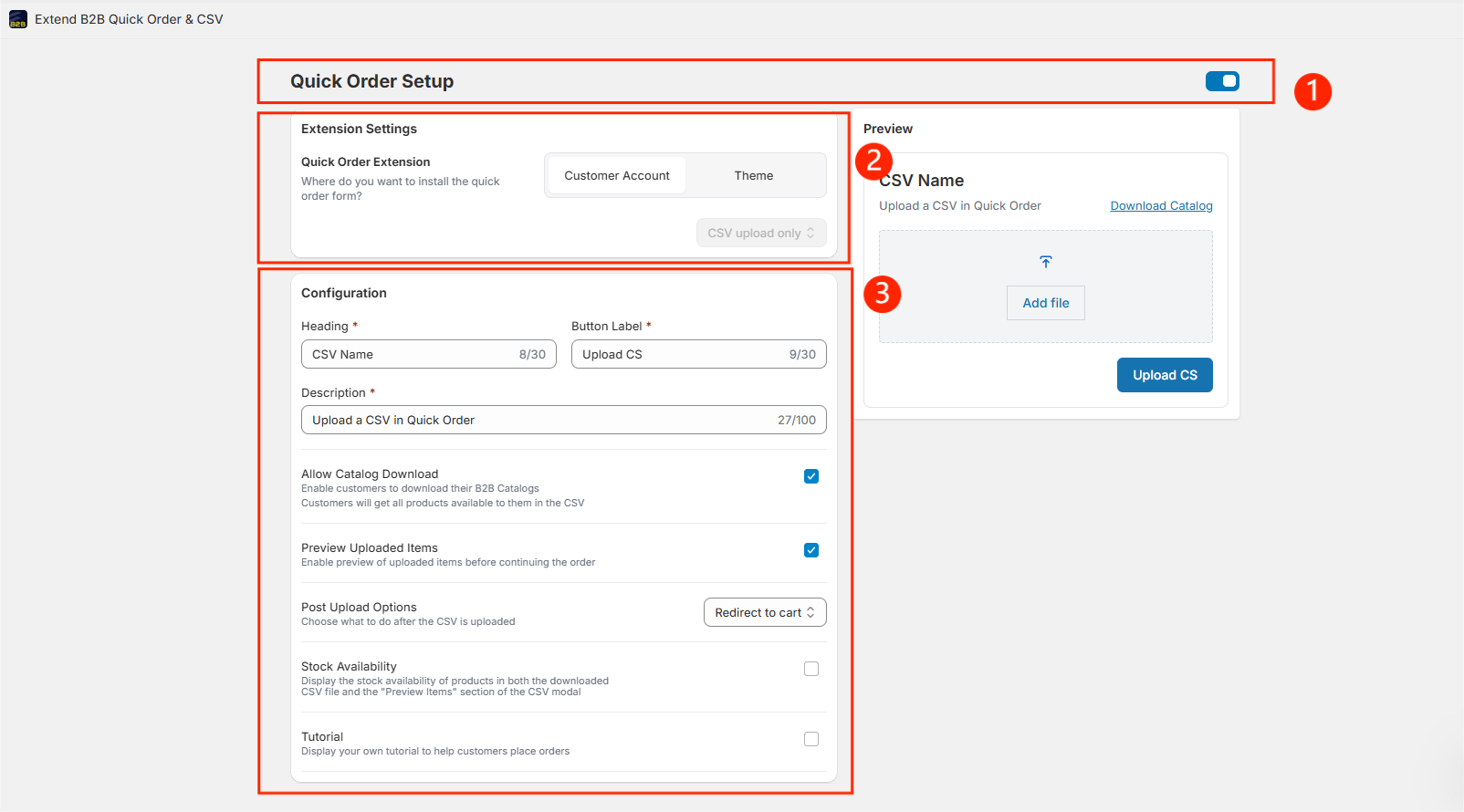
- Go to the Admin section and Enable the Quick Order Setup
- Choose Customer Account in the Quick Order Extension section
-
Configuration Settings
-
Heading, Button Text & Description
Customize the text that appears in your CSV upload modal. A live preview will be shown on the right. -
Allow Catalog Download
Enable this option to let customers download a catalog template in CSV format. A “Download Catalog” button will appear in the CSV upload dialog box once enabled. -
Preview Uploaded Items
Allow customers to preview the uploaded CSV items before proceeding. -
Post Upload Options
Decide what happens after CSV upload: redirect to Cart or directly to Checkout. -
Stock Availability
Show the current stock quantity in both the downloaded CSV and preview modal. -
Tutorial
Add a custom tutorial to guide your customers through placing a bulk order. Enabling this will display a “How to Use” link in the CSV upload dialog box, redirecting customers to your tutorial.
-
Heading, Button Text & Description
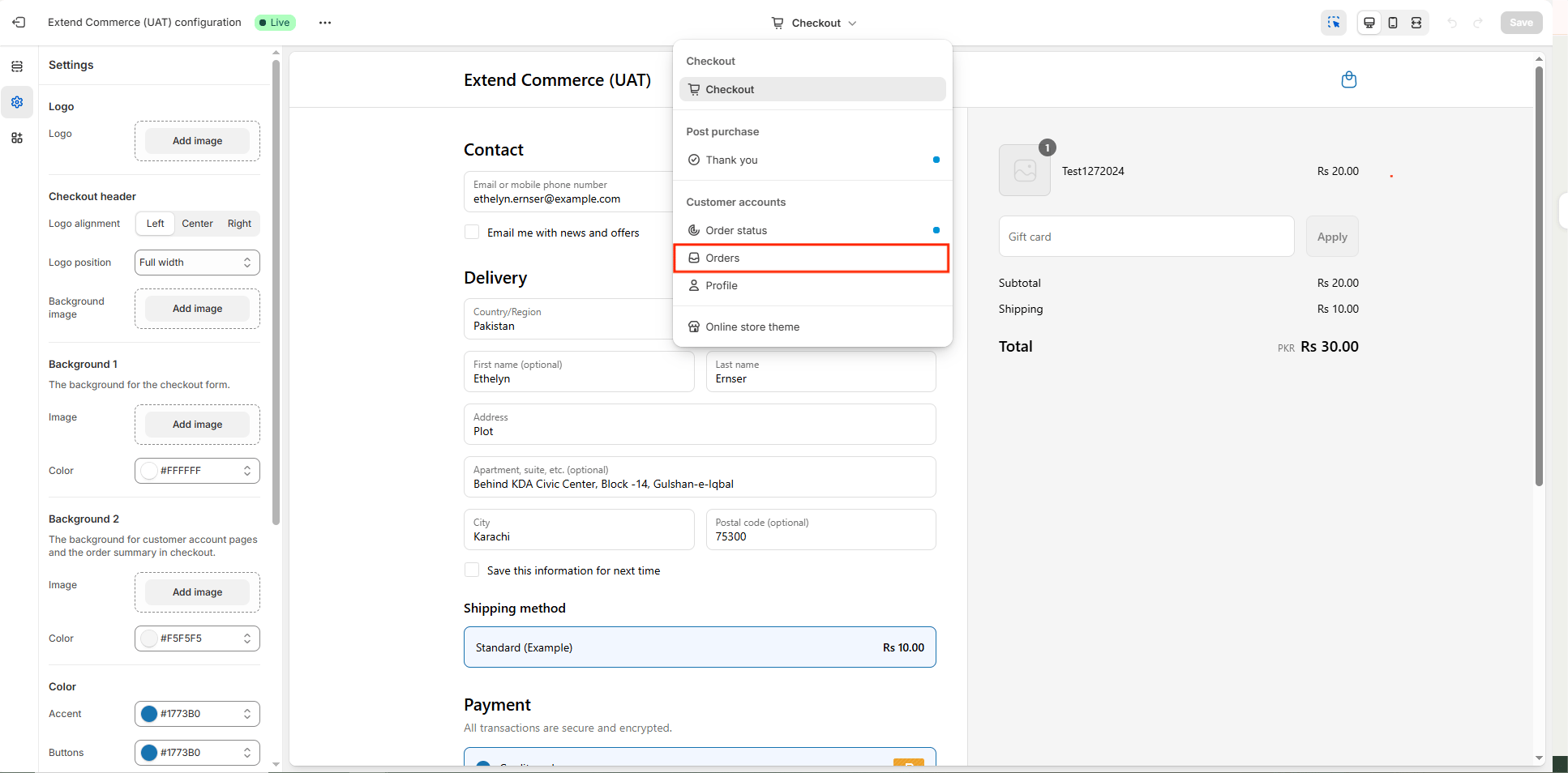
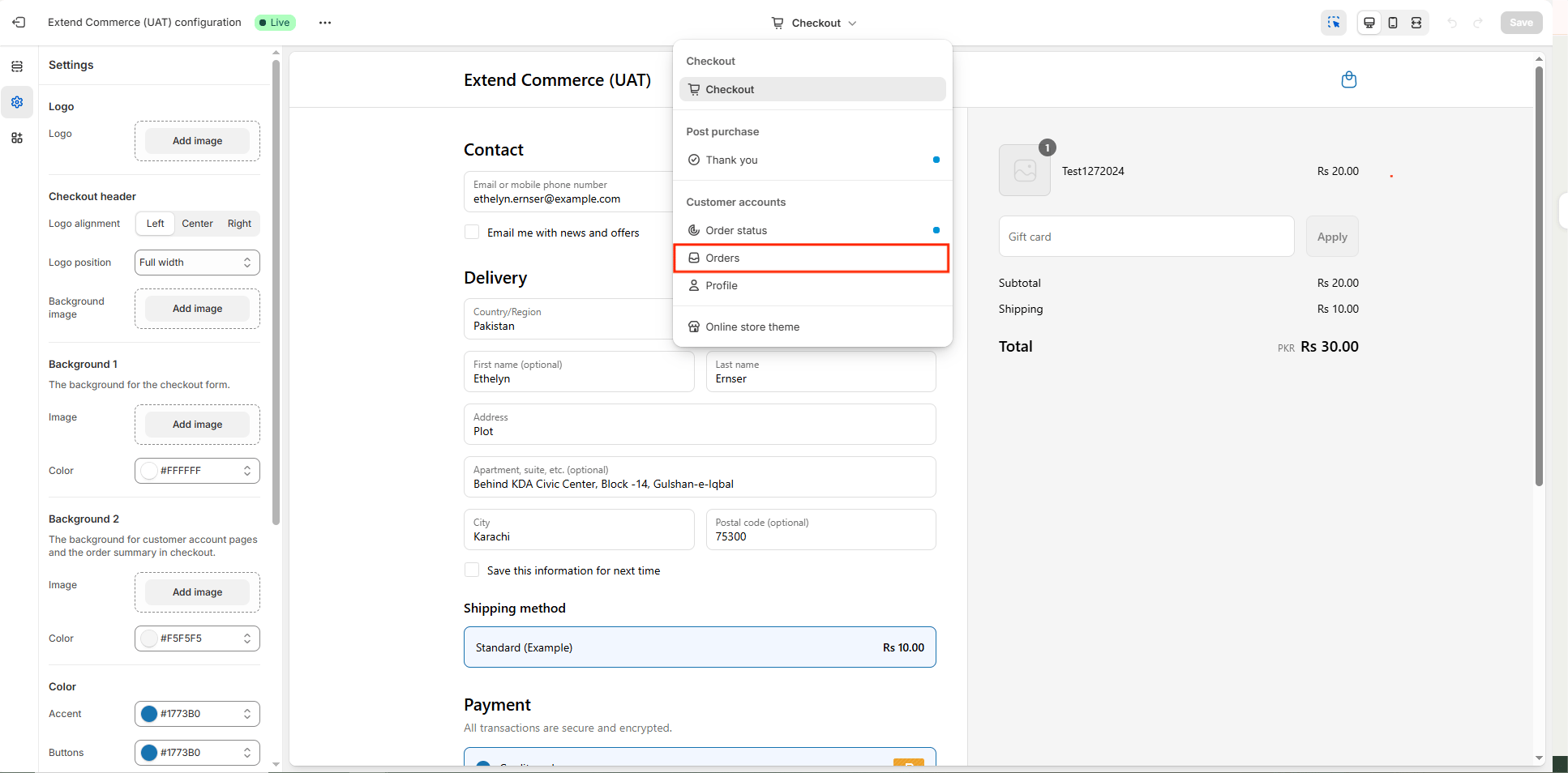
Step 2: Add the Quick Order Extension to the Customer Account Page
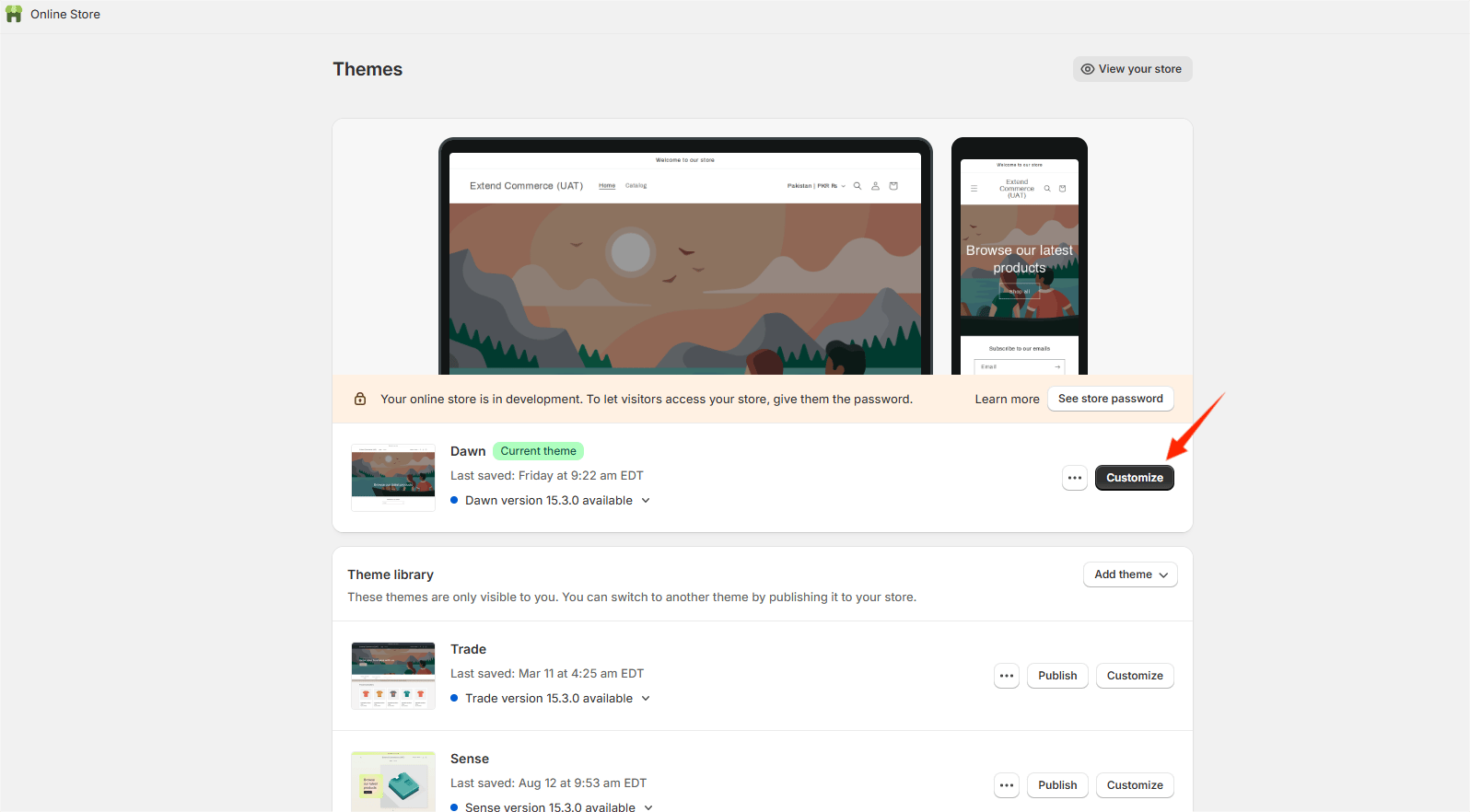
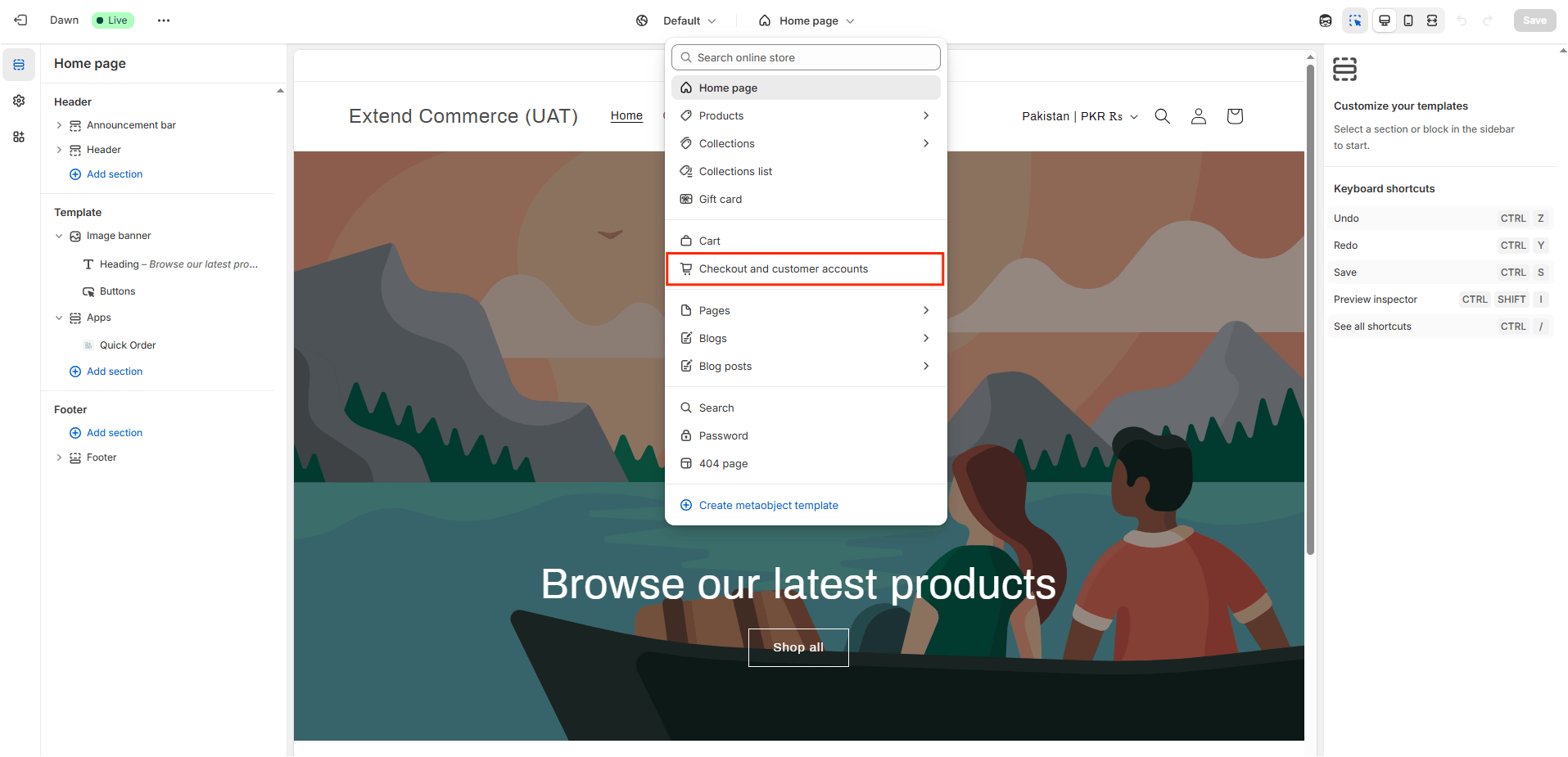
- Open your Theme Customizer.
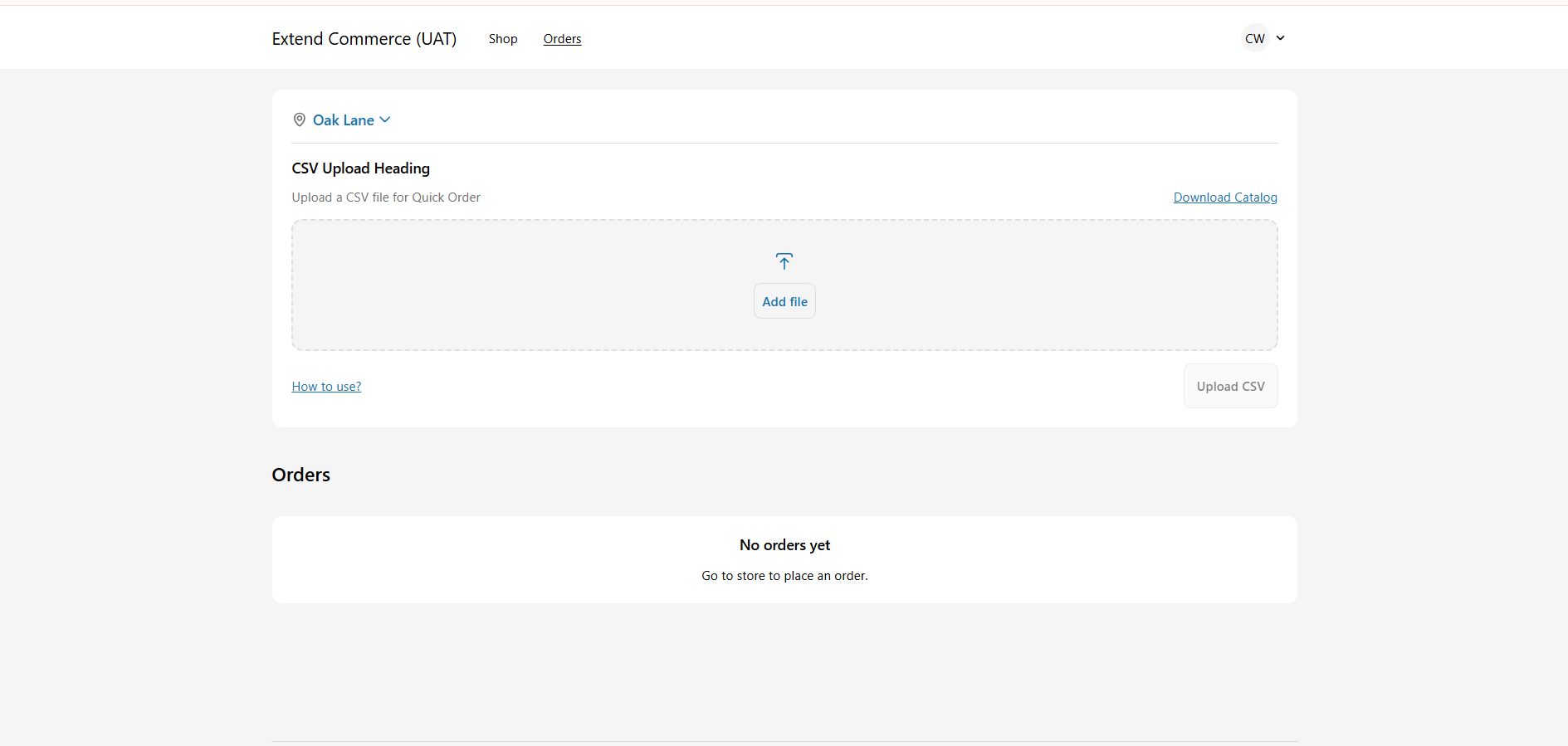
- Download their personalized product catalog, and
- Upload products using a CSV file directly from their account page.