Using the CSV Upload Feature
After logging into the store, first select your location. Based on the selected location, the product catalog will be displayed to you accordingly.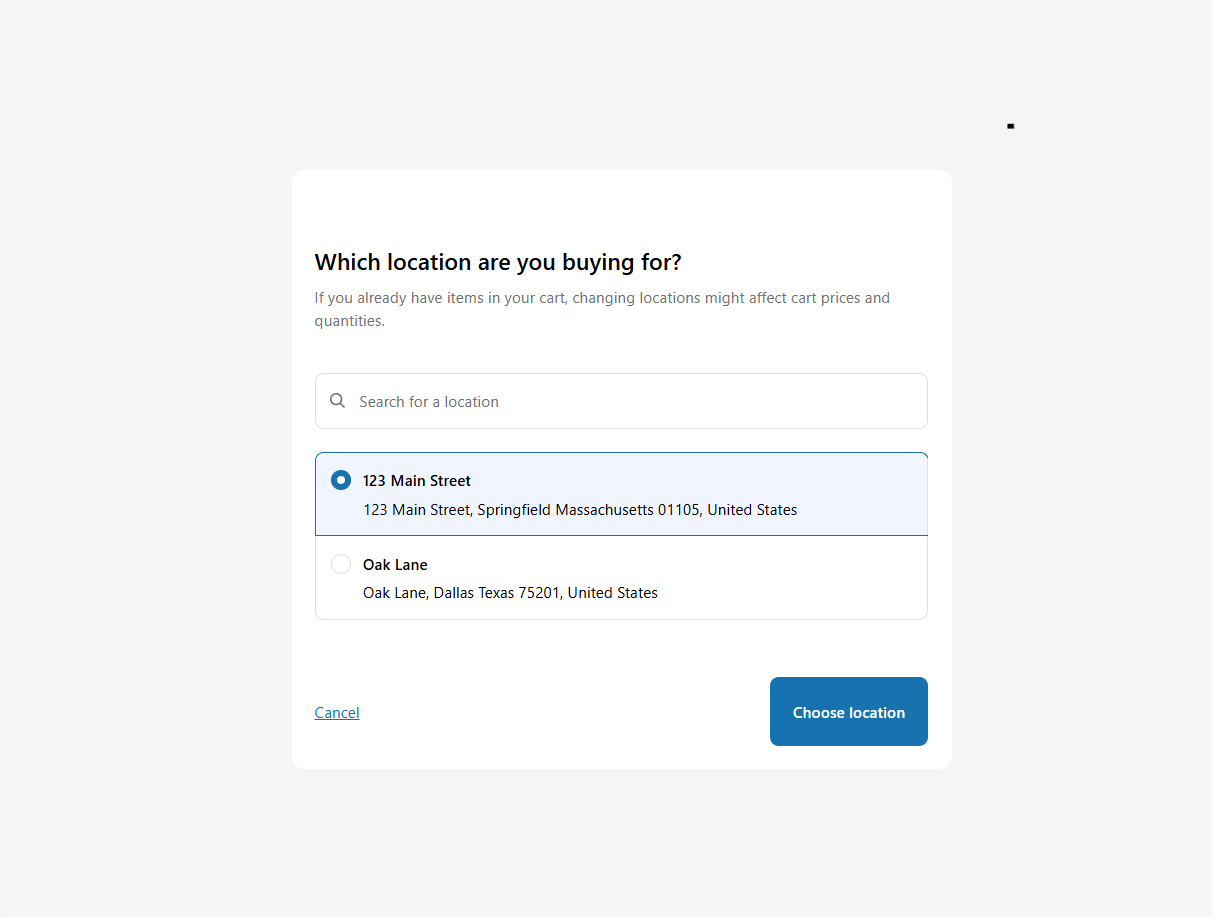
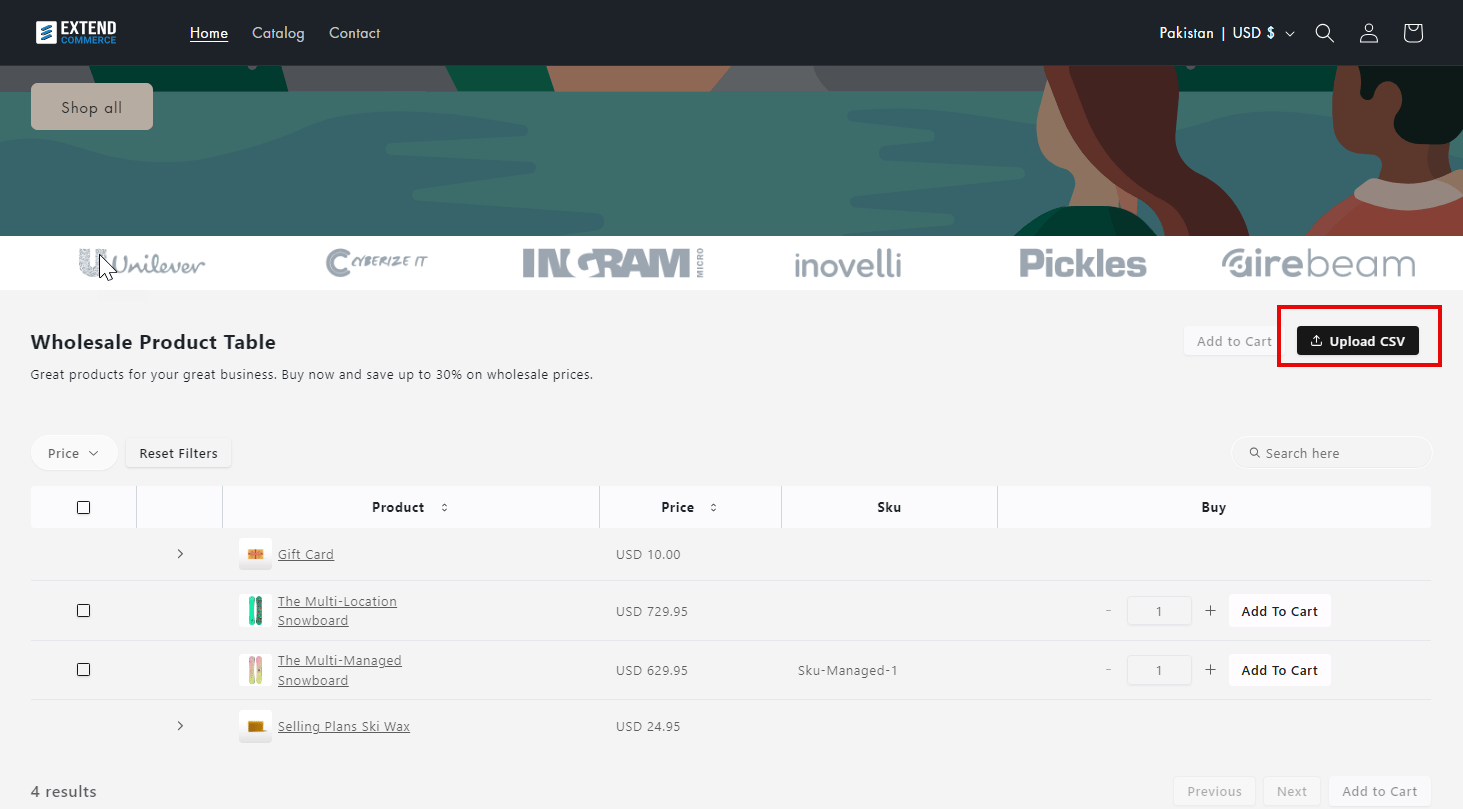
- File Upload
- CSV Paste
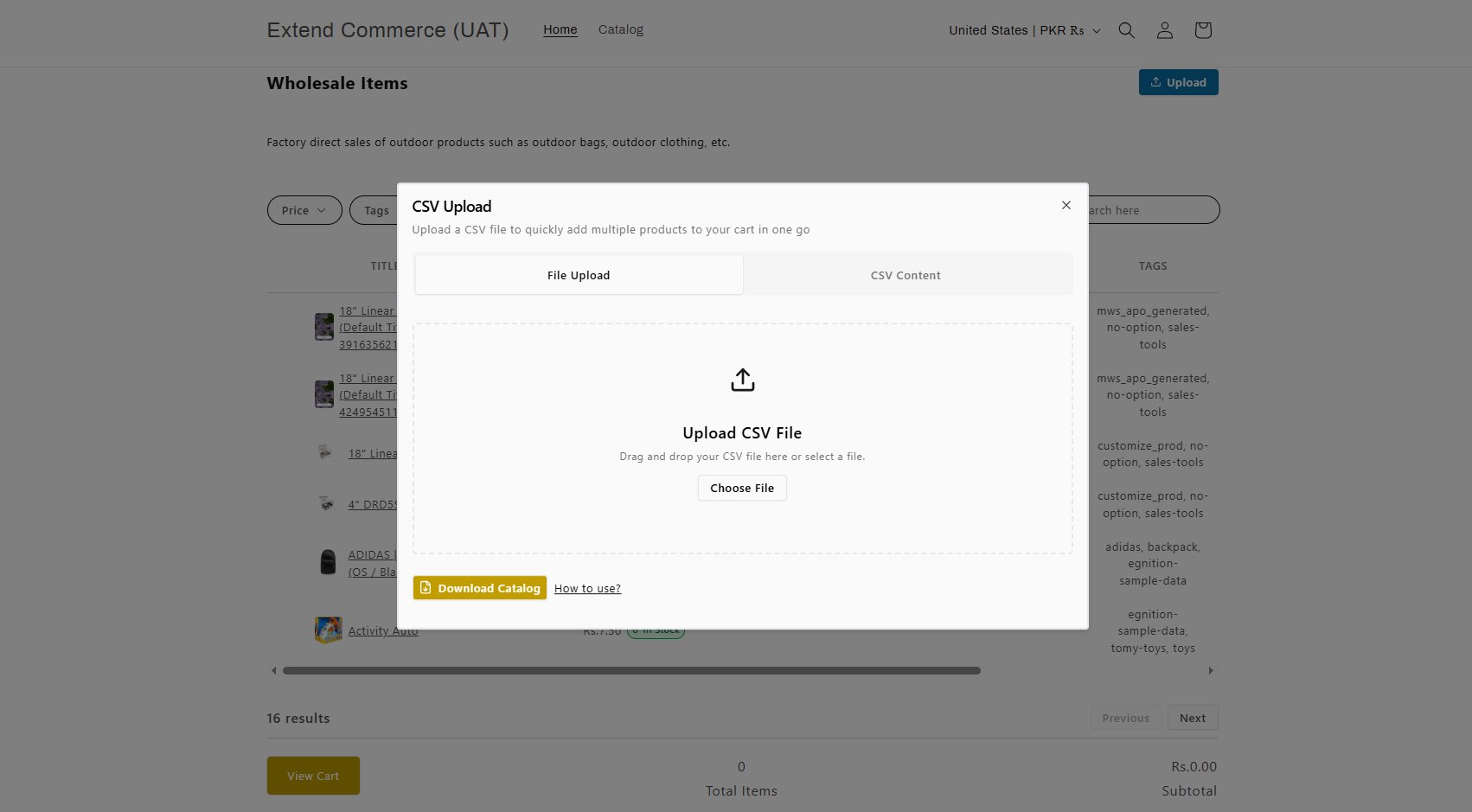
1. File Upload
- Upload a CSV file by dragging and dropping it into the dialog box or selecting it from your computer.
-
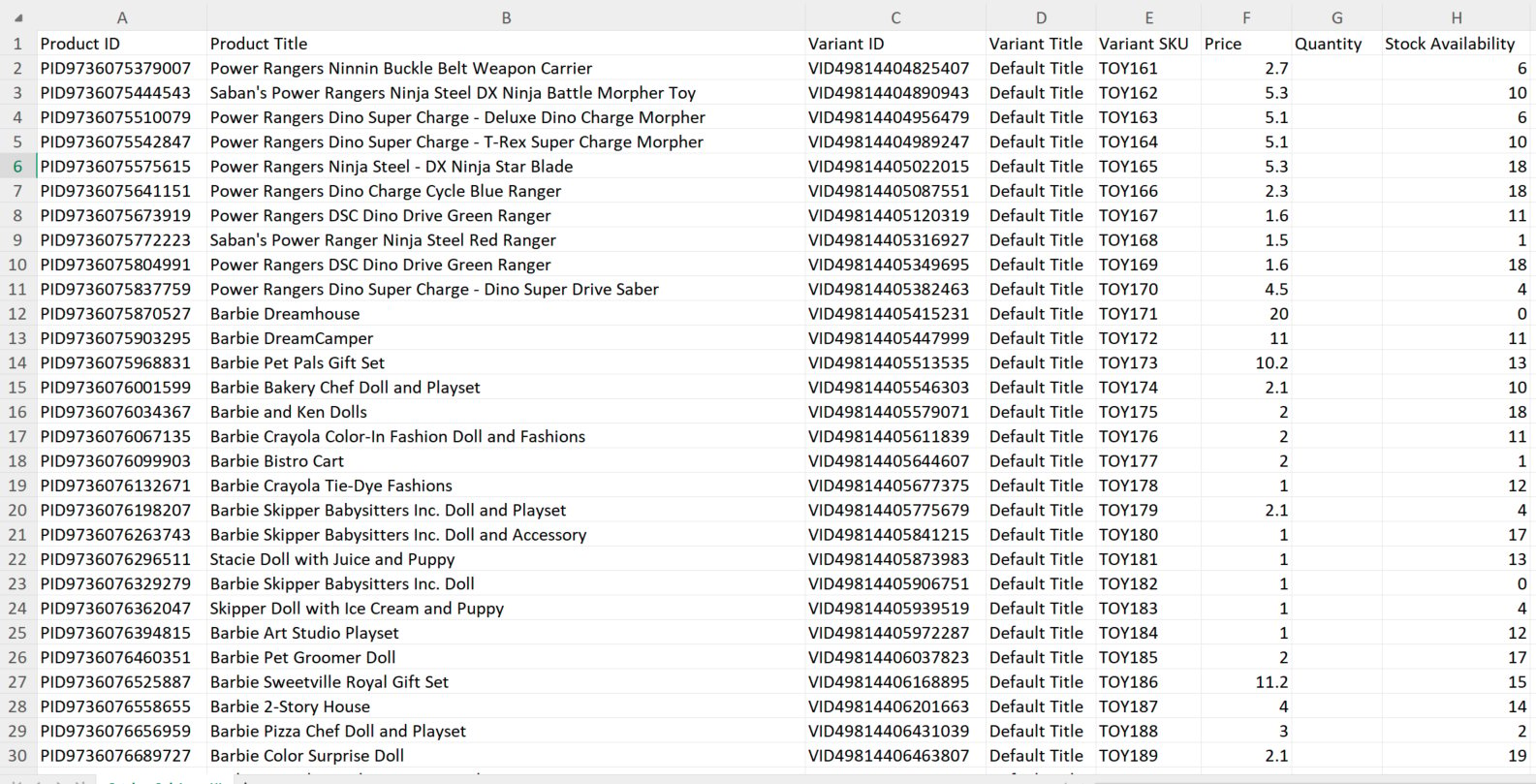
Download Template: You can click the Download Catalog button to download a CSV template.
The template will contain a list of products where you only need to fill in the quantities for each product you want to order.
- The template includes columns like Product ID, Product Title, Variant ID, Variant Title, Variant SKU, Price, Quantity ,Stock Availability)
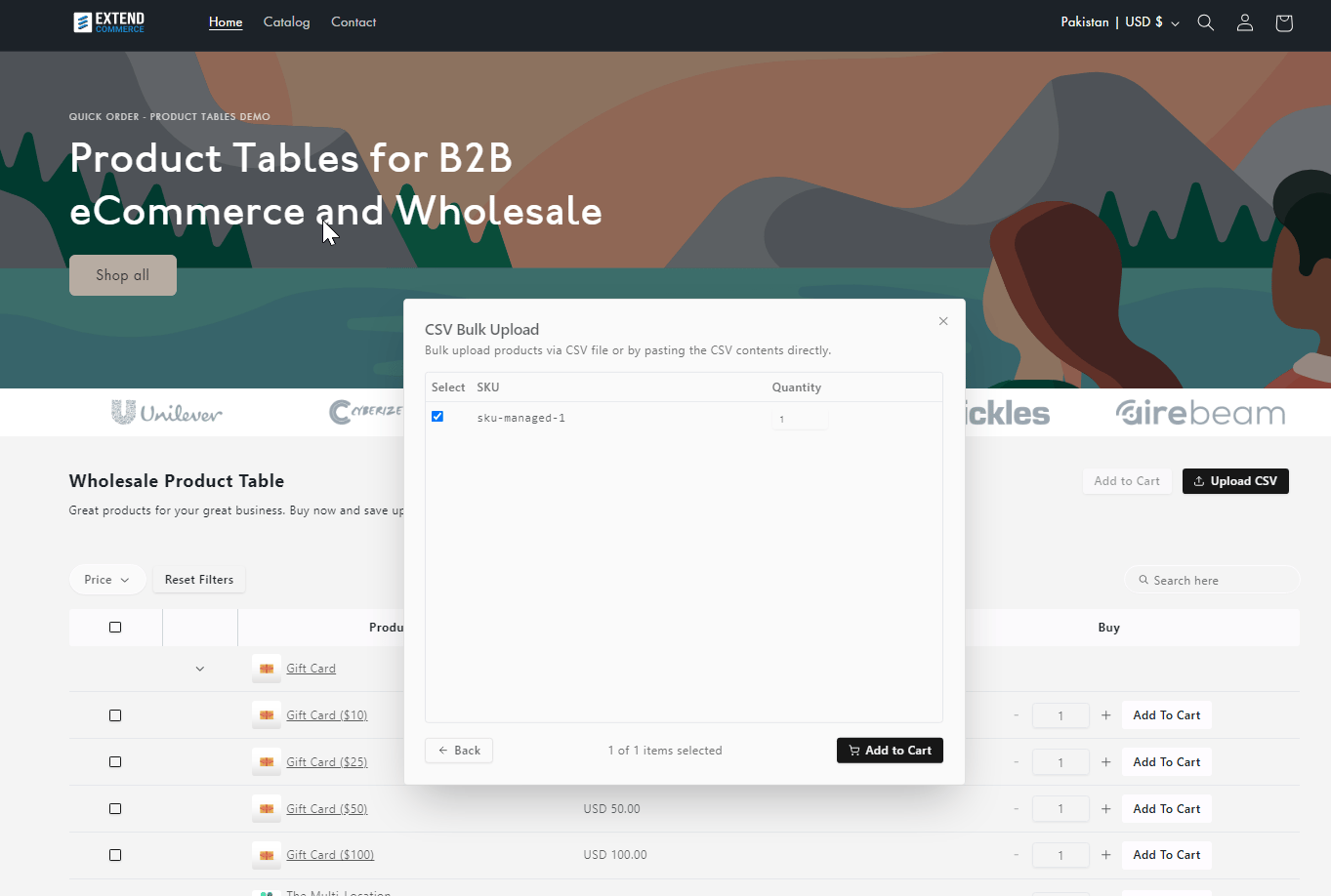
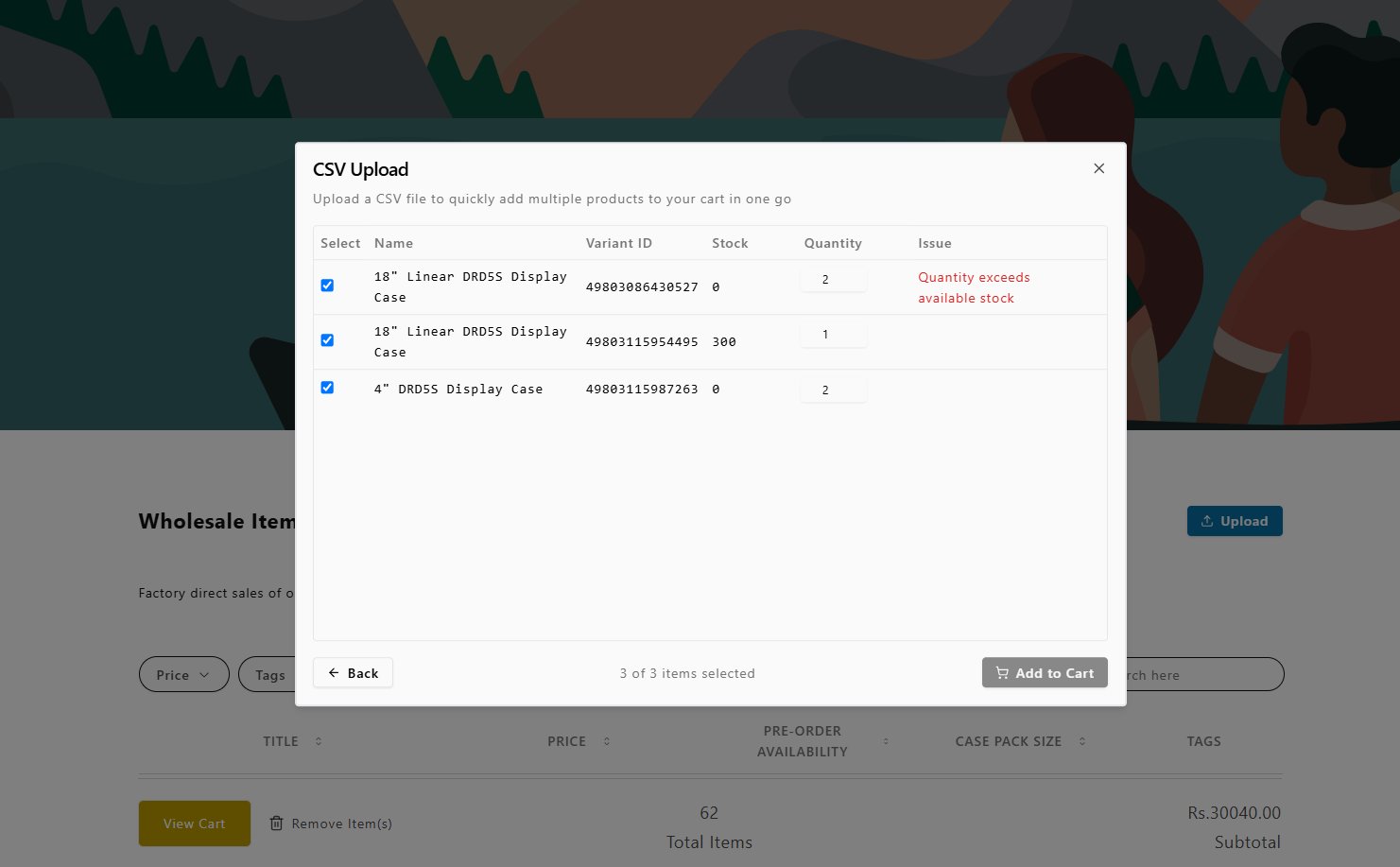
- Review the products
- Adjust quantities if needed
- Select which items to add to your cart
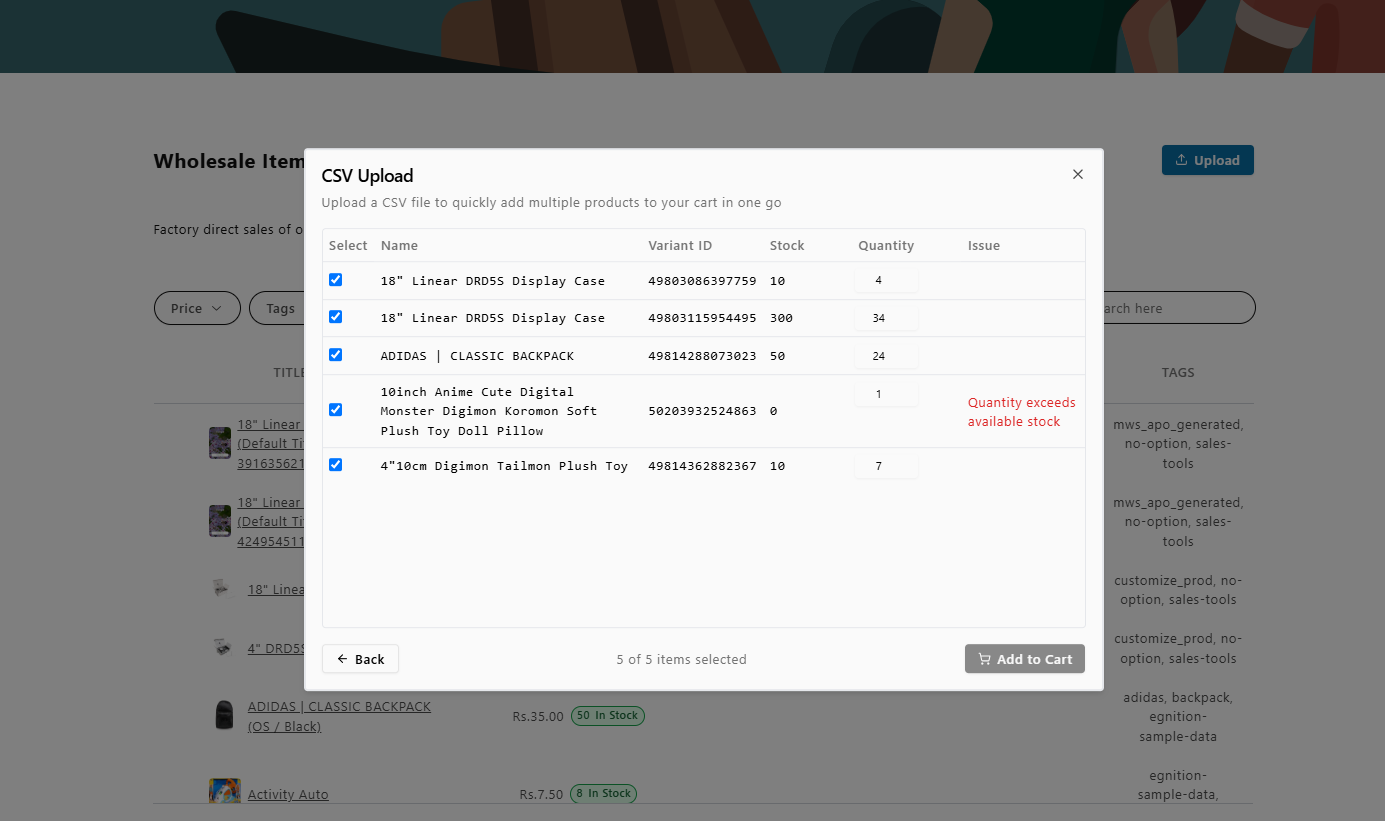
- Variant ID
- Quantity
2. CSV Content Paste
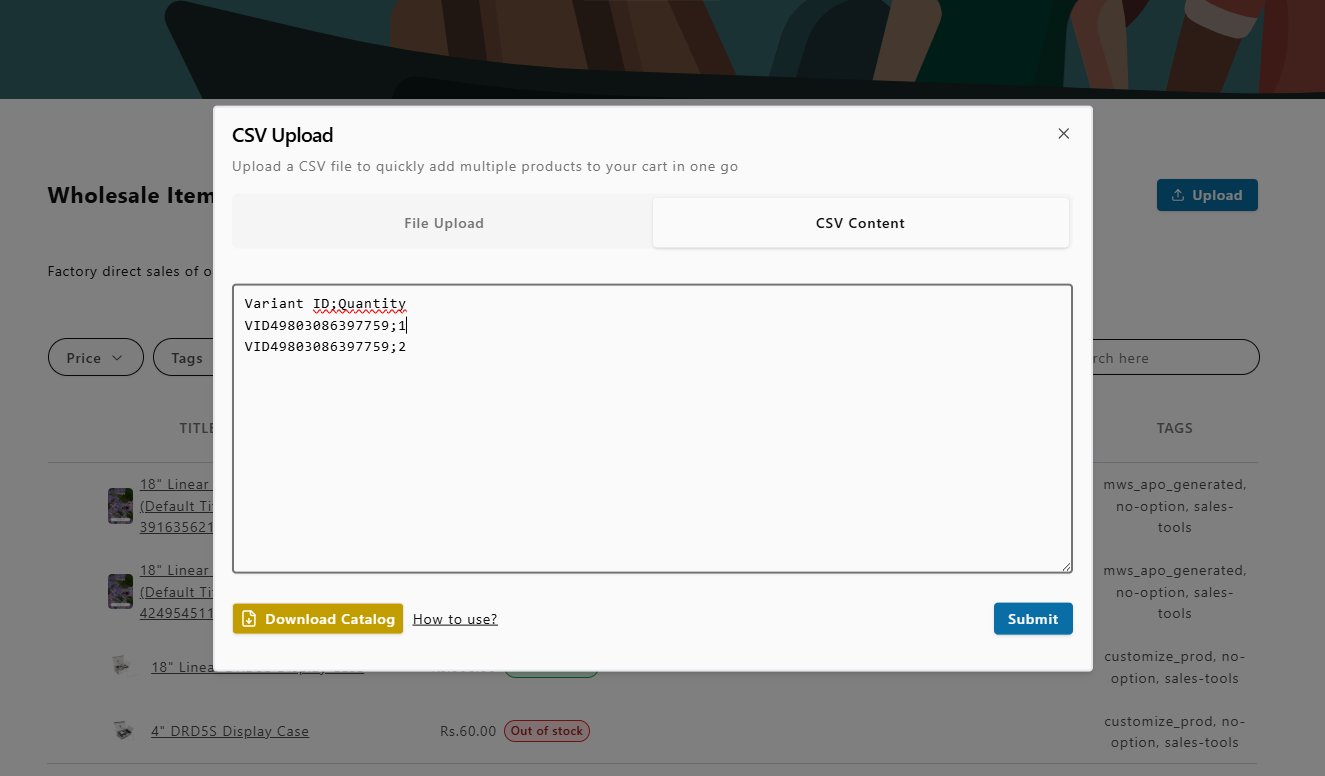
- Instead of uploading a file, you can paste CSV content directly into the text box.
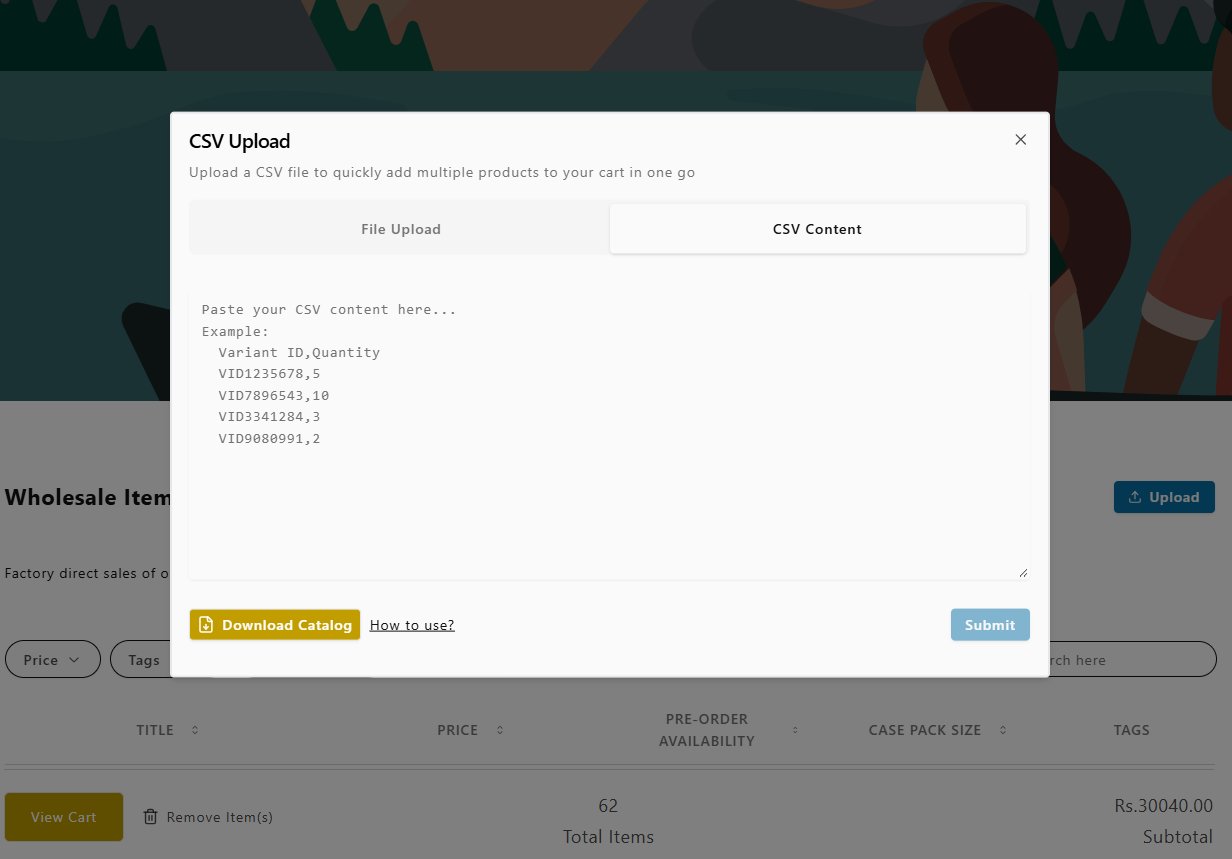
Variant ID, Quantity (for example: VID49803086397759,1).
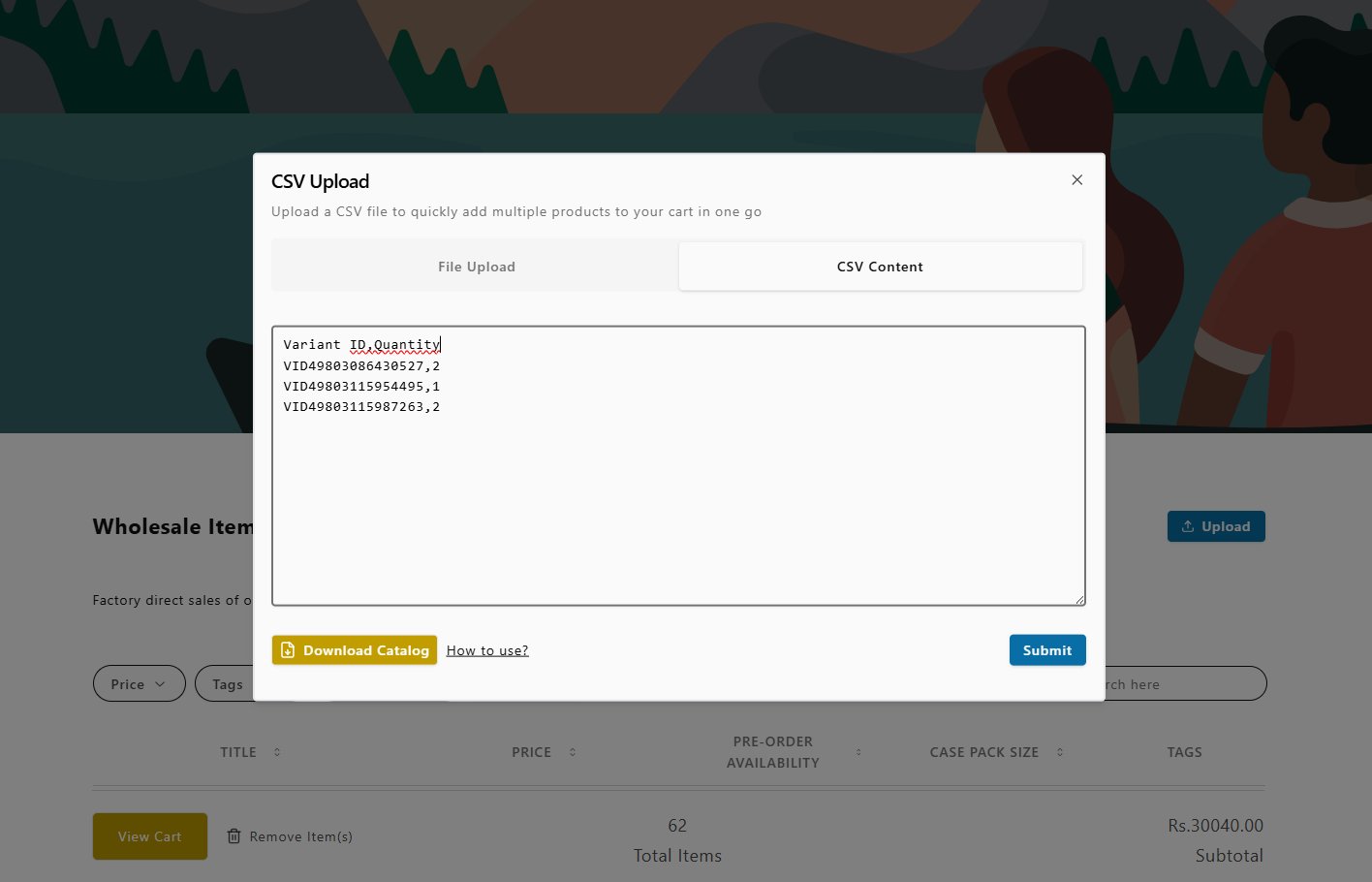
- The system will validate your entries.
- If valid, you’ll be directed to the intermediary screen to review and select products to add to your cart.
Support for Semicolon-Separated CSV Files
We now support semicolon ( ; ) as a separator, so if your CSV columns are separated by semicolons, both File Upload and CSV Content Paste will process them correctly.