

Prerequisites
Before you get started, ensure the following:- Metafields Setup: You’ve created the required metafields for Products or Variants in your Shopify admin.
- Assigned Values: The metafields have been assigned specific values for the relevant products or variants.
Step-by-Step Guide
1. Add a New Table
- Navigate to the Admin Panel of the Extend B2B Buying app.
-
Click the “Add New Table” button.
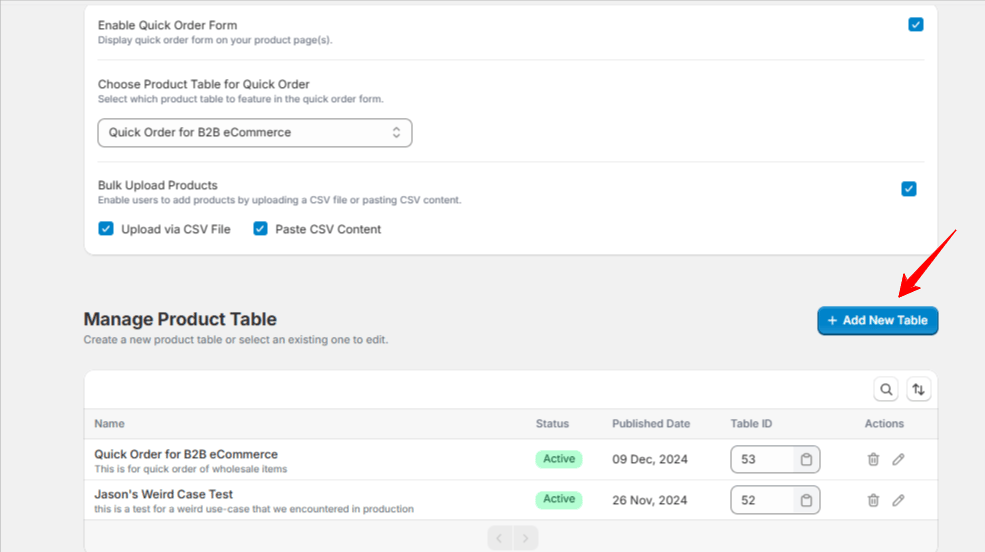
- You’ll be directed to the Table Settings page.
2. Configure Columns and Filters
-
Scroll to the “Columns and Filters” section.
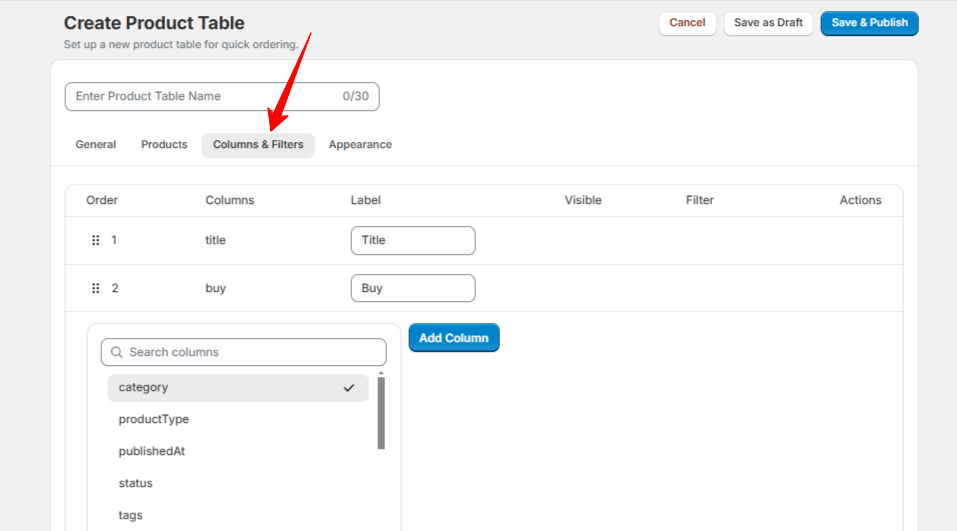
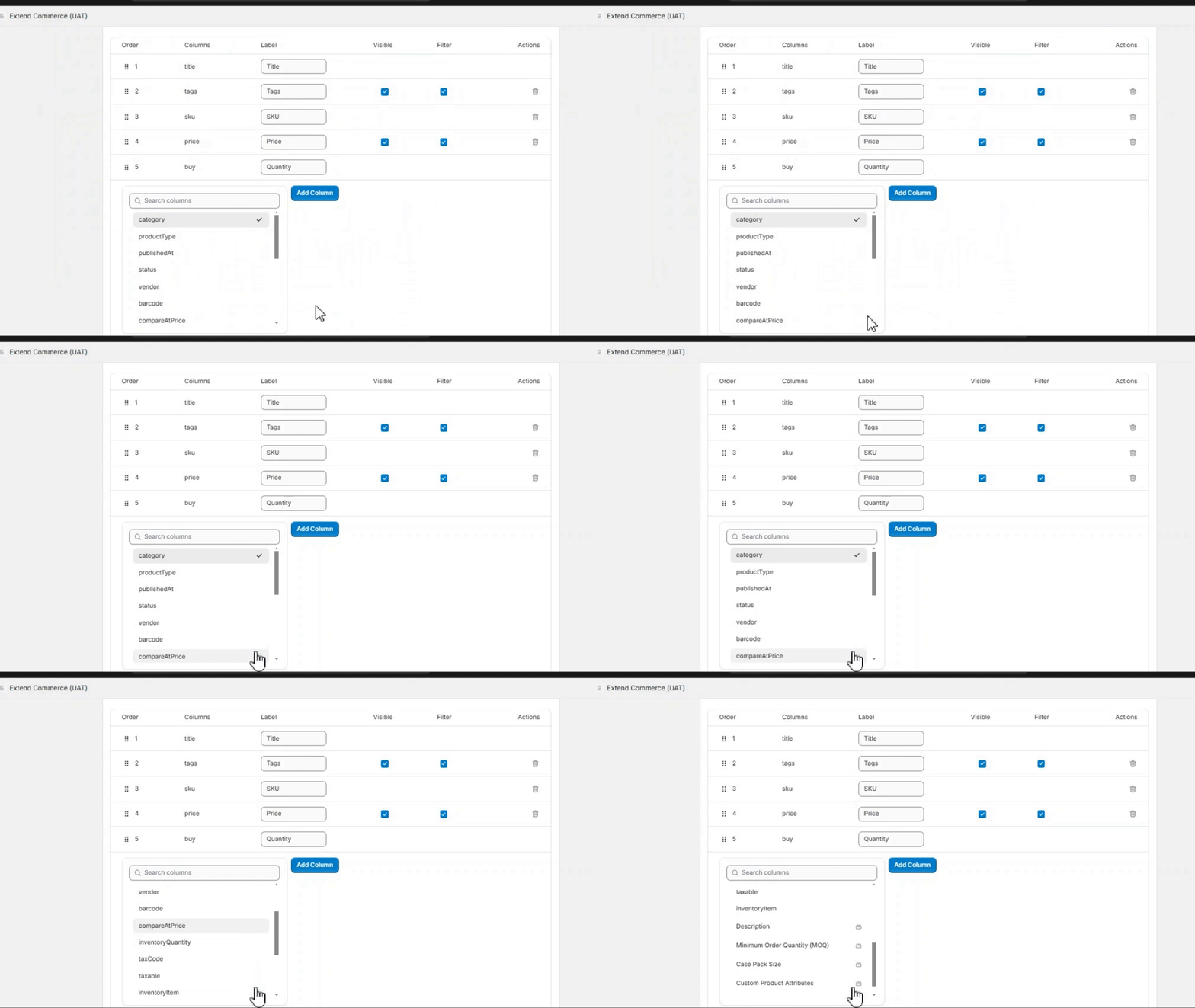
- Towards the end, you’ll find a list of all available metafields in your system.
-
Select the metafields you want to display as columns in your table.
3. Understand Your Metafields
-
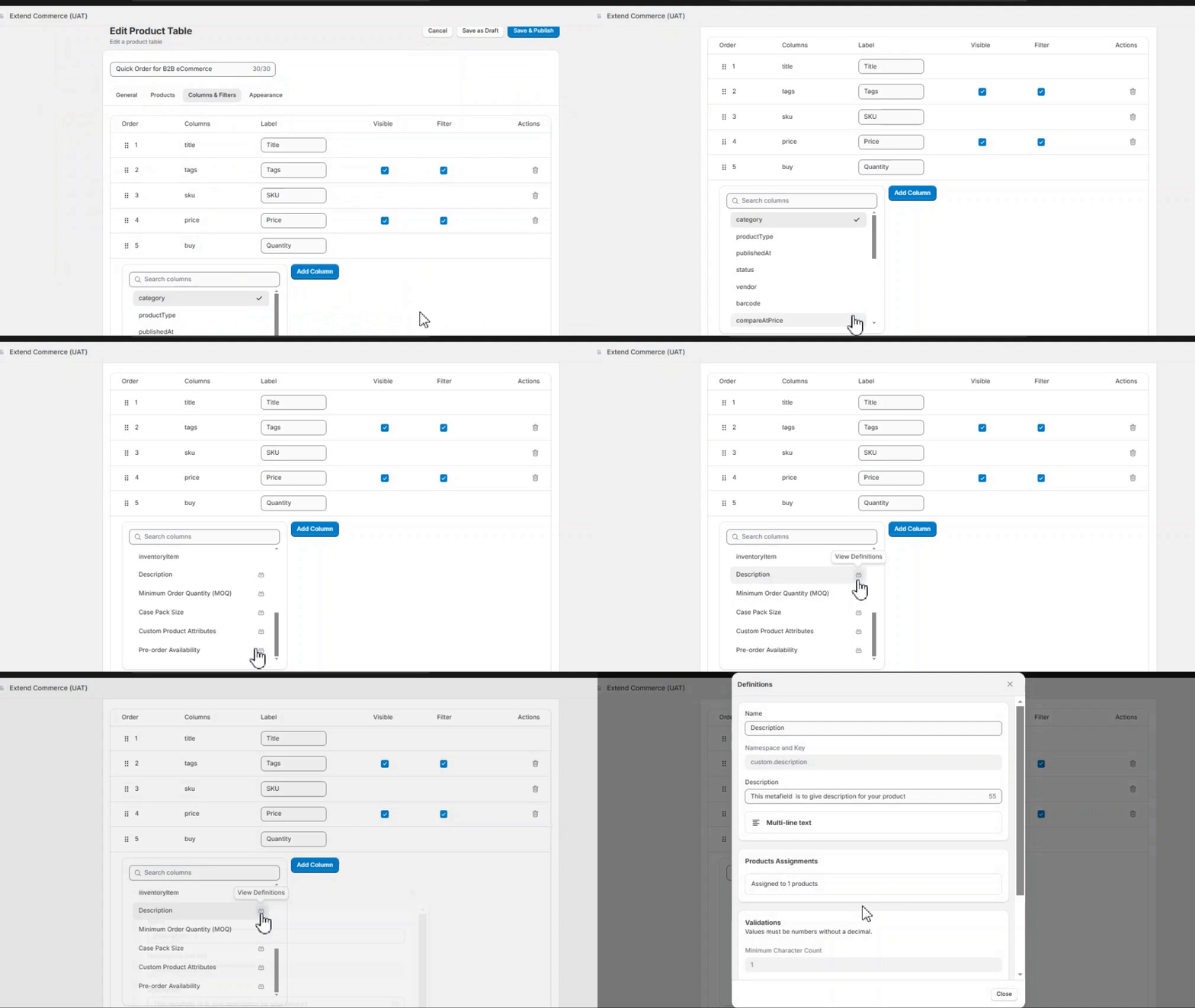
Use the “Definition” icon next to each metafield to view a brief description of its purpose and details.
4. Save and Publish
-
Once you’ve configured the metafields and other table settings, click “Save and Publish”.
- Return to the Quick Order Settings page and select the newly created table from the Choose Product Table for Quick Order dropdown field and click Save Settings
5. View Your Metafields in Quick Order
- Log in to your store and access the Quick Order page.
- The metafields you selected will now appear as columns in the table.