> ## Documentation Index
> Fetch the complete documentation index at: https://help.extendcommerce.com/llms.txt
> Use this file to discover all available pages before exploring further.
# Creating and Using Shopping List
## Overview
The **Shopping List** feature is a newly introduced capability in the **Extend B2B Buying** app, designed to streamline reordering and simplify the purchasing experience for B2B customers. It allows company users to **save their cart as a reusable template** — called a Shopping List which can be accessed and used later for repeat orders.
***
## How It Works
To enable the Shopping List feature:
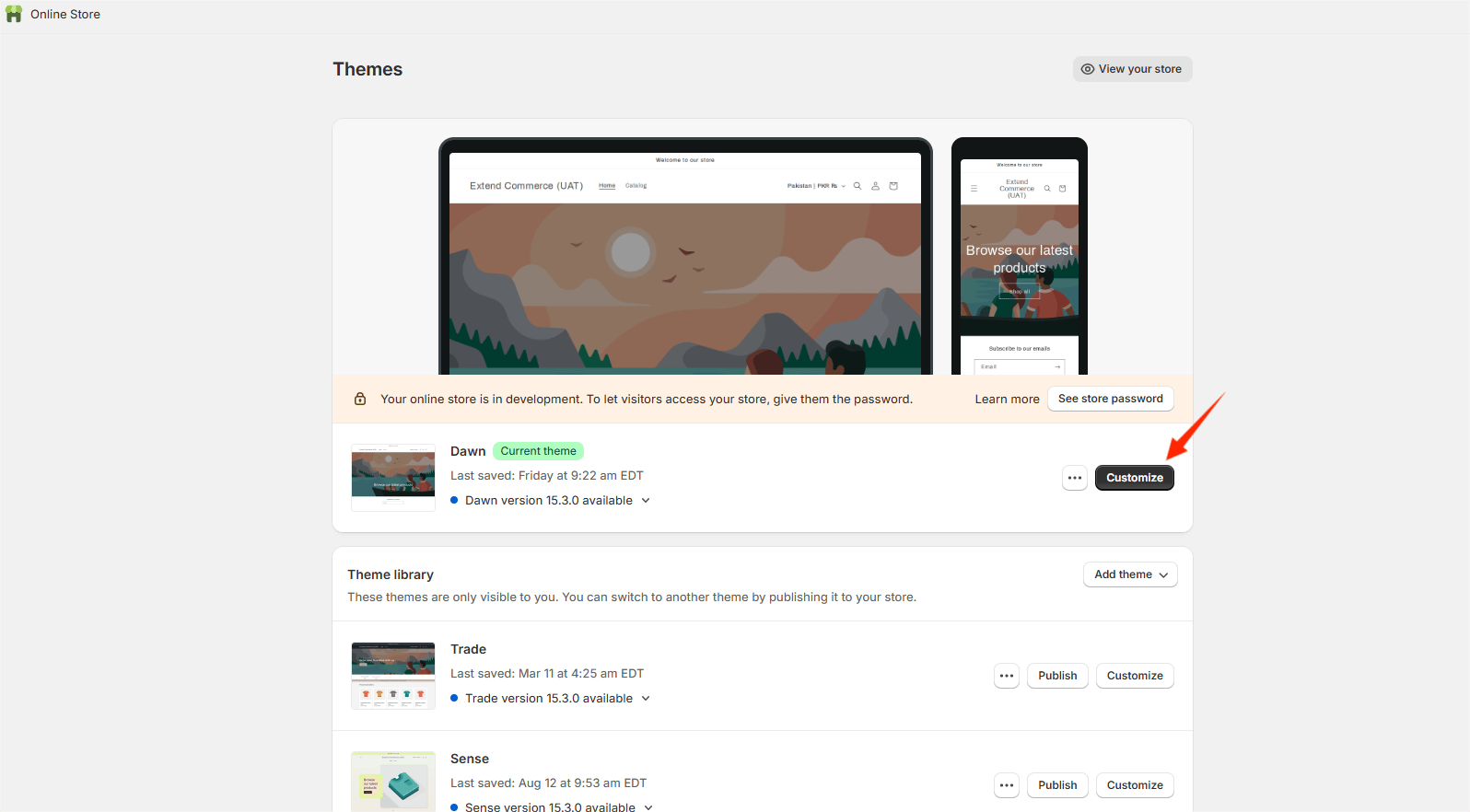
* Go to **Online Store > Customize** (Theme Customizer)
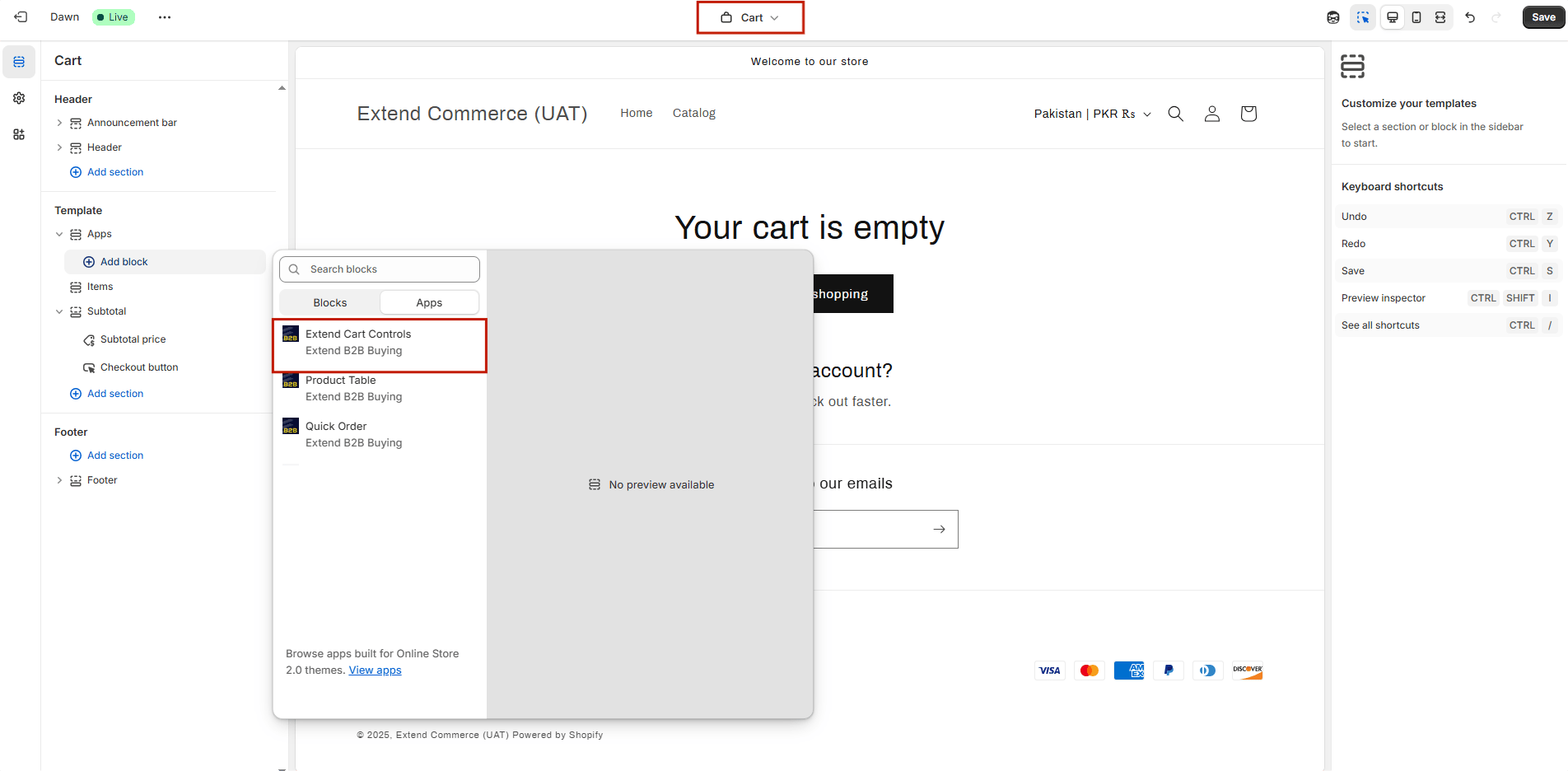
 * In the theme editor, select the **Cart** page.
* Click **"Add Section"**.
* Navigate to **Apps > Extend Cart Controls** and add the section.
* In the theme editor, select the **Cart** page.
* Click **"Add Section"**.
* Navigate to **Apps > Extend Cart Controls** and add the section.
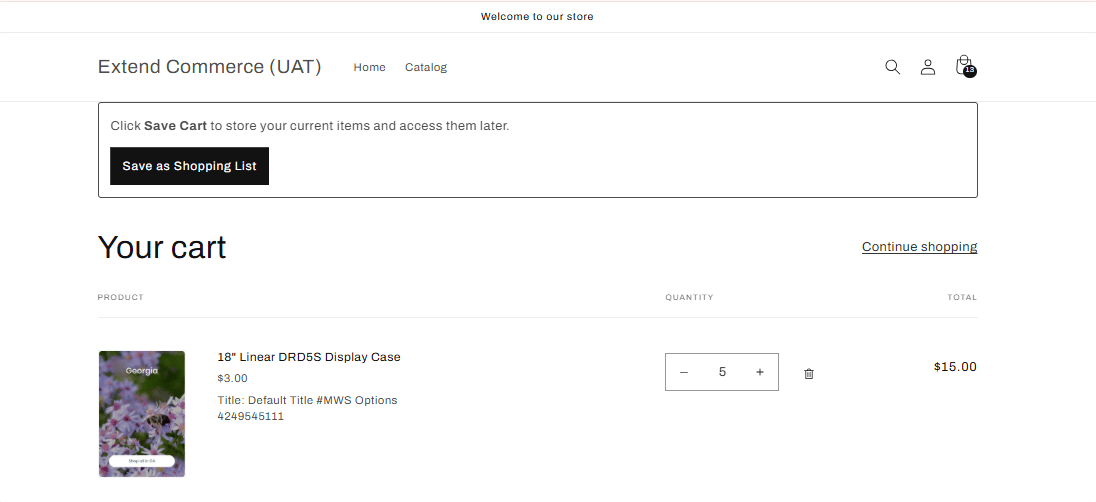
 Adding this extension will add a **“Save as Shopping List”** button to the Cart page, allowing customers to save their current cart items for future reference or purchases.
***
## Creating a Shopping List
1. Adds items to the cart on the storefront.
2. Click the **“Save as Shopping List”** button available through the **Extend** **Card Controls extension**.
Adding this extension will add a **“Save as Shopping List”** button to the Cart page, allowing customers to save their current cart items for future reference or purchases.
***
## Creating a Shopping List
1. Adds items to the cart on the storefront.
2. Click the **“Save as Shopping List”** button available through the **Extend** **Card Controls extension**.
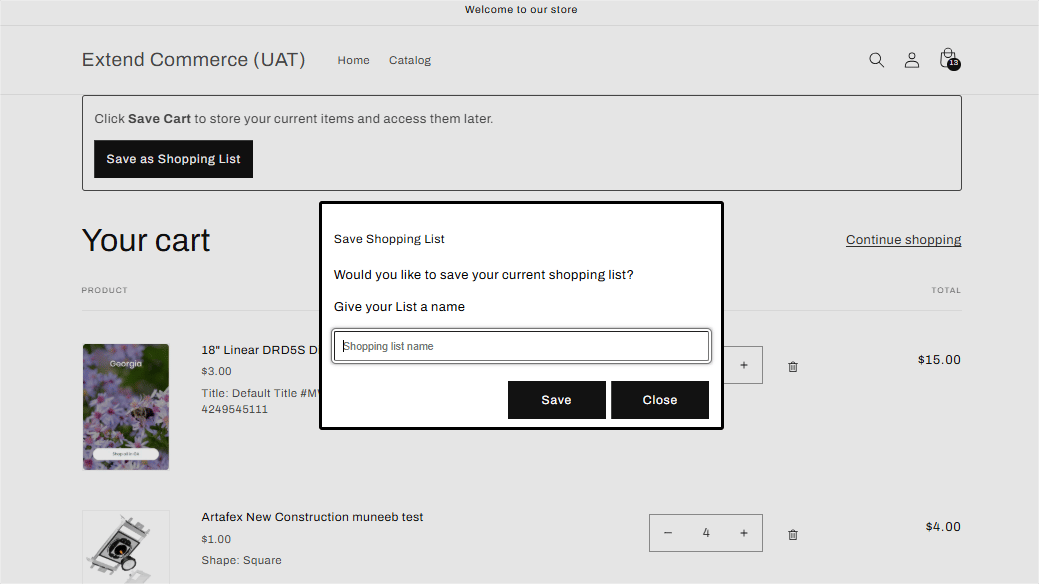
 1. A prompt allows the user to name the Shopping List.
 2. Once saved, the **Shopping List** becomes accessible from the **customer account dashboard**.
# **How Customers Can View Their Shopping Lists**
To render the **Shopping List** dashboard on the Customer Accounts through which user can manage their shopping lists. Do the following:
* In the Theme Customizer, select **“Checkout and Customer Accounts”**.
* Navigate to **Apps > Multi-Cart Page Extension** and add it.
2. Once saved, the **Shopping List** becomes accessible from the **customer account dashboard**.
# **How Customers Can View Their Shopping Lists**
To render the **Shopping List** dashboard on the Customer Accounts through which user can manage their shopping lists. Do the following:
* In the Theme Customizer, select **“Checkout and Customer Accounts”**.
* Navigate to **Apps > Multi-Cart Page Extension** and add it.
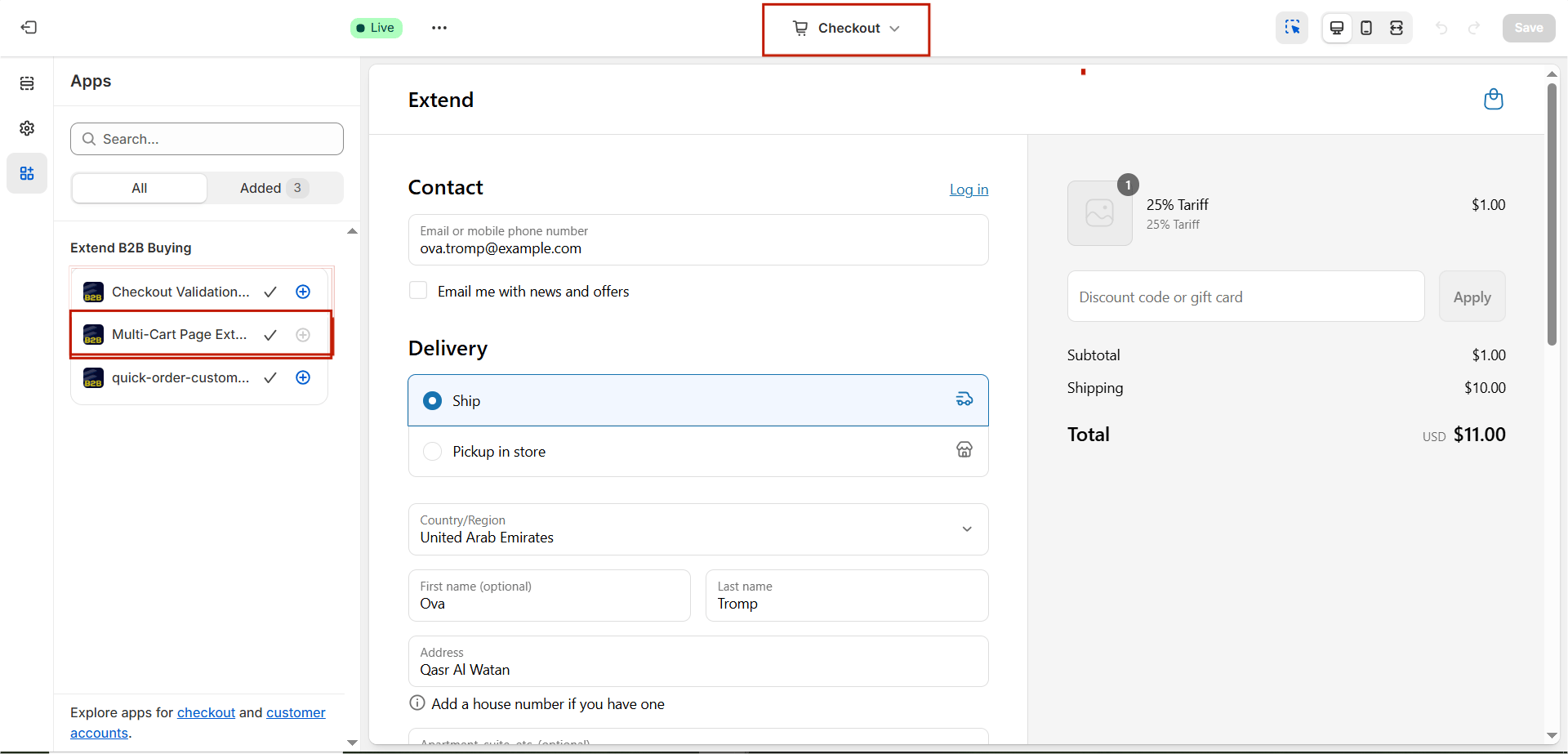 * **Once you'll add the extension next you'll see option:**
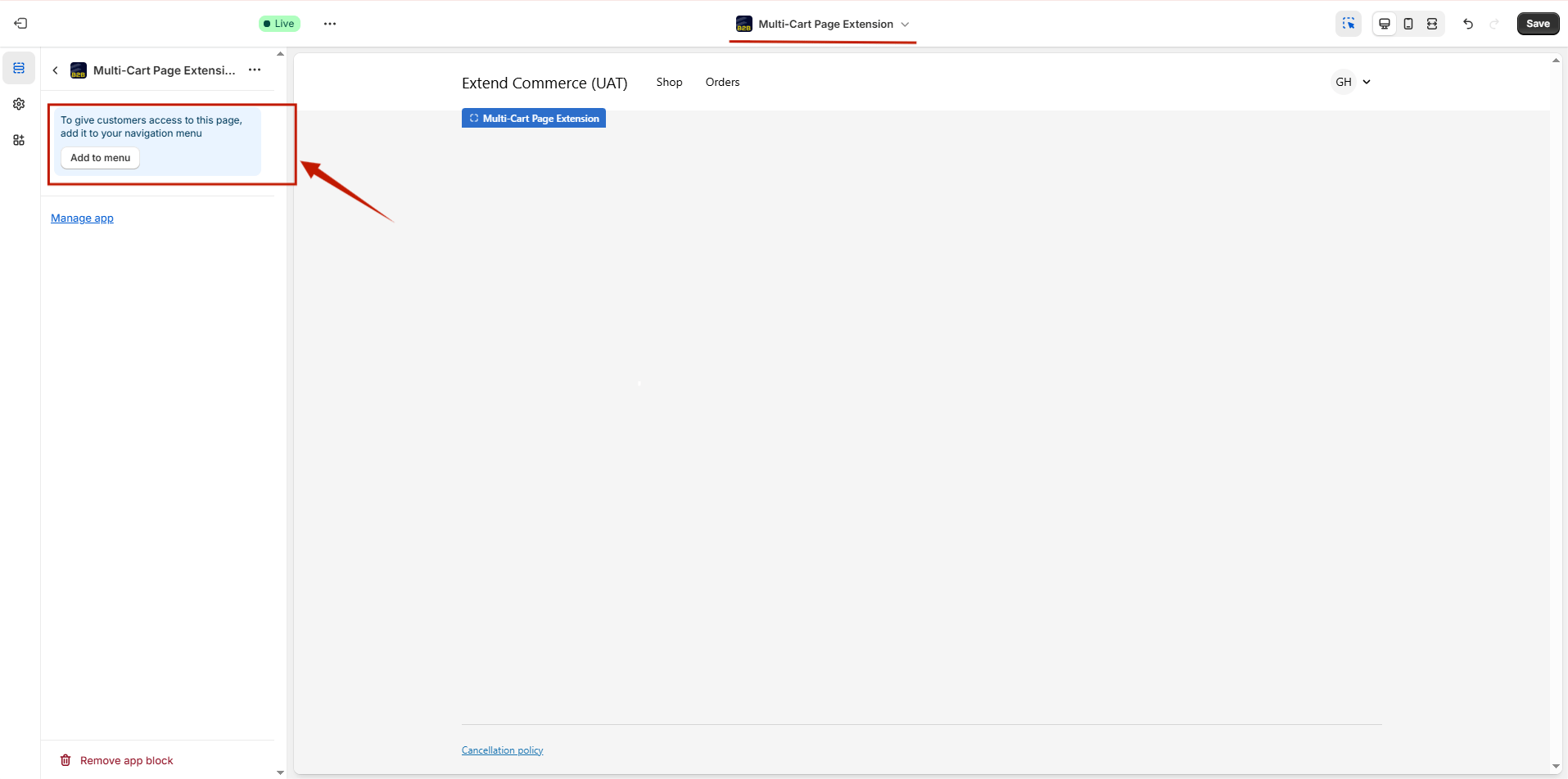 * Click **“Add menu item”**.
* **Label**: Enter a label (e.g., “B2B Lists”).
* **Link**: Select **Apps > Multi-Cart Page Extension**.
* Click **Save Menu**.
Alternatively, there is another way of doing this as well Go to the admin panel, go to **Content > Menus** > **Customer Account Main Menu.** Enter a label (e.g., “Saved Carts”) and **Link**: Select **Apps > Multi-Cart Page Extension**.
Now, go to:
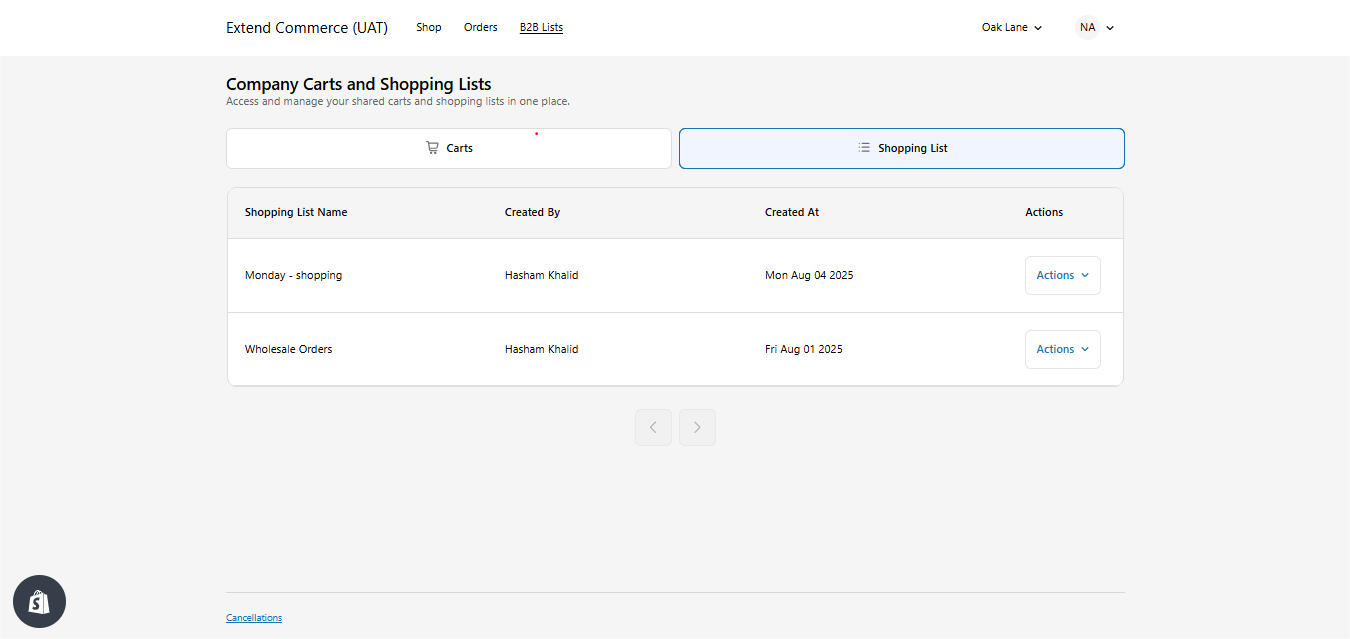
1. **Customer Account > Shopping Lists**.
2. Users can:
* **View** the list of saved templates.
* **Click to add all items** from a selected list back to their cart.
* Click **“Add menu item”**.
* **Label**: Enter a label (e.g., “B2B Lists”).
* **Link**: Select **Apps > Multi-Cart Page Extension**.
* Click **Save Menu**.
Alternatively, there is another way of doing this as well Go to the admin panel, go to **Content > Menus** > **Customer Account Main Menu.** Enter a label (e.g., “Saved Carts”) and **Link**: Select **Apps > Multi-Cart Page Extension**.
Now, go to:
1. **Customer Account > Shopping Lists**.
2. Users can:
* **View** the list of saved templates.
* **Click to add all items** from a selected list back to their cart.
 ***
# Reusing a Shopping List
To use a Shopping List:
1. Navigate to **Customer Account > Shopping Lists**.
2. Select a saved list.
3. Click **“Use List”** to instantly populate the cart with the listed items.
4. Proceed to checkout as usual.
***
# Reusing a Shopping List
To use a Shopping List:
1. Navigate to **Customer Account > Shopping Lists**.
2. Select a saved list.
3. Click **“Use List”** to instantly populate the cart with the listed items.
4. Proceed to checkout as usual.