> ## Documentation Index
> Fetch the complete documentation index at: https://help.extendcommerce.com/llms.txt
> Use this file to discover all available pages before exploring further.
# Creating and Saving Projects
# Overview
Once the Projects [setup](/shopify/extend-projects-and-quotes/setup-guide) is complete:
* When customers add products to their cart, the **Project Extension** will automatically manage and save their carts.
* In the **Customer Account**, a new dashboard on a Page (titled using the label you entered, e.g., "Saved Carts") will appear, giving users access to saved cart features.
Company users will be able to:
* View and manage saved carts as Projects
* Create and assign roles
* Set custom permissions
# Managing Roles and Permissions
To configure roles and permissions:
1. Log in as the **Main Contact** of the company. As the Main Contact will have the permissions to **Manage Project and Quotes**, Create Roles and Permissions to Company users from the Dashboard.
2. Go to the page where you have embed the **Project & Quotes Extension**, on the dashboard you'll find three tabs:
* **Projects**
* **Manage Roles**
* **Quotes**
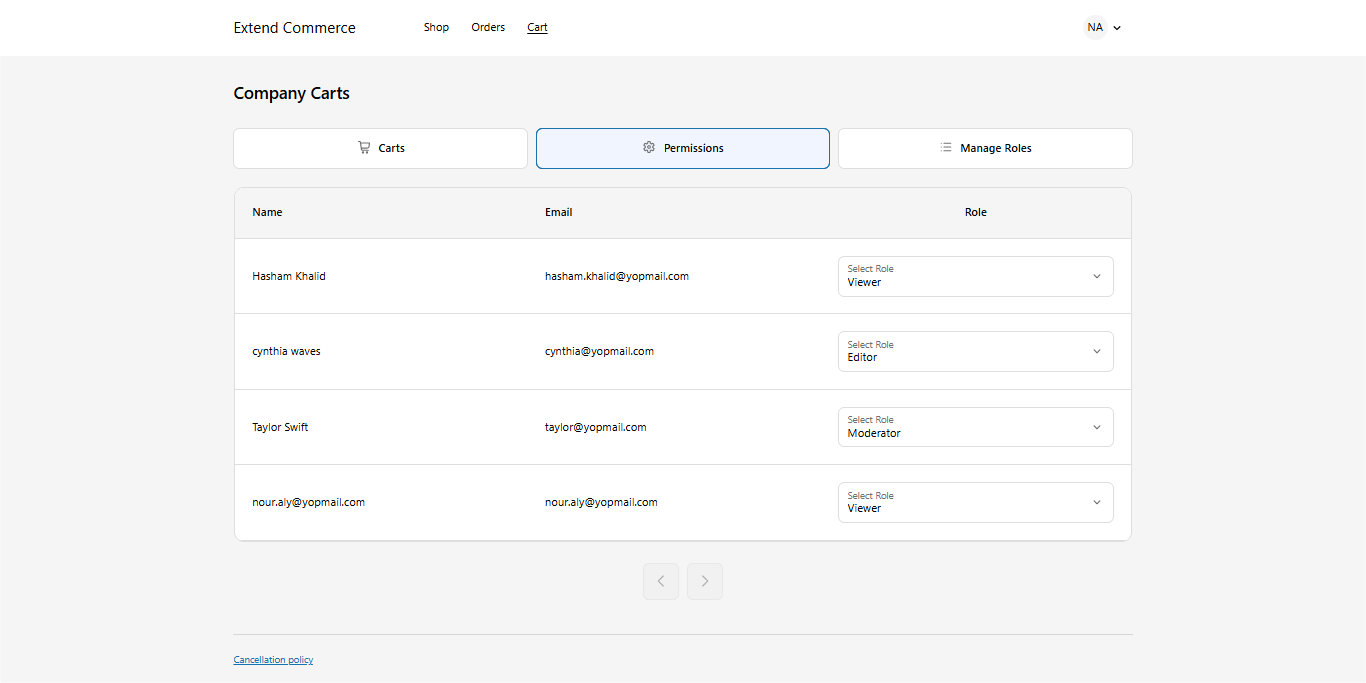 ## **Manage** Roles
* In the **Manage Roles** tab, assign roles to company users.
* By default, the following roles are available (note: these are editable and not permanent):
* **Viewer**
* **Editor**
* **Checkout Manager**
* **Approver**
You can rename these roles and customize their permissions.
## **Manage** Roles
* In the **Manage Roles** tab, assign roles to company users.
* By default, the following roles are available (note: these are editable and not permanent):
* **Viewer**
* **Editor**
* **Checkout Manager**
* **Approver**
You can rename these roles and customize their permissions.
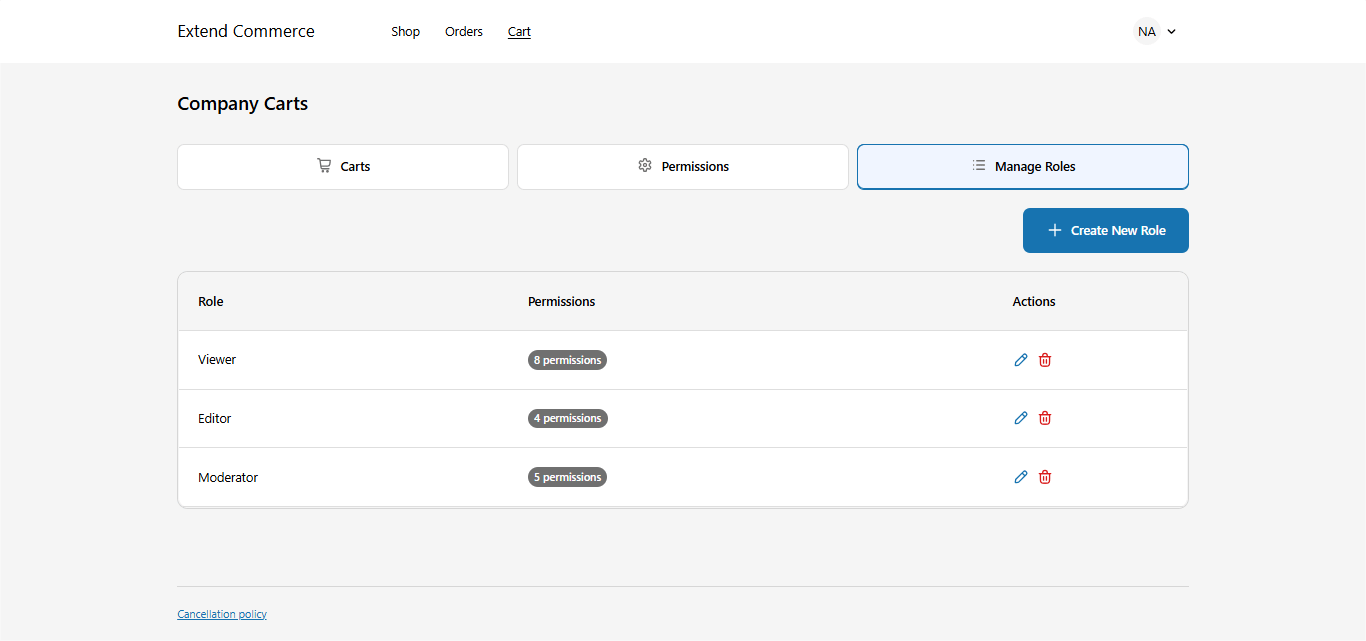 ## Manage Permissions
* In the **Manage Permissions** tab, click **Edit** next to any role to modify its permissions.
* To create a new role:
* Click **Create New Role**.
* Enter the **Role Title**.
* Assign permissions as needed.
* Click **Create** to save the role.
## Manage Permissions
* In the **Manage Permissions** tab, click **Edit** next to any role to modify its permissions.
* To create a new role:
* Click **Create New Role**.
* Enter the **Role Title**.
* Assign permissions as needed.
* Click **Create** to save the role.
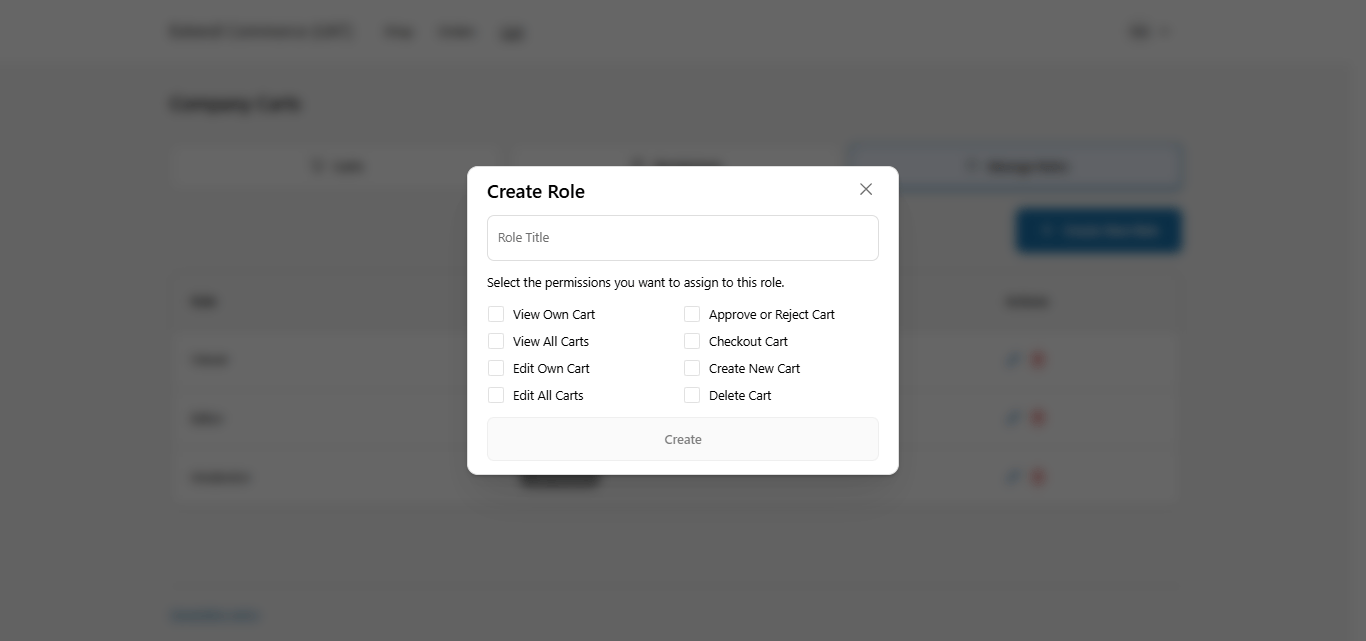 ***Note: Company Users' access to cart features will depend on the permissions assigned to their role.***
## **Project Permissions Overview**
This table outlines the available permissions that can be assigned to users for managing saved projects within the Multi-Cart system.
|
**Permission**
|
**Description**
|
\| --- | --- |
|
**Create Own Cart**
|
Allows the user to create and save a new cart.
|
|
**View All Carts**
|
Grants access to view all carts created by any user within the company location they have access to.
|
|
**View Own Cart**
|
Allows the user to view carts they have created themselves.
|
|
**Edit Own Cart**
|
Allows the user to modify the contents or details of carts they created.
|
|
**Edit All Carts**
|
Allows editing of all carts, regardless of who created them.
|
|
**Approve or Reject Cart**
|
Enables the user to approve or reject carts for checkout.
|
|
**Checkout Cart**
|
Grants permission to proceed to checkout with a saved cart.
|
|
**Delete Cart**
|
Allows the user to permanently remove any saved cart.
|
***
# Creating and Saving a Project
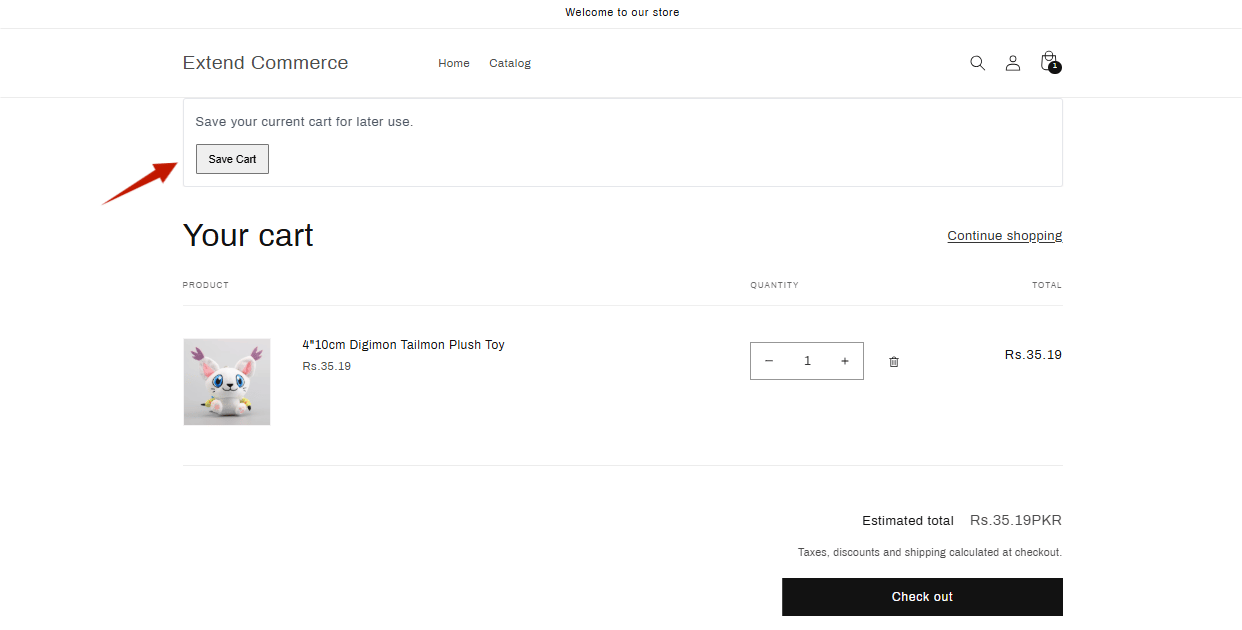
Once users log in to the storefront, they will see a **"Save Project"** button on the Cart page (powered by the Cart Controls extension) and allows users to save their current cart for later use.
* **Click the "Save Cart" button** on the Cart page.
***Note: Company Users' access to cart features will depend on the permissions assigned to their role.***
## **Project Permissions Overview**
This table outlines the available permissions that can be assigned to users for managing saved projects within the Multi-Cart system.
|
**Permission**
|
**Description**
|
\| --- | --- |
|
**Create Own Cart**
|
Allows the user to create and save a new cart.
|
|
**View All Carts**
|
Grants access to view all carts created by any user within the company location they have access to.
|
|
**View Own Cart**
|
Allows the user to view carts they have created themselves.
|
|
**Edit Own Cart**
|
Allows the user to modify the contents or details of carts they created.
|
|
**Edit All Carts**
|
Allows editing of all carts, regardless of who created them.
|
|
**Approve or Reject Cart**
|
Enables the user to approve or reject carts for checkout.
|
|
**Checkout Cart**
|
Grants permission to proceed to checkout with a saved cart.
|
|
**Delete Cart**
|
Allows the user to permanently remove any saved cart.
|
***
# Creating and Saving a Project
Once users log in to the storefront, they will see a **"Save Project"** button on the Cart page (powered by the Cart Controls extension) and allows users to save their current cart for later use.
* **Click the "Save Cart" button** on the Cart page.
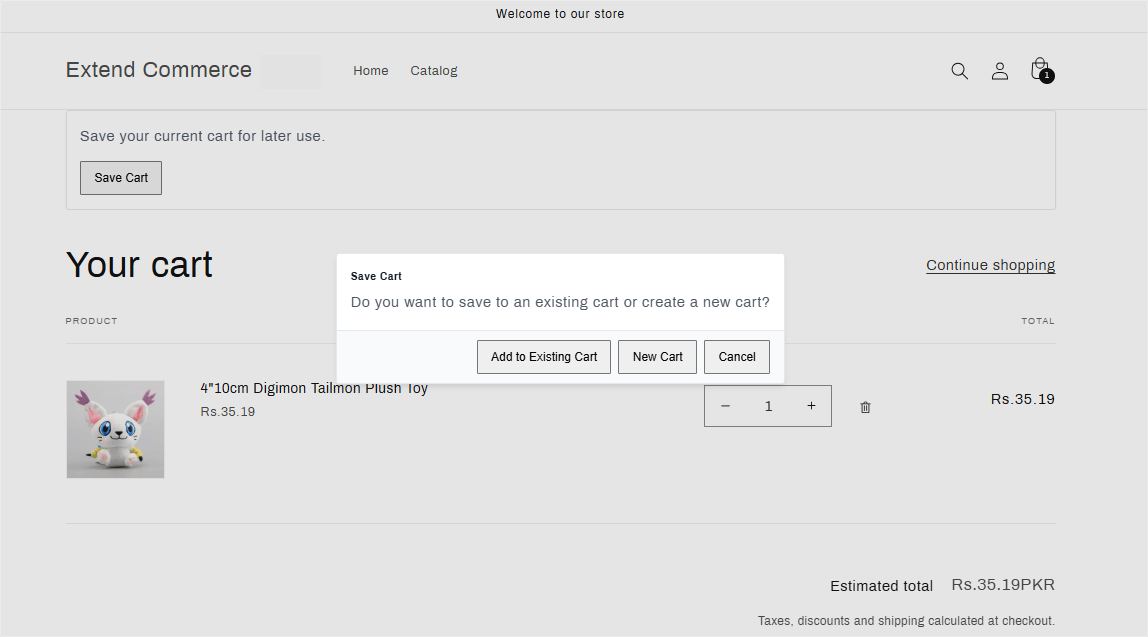
 * A pop-up will appear with two options:
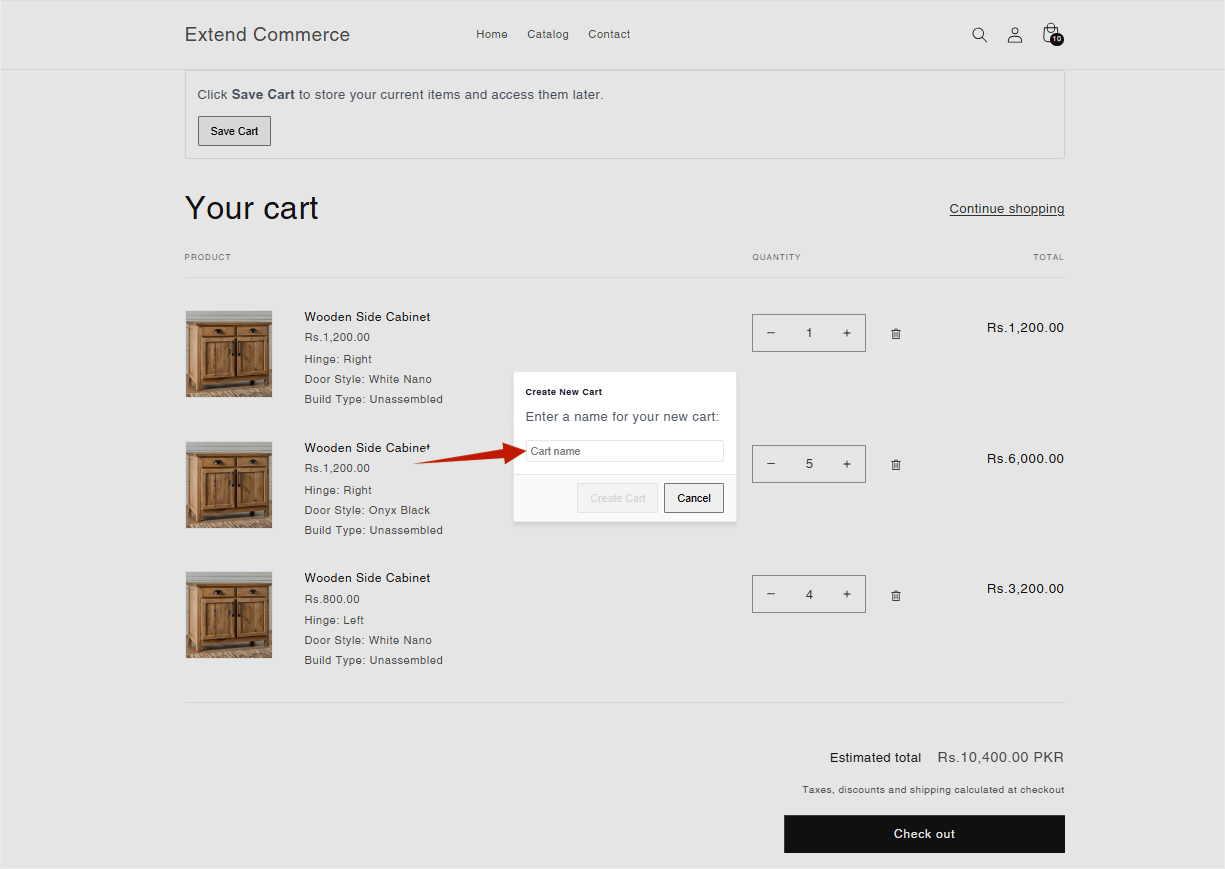
* **New Cart**\
Select this option to create a brand-new saved cart.
* Enter a preferred **name** for the new cart.
* Click **Save** to store it.
* A pop-up will appear with two options:
* **New Cart**\
Select this option to create a brand-new saved cart.
* Enter a preferred **name** for the new cart.
* Click **Save** to store it.
 * **Add to Existing Cart**\
Choose this if you want to add the current cart items to an already saved cart.
* Select the target cart from the dropdown list.
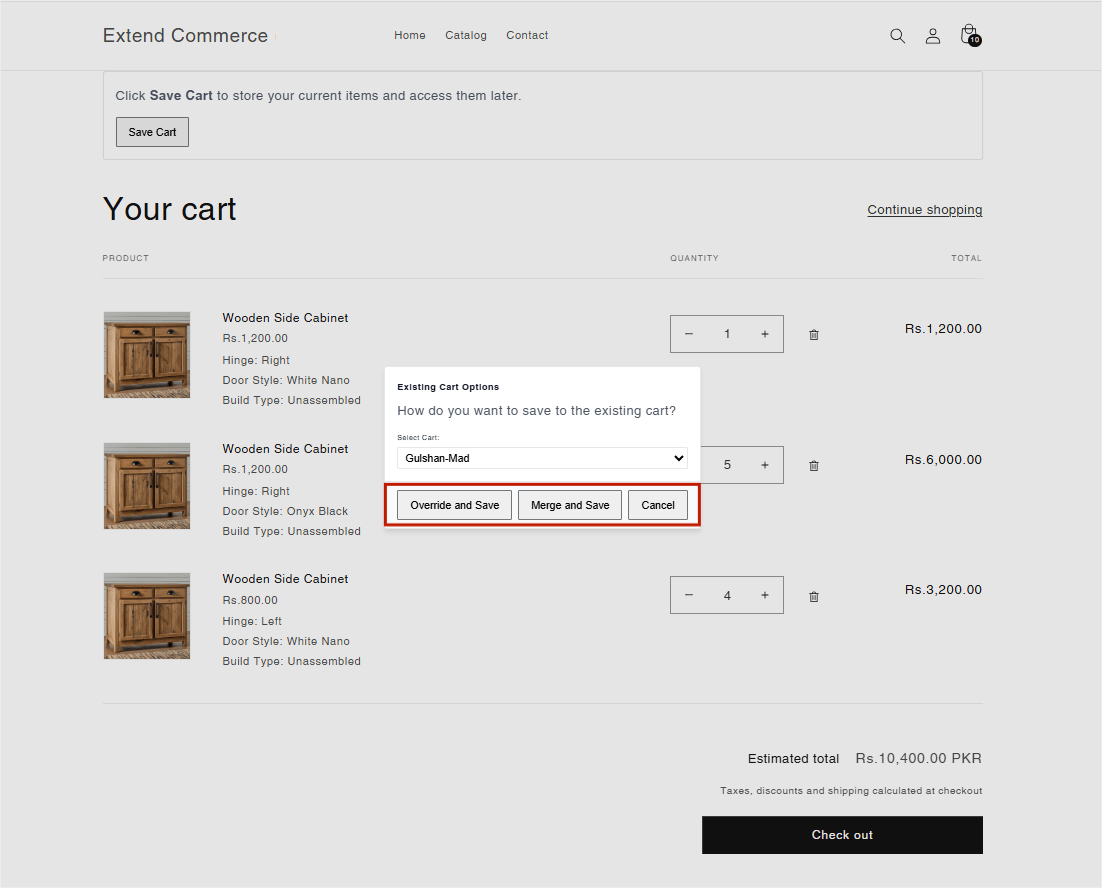
* **Add to Existing Cart**\
Choose this if you want to add the current cart items to an already saved cart.
* Select the target cart from the dropdown list.
 * Choose one of the following options:
* **Merge and Save** – Adds the new items to the selected saved cart without removing the existing ones.
* **Override and Save** – Replaces the contents of the selected saved cart with the current cart items.
* Choose one of the following options:
* **Merge and Save** – Adds the new items to the selected saved cart without removing the existing ones.
* **Override and Save** – Replaces the contents of the selected saved cart with the current cart items.
 * After saving a cart, a **confirmation notification** will appear indicating that the cart has been successfully saved.
***
## Accessing Saved Carts
1. Navigate to your **Customer Account**.
2. A new page will be visible in the account menu — titled based on the label you provided earlier (e.g., **"Saved Carts"**).
3. On this page, users will see a **list of their saved carts or other's carts**, but **only if**:
* They have been assigned a role.
* Their role includes **permission to view carts**.
* After saving a cart, a **confirmation notification** will appear indicating that the cart has been successfully saved.
***
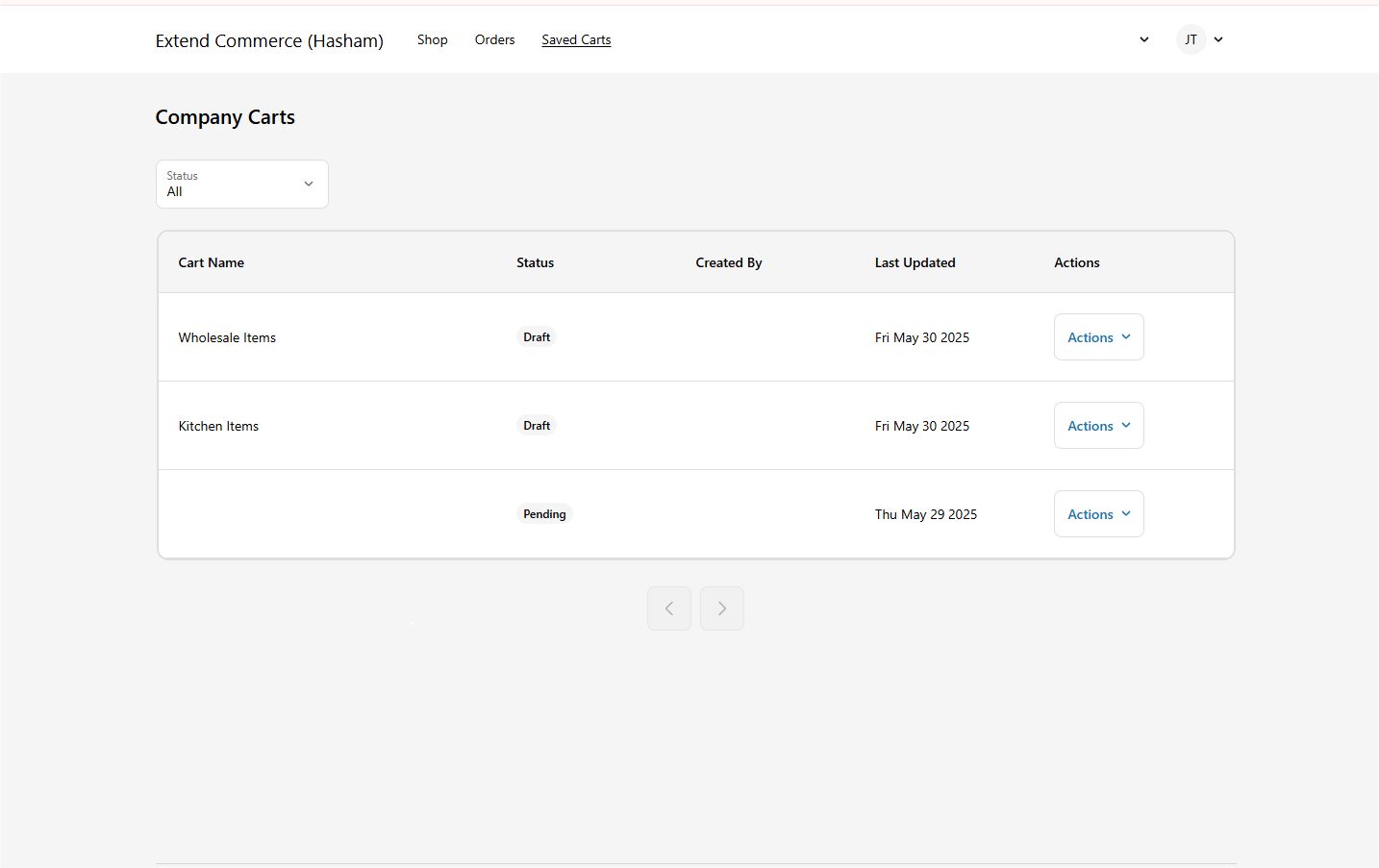
## Accessing Saved Carts
1. Navigate to your **Customer Account**.
2. A new page will be visible in the account menu — titled based on the label you provided earlier (e.g., **"Saved Carts"**).
3. On this page, users will see a **list of their saved carts or other's carts**, but **only if**:
* They have been assigned a role.
* Their role includes **permission to view carts**.
 🔒 ***Permissions-Based Access:*** *Only users with the appropriate role and permissions can:*
* *View saved carts*
* *Create new carts*
* *Modify or delete existing carts*
* *Share carts with others*
🔒 ***Permissions-Based Access:*** *Only users with the appropriate role and permissions can:*
* *View saved carts*
* *Create new carts*
* *Modify or delete existing carts*
* *Share carts with others*