> ## Documentation Index
> Fetch the complete documentation index at: https://help.extendcommerce.com/llms.txt
> Use this file to discover all available pages before exploring further.
# Creating and Configuring Quotes
## 1. Overview
After installing the app, merchants and customers interact with the following main sections:
* **Overview** — Landing screen after installation
* **Projects** — Manage project-based items
* **Quotes** — Manage quote requests and approvals
* **Settings** — Configure eligibility, dashboard labels, and extensions
This document describes how to configure the create quotes, manage approvals, and convert quotes into orders.
## 2. Settings Configuration
Navigate to **Settings** from the admin app.
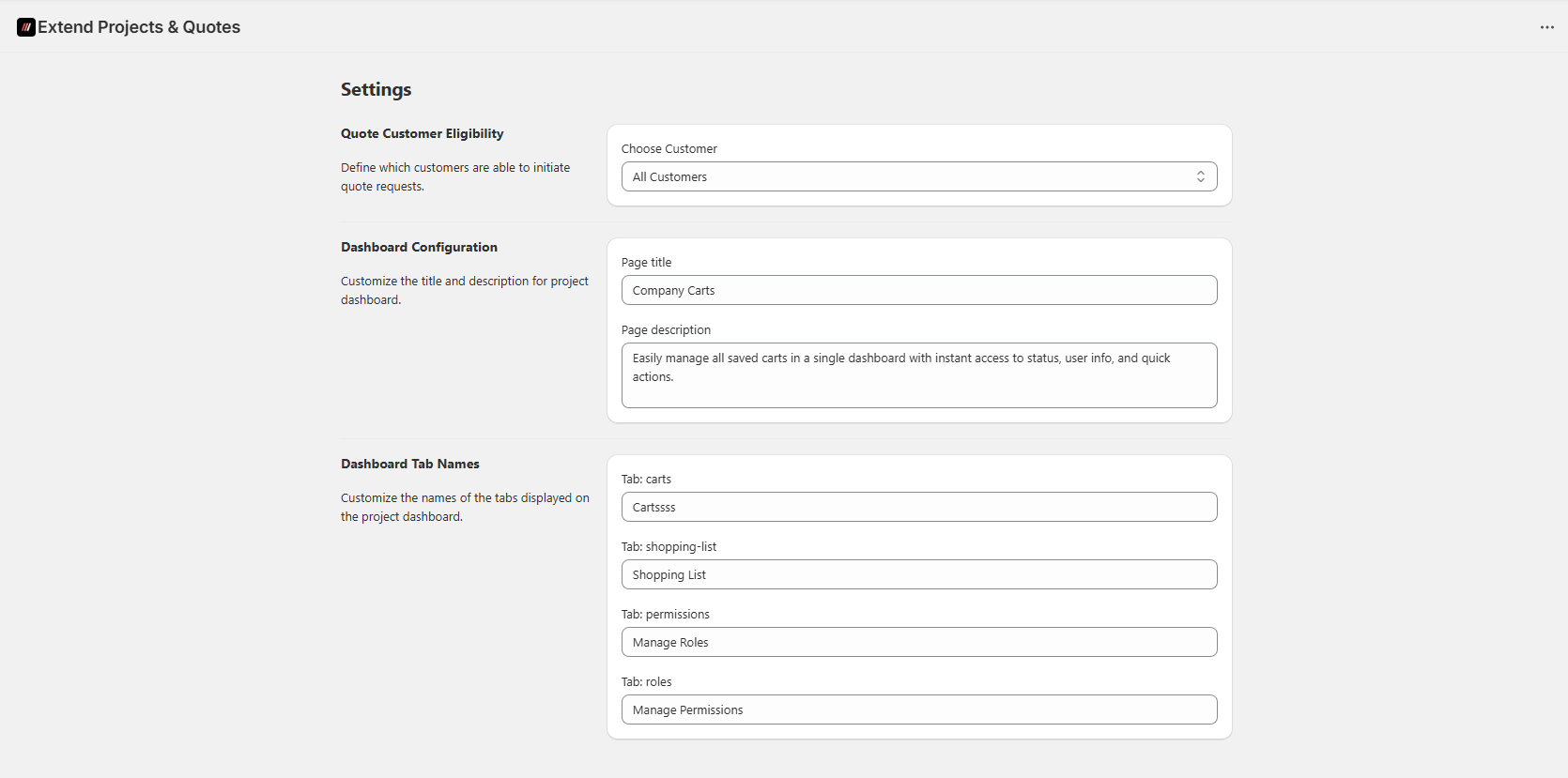
### 2.1 Quote Customer Eligibility
Defines which customers can submit quote requests.
`Options`:
* **All Customers** — Any logged-in customer can submit RFQs.
* **Select Specific Customers** — Only customers with a specific tag can submit RFQs.
**Steps:**
1. Select **All Customers** or **Select Specific Customers**.
2. If selected Specific Customers, Enter a **Customer Tag** (e.g., `B2B-Users`).
3. Only customers with this tag will see the **“Submit RFQ”** button on the cart page.
### 2.2 Dashboard Configuration
Customize dashboard metadata:
* **Page Title** — Title shown on the customer dashboard
* **Page Description** — Description shown below the title
### 2.3 Dashboard Tab Names
You can rename tabs displayed on the customer dashboard.
Default tabs:
* `carts`
* `shopping-list`
* `permissions`
* `roles`
Any label configured here will be reflected throughout the customer account dashboard.
 ## 3. Theme Extension Setup
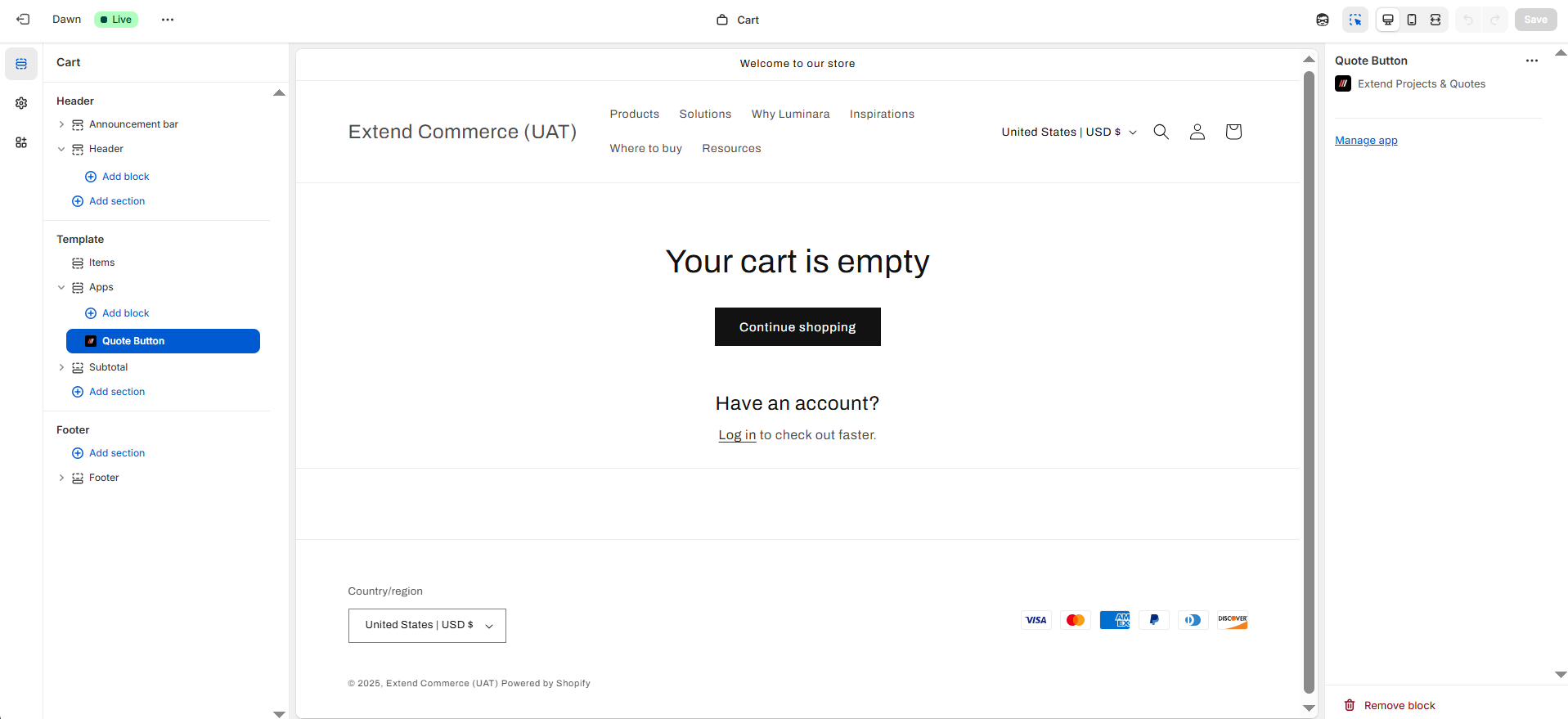
To enable quote functionality on the storefront:
1. Go to **Online Store → Themes → Customize**.
2. Add:
* **Quote Button** to the cart page
* **Multi Cart Extension** to the customer account pages
## 3. Theme Extension Setup
To enable quote functionality on the storefront:
1. Go to **Online Store → Themes → Customize**.
2. Add:
* **Quote Button** to the cart page
* **Multi Cart Extension** to the customer account pages
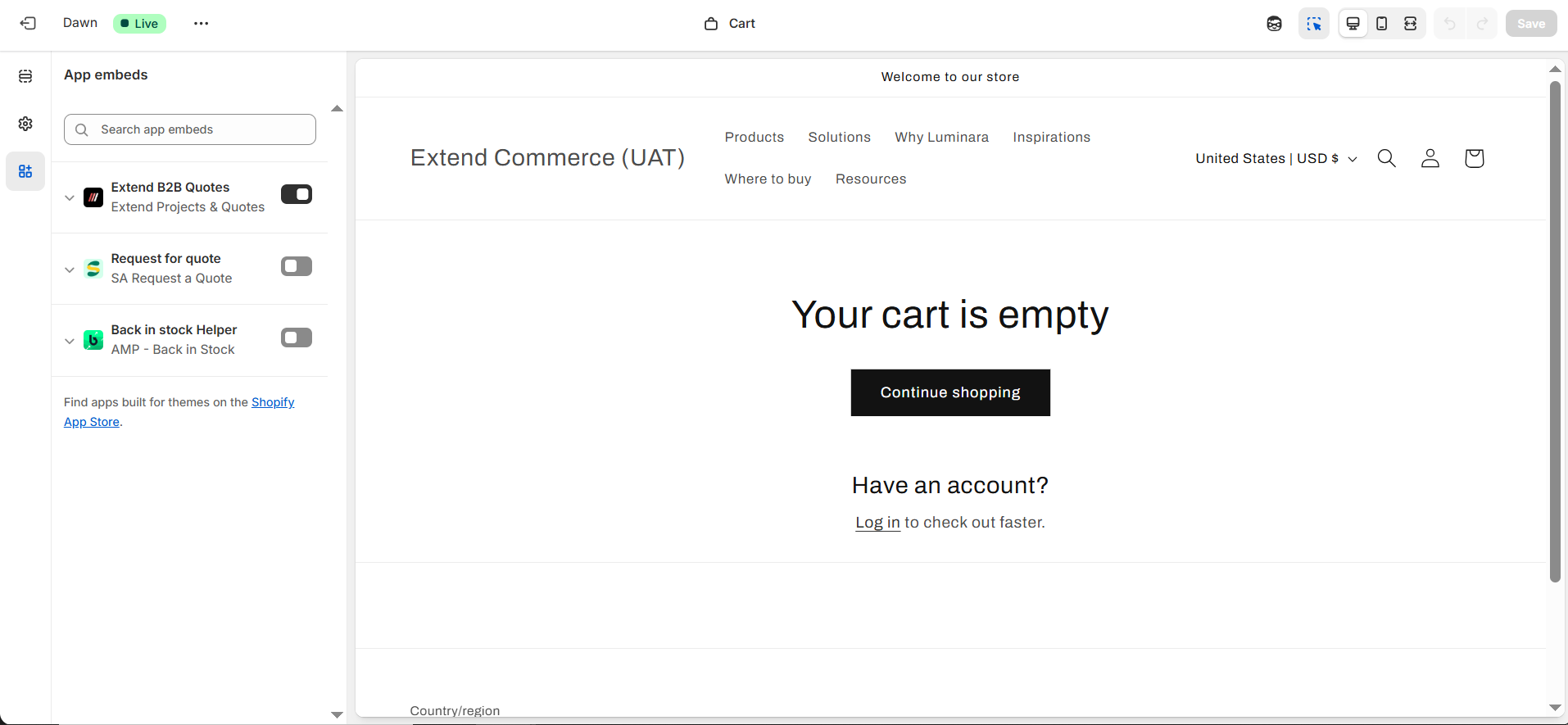
 3. Go to App Embeds and Enable the app’s **Extension** in **Theme Customizer**
 ## 4. Creating a Quote (Customer Flow)
### 4.1 Submitting a Quote Request
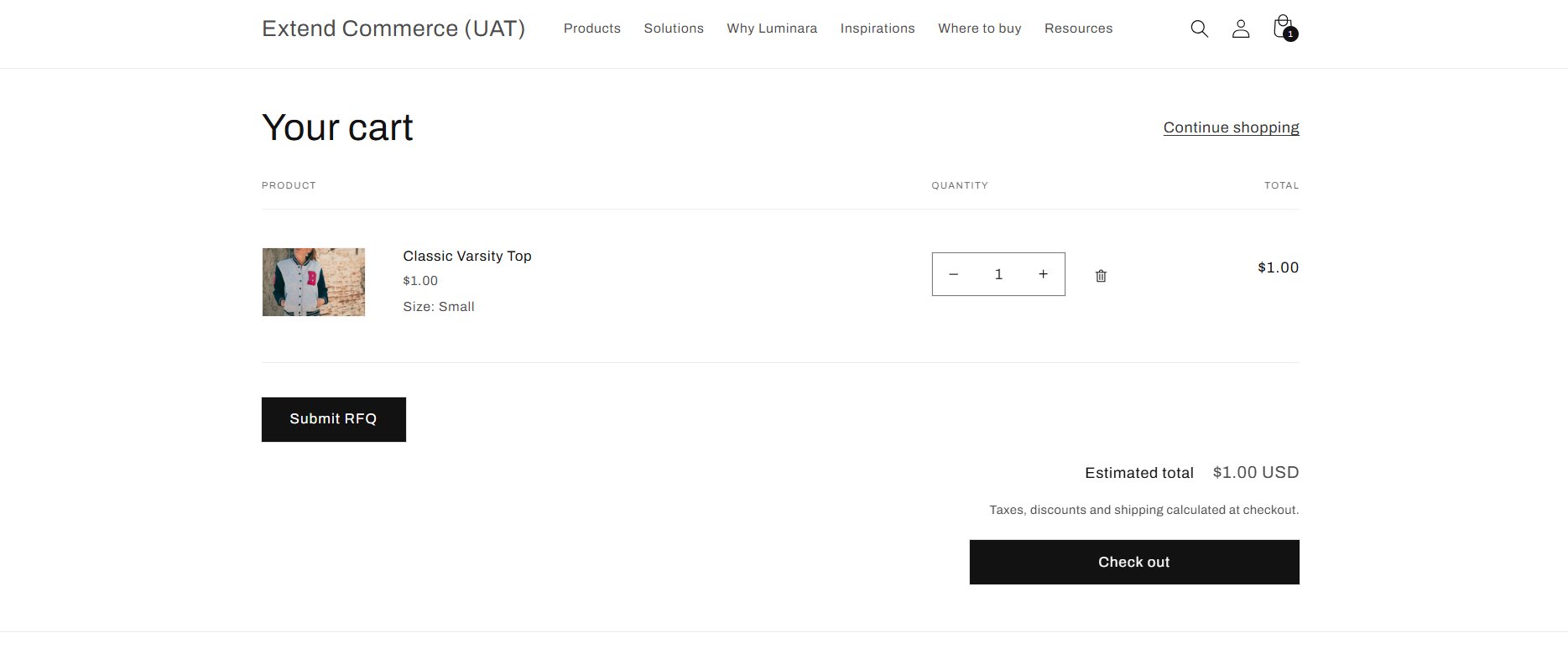
1. Customer adds products to cart.
2. On the Cart page, click **Submit RFQ**.
## 4. Creating a Quote (Customer Flow)
### 4.1 Submitting a Quote Request
1. Customer adds products to cart.
2. On the Cart page, click **Submit RFQ**.
 3. A modal opens where the customer can:
* Enter a proposed price
* Add comments for the merchant
* Click **Submit RFQ for Quote**.
3. A modal opens where the customer can:
* Enter a proposed price
* Add comments for the merchant
* Click **Submit RFQ for Quote**.
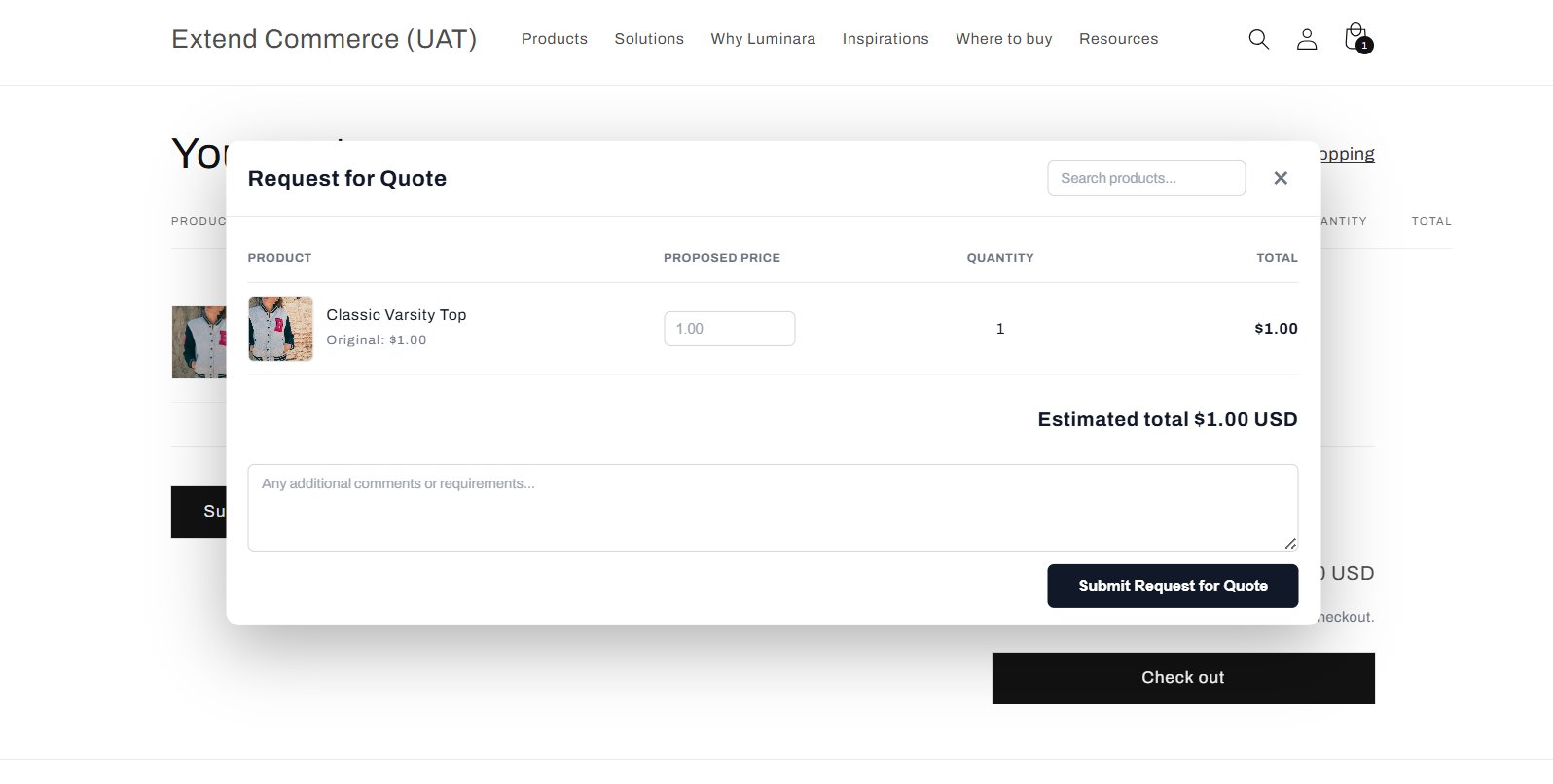 The quote is then created and sent to the admin for review.
## 5. Quote Management (Admin Flow)
Navigate to **Quotes** in the admin app.
### 5.1 Reviewing a Quote
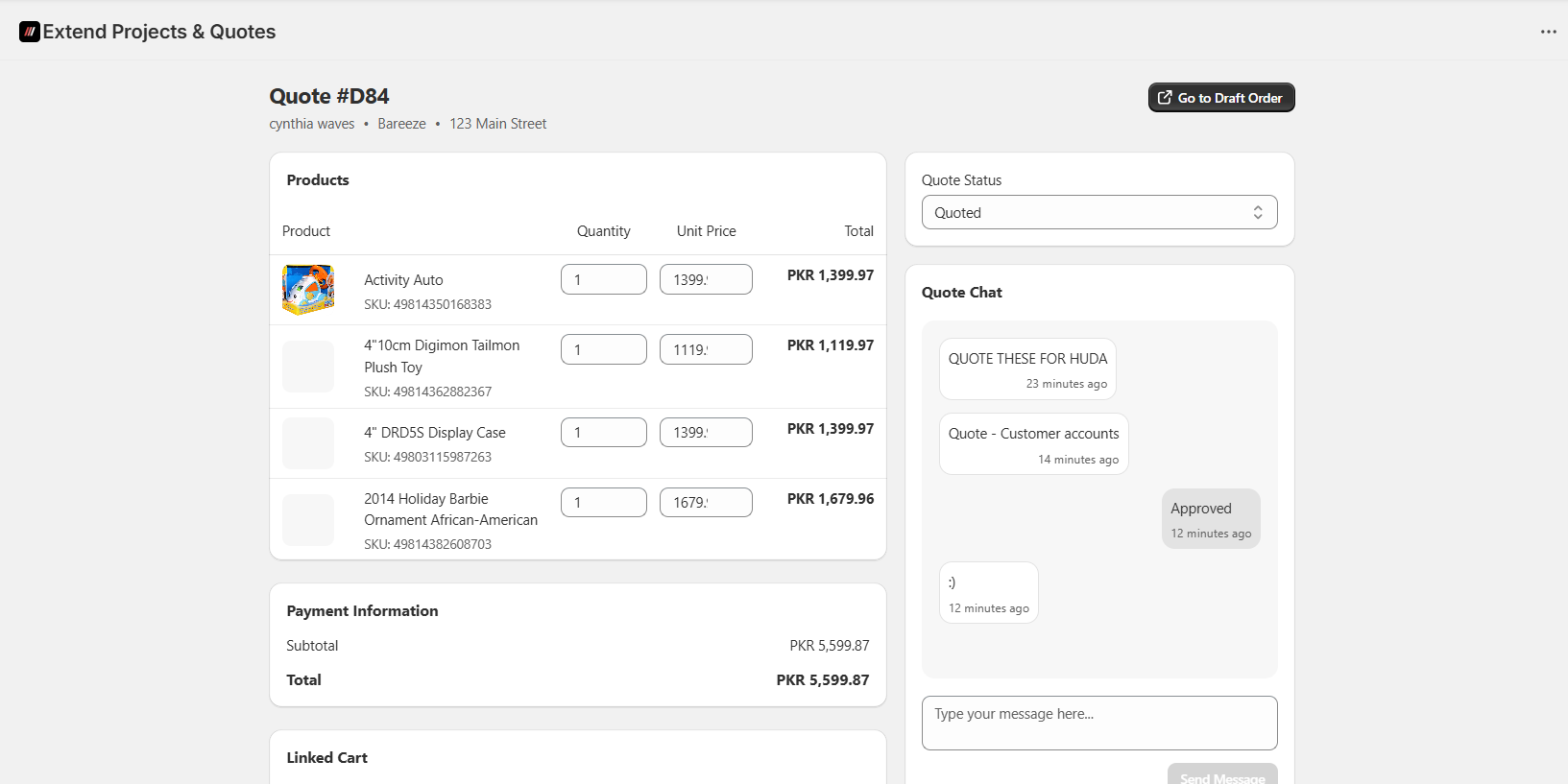
Admin can:
* Adjust product prices
* Modify quantities
* Change quote status
* Communicate via message thread
### 5.2 Message Thread
Each quote includes a communication thread for negotiation and clarification between merchant and customer.
The quote is then created and sent to the admin for review.
## 5. Quote Management (Admin Flow)
Navigate to **Quotes** in the admin app.
### 5.1 Reviewing a Quote
Admin can:
* Adjust product prices
* Modify quantities
* Change quote status
* Communicate via message thread
### 5.2 Message Thread
Each quote includes a communication thread for negotiation and clarification between merchant and customer.
 ### 5.3 Quote Statuses
|
**Status**
|
**Description**
|
\| --- | --- |
|
**Pending**
|
New quote submitted by customer, awaiting admin action
|
|
**Quoted**
|
Admin has responded with updated pricing
|
|
**Approved**
|
Quote accepted and ready for checkout
|
|
**Rejected**
|
Quote declined by either party
|
## 6. Checkout Flow
* Once a quote is **Approved** from Admin side
* A user with appropriate permissions can proceed to checkout.
* The quote is converted into a **Draft Order**.
* Admin can later convert it into a finalized order.
## 7. Roles & Permissions
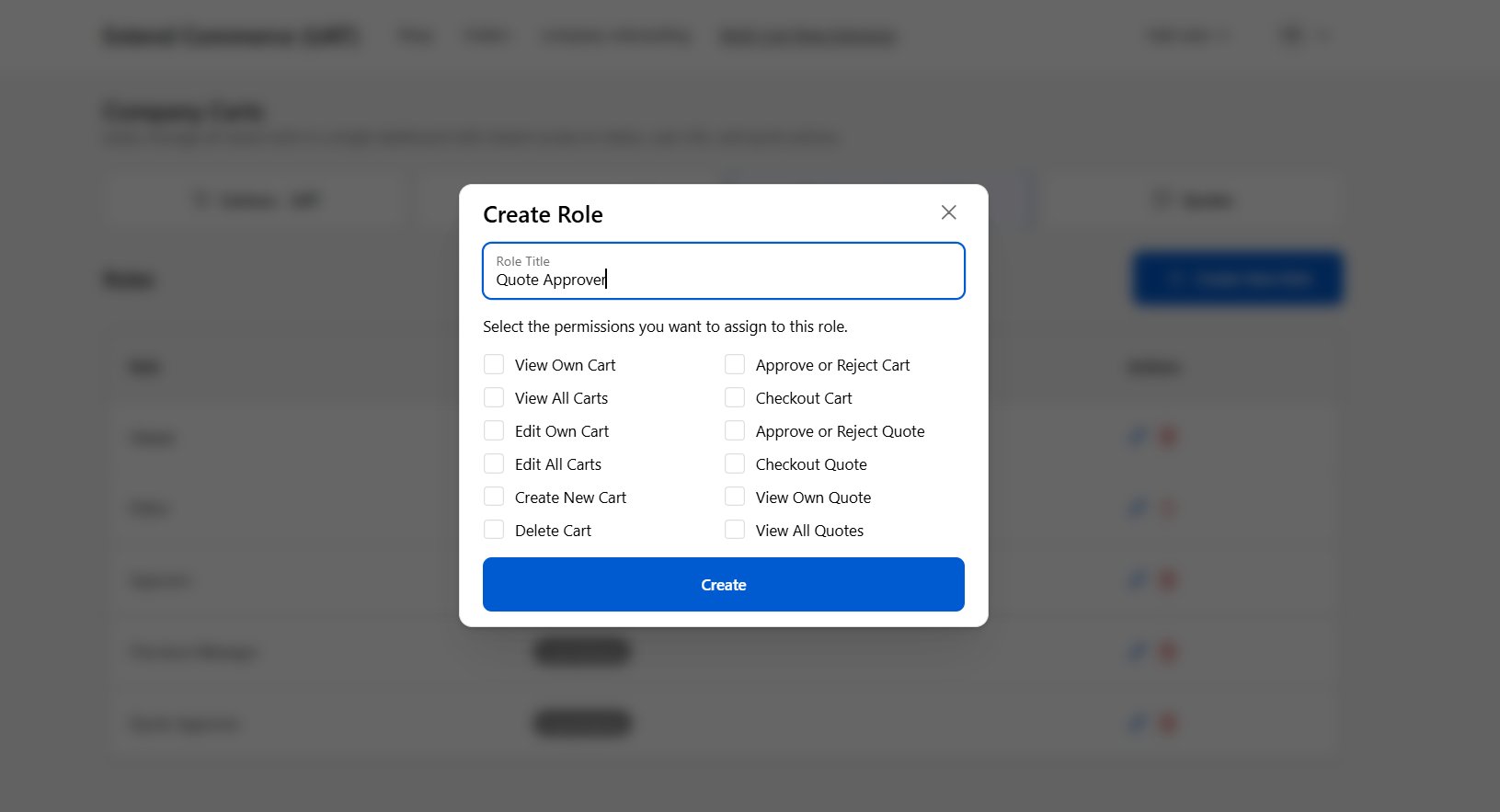
Navigate to **Manage Roles** inside the customer account.
The **Company Main Contact** can assign permissions.
### Available Permissions for Quotes:
* Approve or Reject Quote
* Checkout Quote
* View Own Quote
* View All Quotes
Permissions determine which users can view, approve, or checkout quotes.
### 5.3 Quote Statuses
|
**Status**
|
**Description**
|
\| --- | --- |
|
**Pending**
|
New quote submitted by customer, awaiting admin action
|
|
**Quoted**
|
Admin has responded with updated pricing
|
|
**Approved**
|
Quote accepted and ready for checkout
|
|
**Rejected**
|
Quote declined by either party
|
## 6. Checkout Flow
* Once a quote is **Approved** from Admin side
* A user with appropriate permissions can proceed to checkout.
* The quote is converted into a **Draft Order**.
* Admin can later convert it into a finalized order.
## 7. Roles & Permissions
Navigate to **Manage Roles** inside the customer account.
The **Company Main Contact** can assign permissions.
### Available Permissions for Quotes:
* Approve or Reject Quote
* Checkout Quote
* View Own Quote
* View All Quotes
Permissions determine which users can view, approve, or checkout quotes.
 ## 8. Quoting Project Items
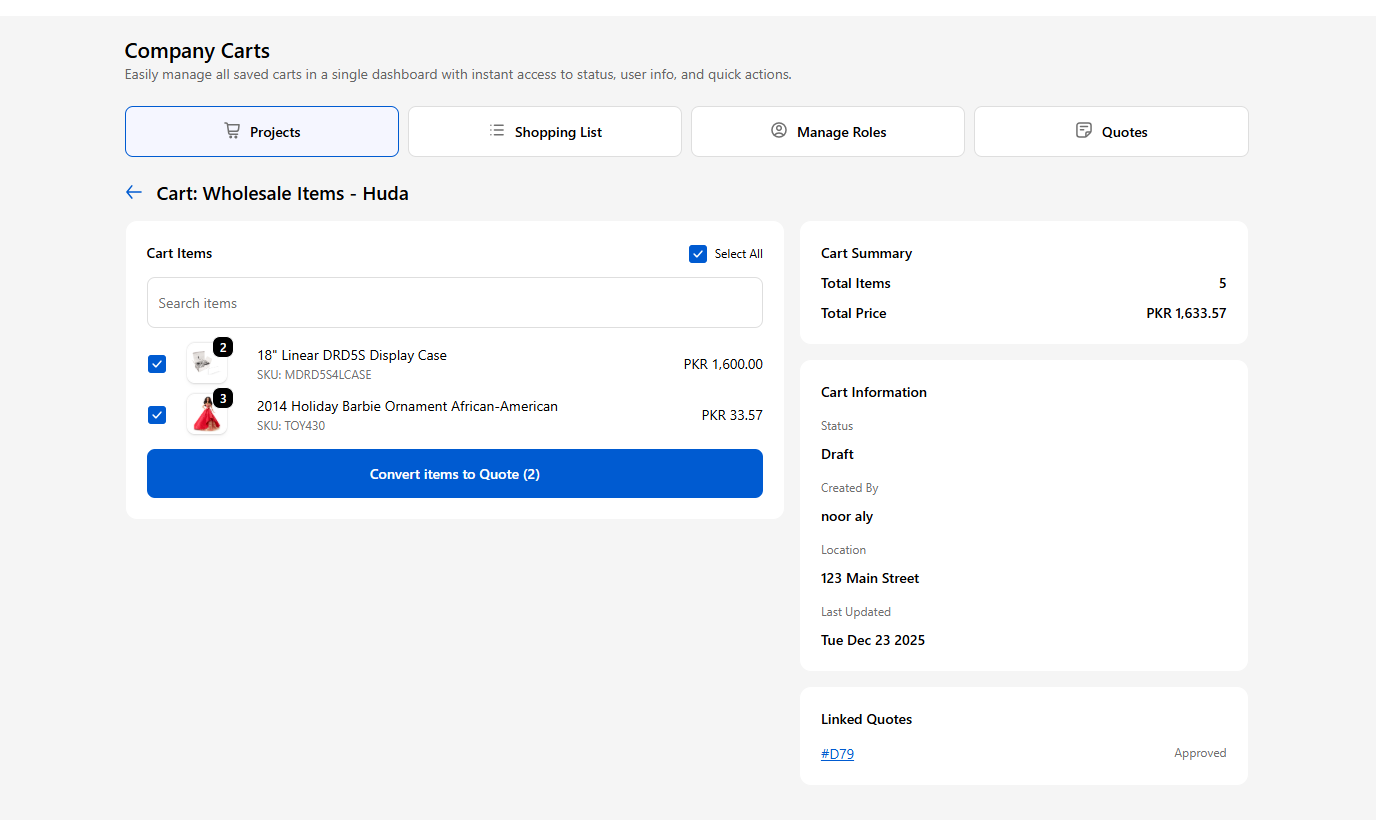
Quotes can also be created from Projects.
### Steps:
1. Go to **Projects** → Select a Project.
2. Select:
* All items, or
* Specific items to quote
3. Convert selected items into a quote.
4. Quote is sent for admin approval.
5. Once approved, it becomes available for checkout.
## 8. Quoting Project Items
Quotes can also be created from Projects.
### Steps:
1. Go to **Projects** → Select a Project.
2. Select:
* All items, or
* Specific items to quote
3. Convert selected items into a quote.
4. Quote is sent for admin approval.
5. Once approved, it becomes available for checkout.
 ## 9. End-to-End Flow Summary
1. Customer submits RFQ → Status = Pending
2. Admin reviews and responds → Status = Quoted
3. Customer/Admin approves → Status = Approved
4. Customer checks out → Quote becomes Draft Order
5. Admin converts Draft Order → Final Order
## 9. End-to-End Flow Summary
1. Customer submits RFQ → Status = Pending
2. Admin reviews and responds → Status = Quoted
3. Customer/Admin approves → Status = Approved
4. Customer checks out → Quote becomes Draft Order
5. Admin converts Draft Order → Final Order