> ## Documentation Index
> Fetch the complete documentation index at: https://help.extendcommerce.com/llms.txt
> Use this file to discover all available pages before exploring further.

# Permission Settings

> Configure staff permissions to control access within Extend POS.

Permission settings required:

1. Open your store's Shopify admin panel.

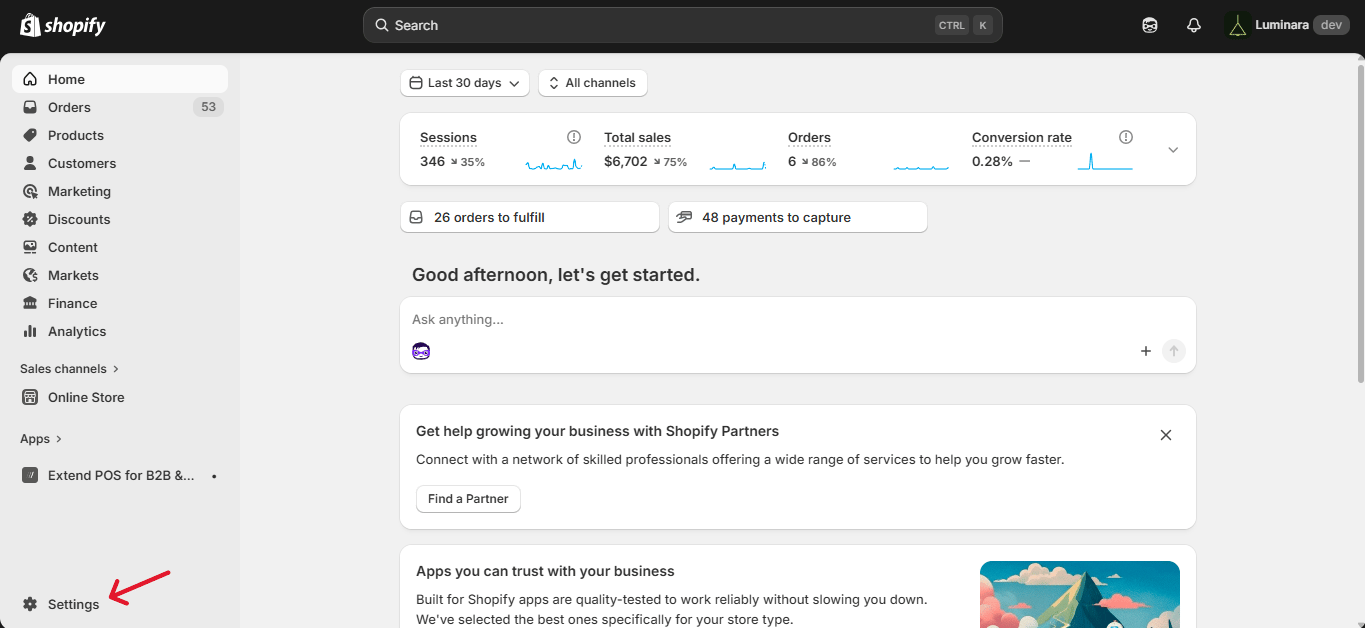
2. Click on Settings in the sidebar.
   <img src="https://mintcdn.com/extendcommerce/oZs89h1UQ7PfwKzi/images/shopify/extend-pos-for-b2b-wholesale/permission-settings/1.png?fit=max&auto=format&n=oZs89h1UQ7PfwKzi&q=85&s=eb5cc087202cf02ce1ae645aaab56e7a" alt="" width="1365" height="628" data-path="images/shopify/extend-pos-for-b2b-wholesale/permission-settings/1.png" />

   <img src="https://mintcdn.com/extendcommerce/oZs89h1UQ7PfwKzi/images/shopify/extend-pos-for-b2b-wholesale/permission-settings/2.png?fit=max&auto=format&n=oZs89h1UQ7PfwKzi&q=85&s=e8bb03cabc63cb729246037542c9ca71" alt="" width="1365" height="630" data-path="images/shopify/extend-pos-for-b2b-wholesale/permission-settings/2.png" />

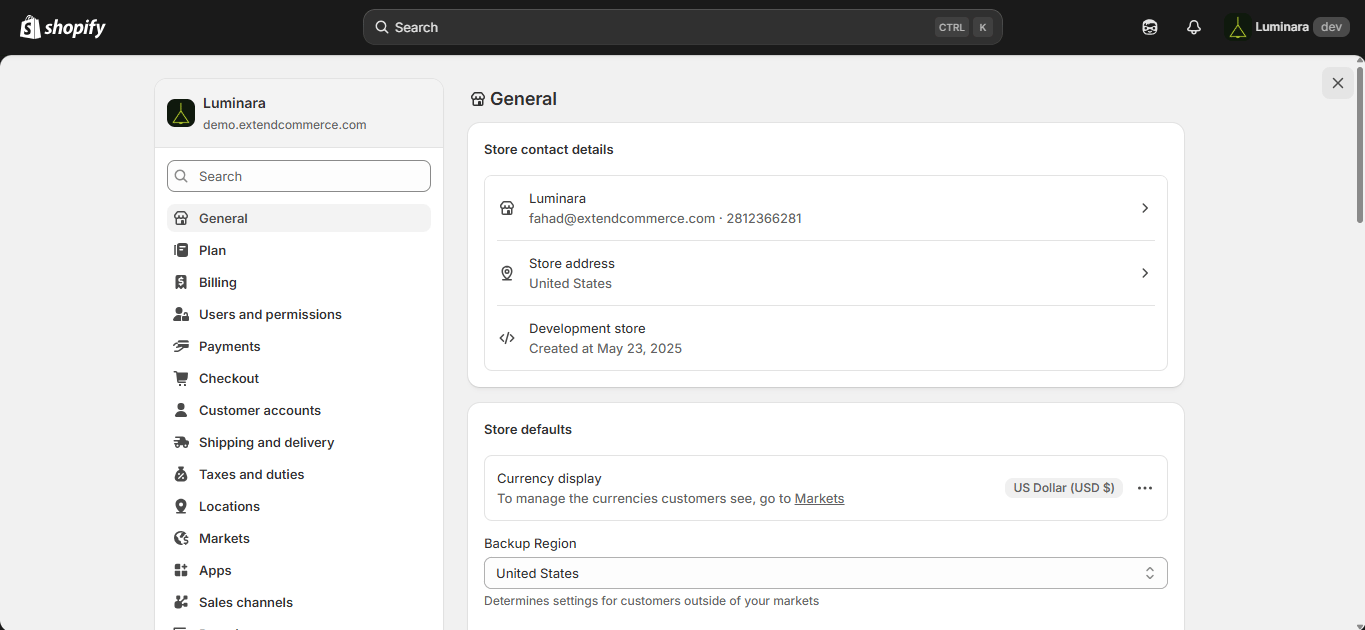
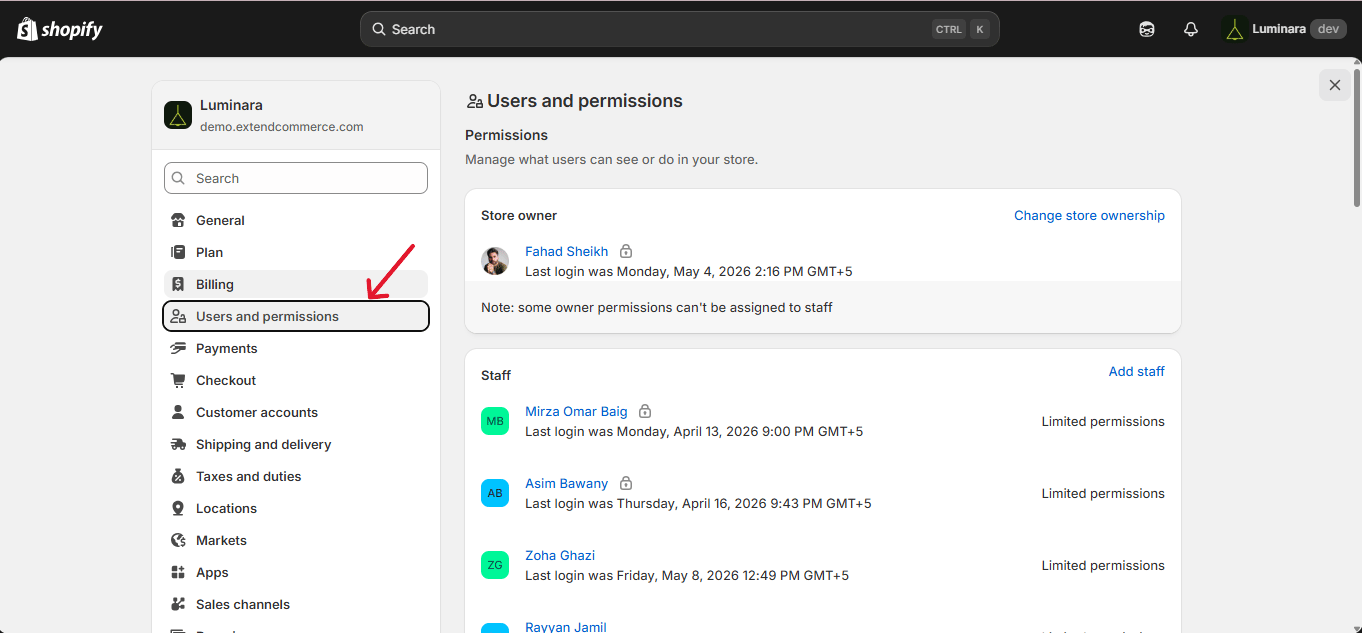
3. Go to the Users and Permissions tab.
   <img src="https://mintcdn.com/extendcommerce/oZs89h1UQ7PfwKzi/images/shopify/extend-pos-for-b2b-wholesale/permission-settings/3.png?fit=max&auto=format&n=oZs89h1UQ7PfwKzi&q=85&s=0b614b55bd4f8a1fcc599d4121b78111" alt="" width="1362" height="633" data-path="images/shopify/extend-pos-for-b2b-wholesale/permission-settings/3.png" />

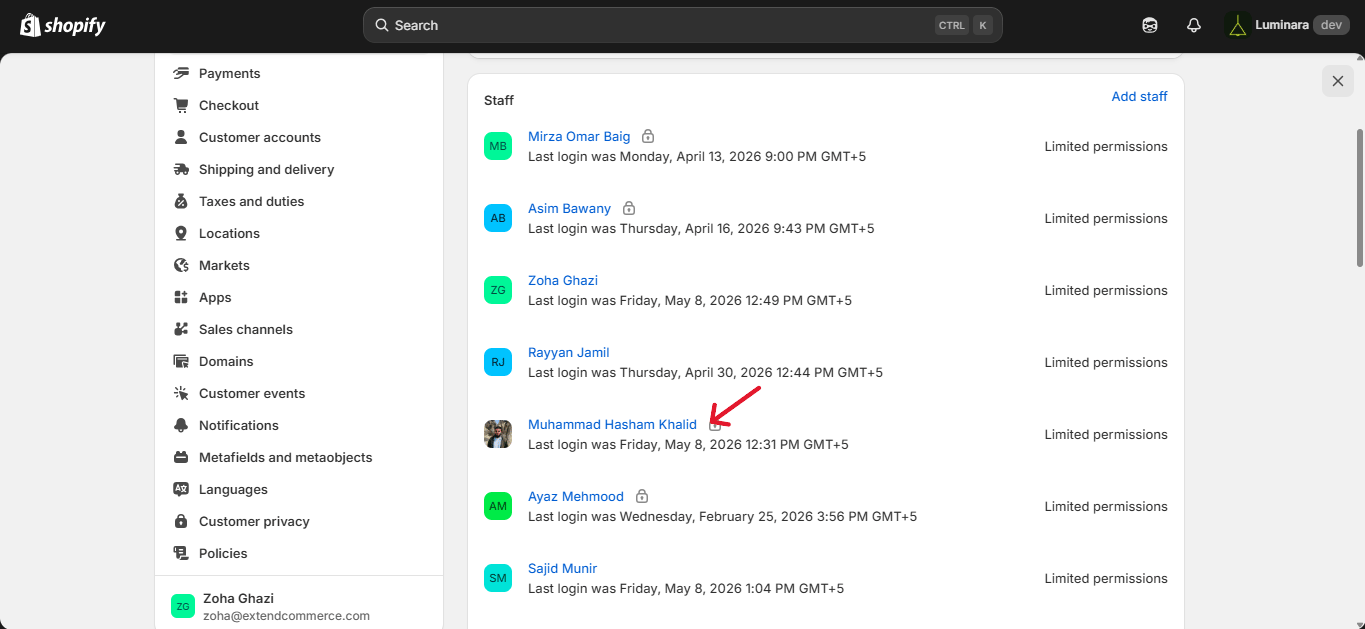
4. Find the staff member who uses the POS app and click their name to open their profile.
   <img src="https://mintcdn.com/extendcommerce/oZs89h1UQ7PfwKzi/images/shopify/extend-pos-for-b2b-wholesale/permission-settings/4.png?fit=max&auto=format&n=oZs89h1UQ7PfwKzi&q=85&s=6e4e774c2a8363b427dd88e8084929e7" alt="" width="1365" height="629" data-path="images/shopify/extend-pos-for-b2b-wholesale/permission-settings/4.png" />

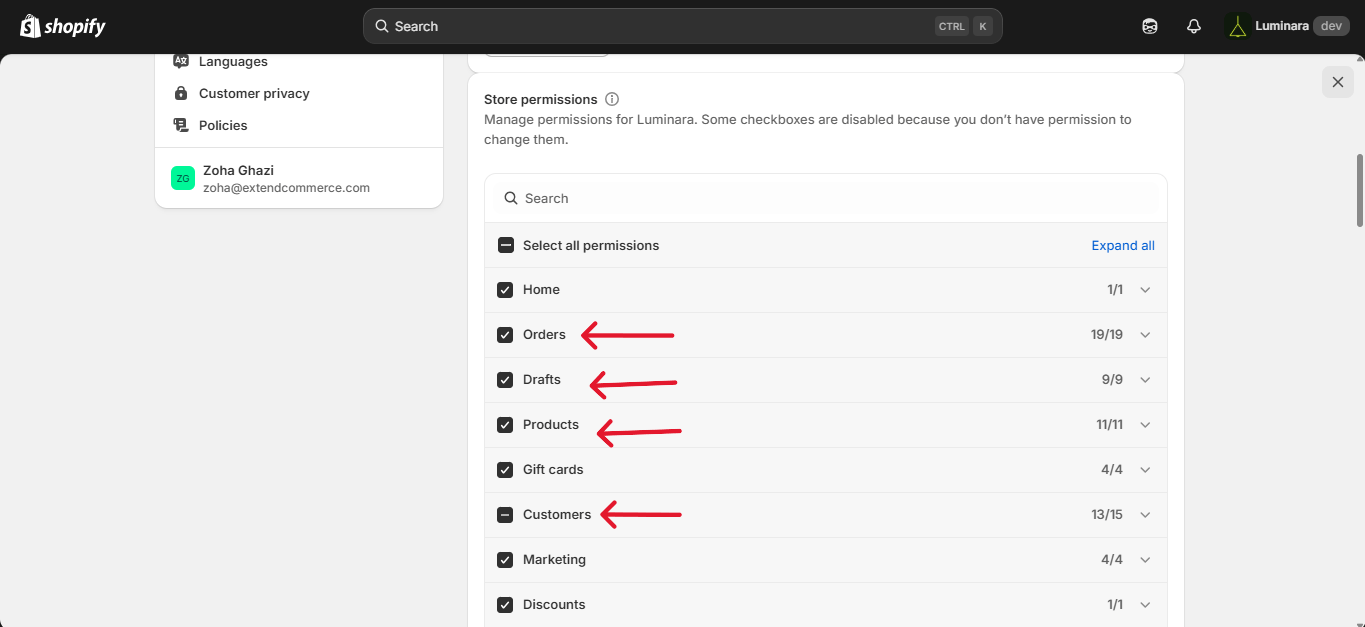
5. Scroll down to Store permissions and make sure these four are checked: Customers, Orders, Drafts, and Products.
   <img src="https://mintcdn.com/extendcommerce/oZs89h1UQ7PfwKzi/images/shopify/extend-pos-for-b2b-wholesale/permission-settings/5.png?fit=max&auto=format&n=oZs89h1UQ7PfwKzi&q=85&s=6db770d2c5445c130d10d28cbe8dbbb9" alt="" width="1365" height="627" data-path="images/shopify/extend-pos-for-b2b-wholesale/permission-settings/5.png" />

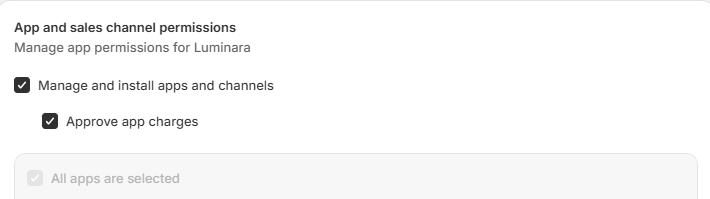
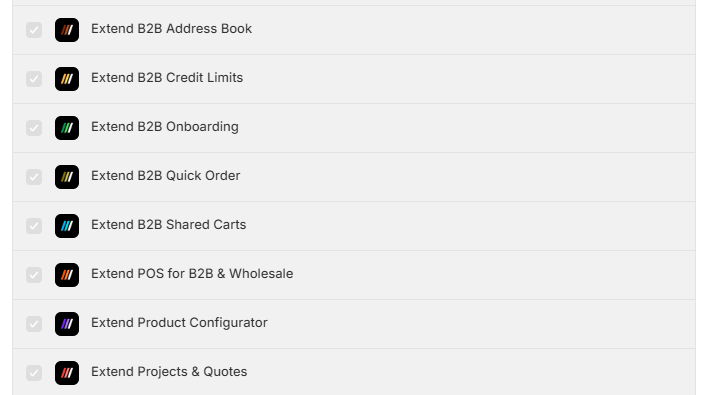
6. Keep scrolling to App and sales channel permissions and confirm that Extend POS for B2B & Wholesale is selected.
   <img src="https://mintcdn.com/extendcommerce/oZs89h1UQ7PfwKzi/images/shopify/extend-pos-for-b2b-wholesale/permission-settings/6.png?fit=max&auto=format&n=oZs89h1UQ7PfwKzi&q=85&s=156f7c5227162119a71571d6b6175814" alt="" width="710" height="199" data-path="images/shopify/extend-pos-for-b2b-wholesale/permission-settings/6.png" />

   <img src="https://mintcdn.com/extendcommerce/oZs89h1UQ7PfwKzi/images/shopify/extend-pos-for-b2b-wholesale/permission-settings/7.png?fit=max&auto=format&n=oZs89h1UQ7PfwKzi&q=85&s=cd7a84082e4c387d4496571cc921988c" alt="" width="709" height="395" data-path="images/shopify/extend-pos-for-b2b-wholesale/permission-settings/7.png" />

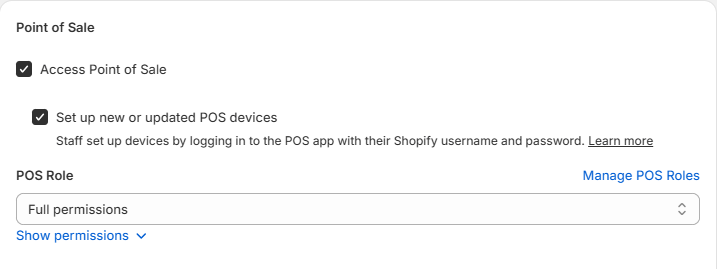
7. Scroll down a bit more to the Point of Sale section and make sure the Access Point of Sale checkbox is checked.
   <img src="https://mintcdn.com/extendcommerce/oZs89h1UQ7PfwKzi/images/shopify/extend-pos-for-b2b-wholesale/permission-settings/8.png?fit=max&auto=format&n=oZs89h1UQ7PfwKzi&q=85&s=81eb34f1fb521339324bc568ec3d45a3" alt="" width="717" height="269" data-path="images/shopify/extend-pos-for-b2b-wholesale/permission-settings/8.png" />