> ## Documentation Index
> Fetch the complete documentation index at: https://help.extendcommerce.com/llms.txt
> Use this file to discover all available pages before exploring further.
# Installation Guide
> Step-by-step instructions to install and set up Extend POS on your store.
1. **Access the Shopify App Store**\
Log in to your Shopify admin panel and navigate to the Shopify App Store.
2. **Search for the App**\
Use the search bar to find **Extend POS for B2B & Wholesale**. Or, [click here to go directly to the app page](https://apps.shopify.com/pos-for-b2b-and-wholesale?search_id=5eb38c38-e987-4a41-91ce-d44ea58563e6\&surface_detail=extend+POS\&surface_inter_position=1\&surface_intra_position=4\&surface_type=search).
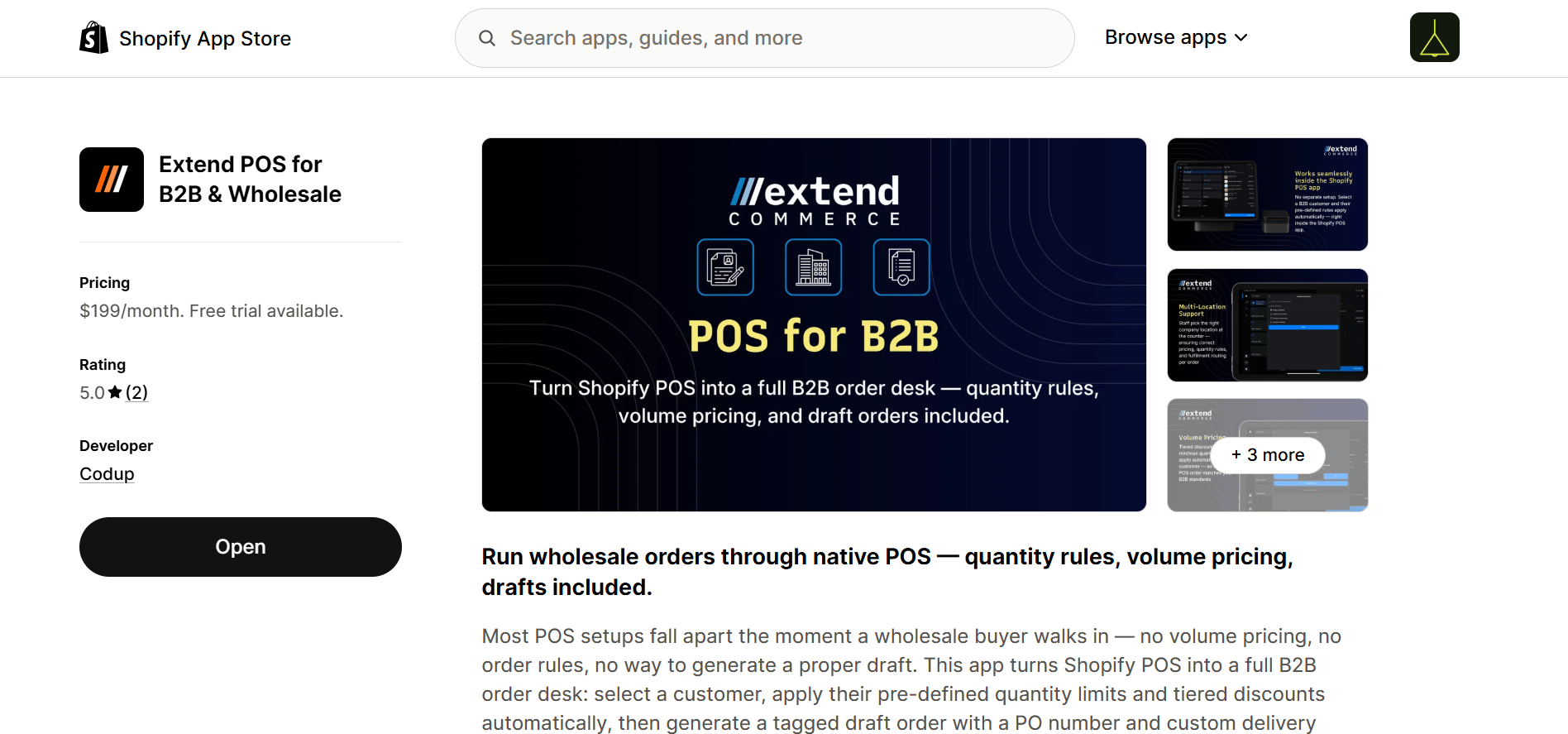 3. **Review App Details**\
Read through the app description, features, and requested permissions carefully to understand how it works.
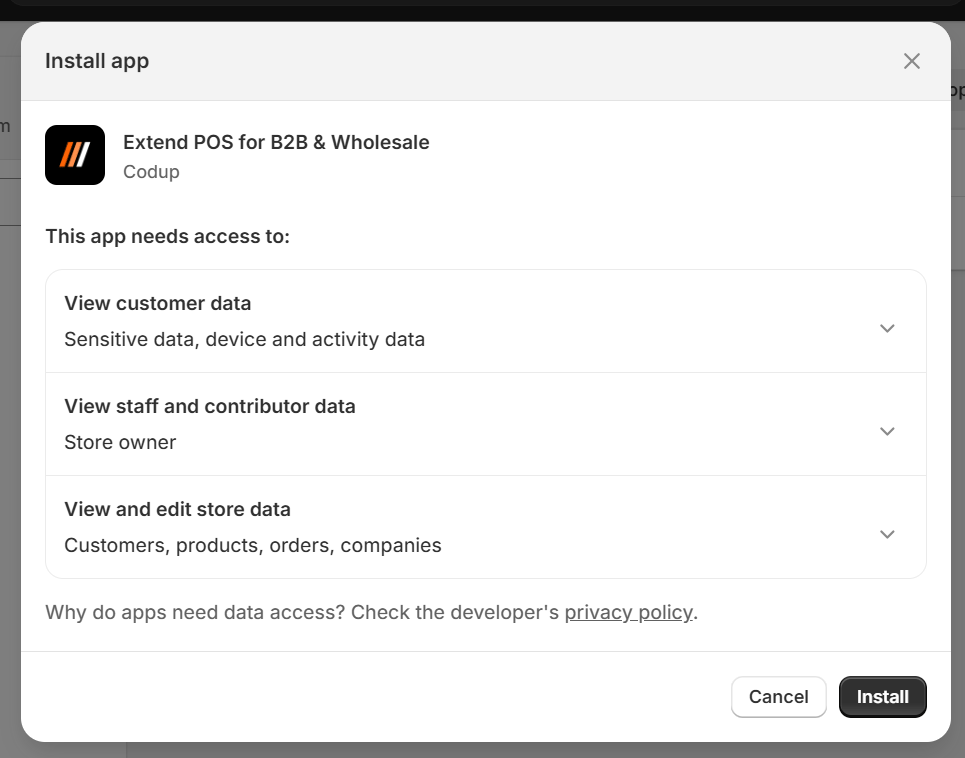
4. **Install the App**\
Click **Install** and review the permissions requested by the app. Then, click **Install app** to authorize and complete the installation.
3. **Review App Details**\
Read through the app description, features, and requested permissions carefully to understand how it works.
4. **Install the App**\
Click **Install** and review the permissions requested by the app. Then, click **Install app** to authorize and complete the installation.
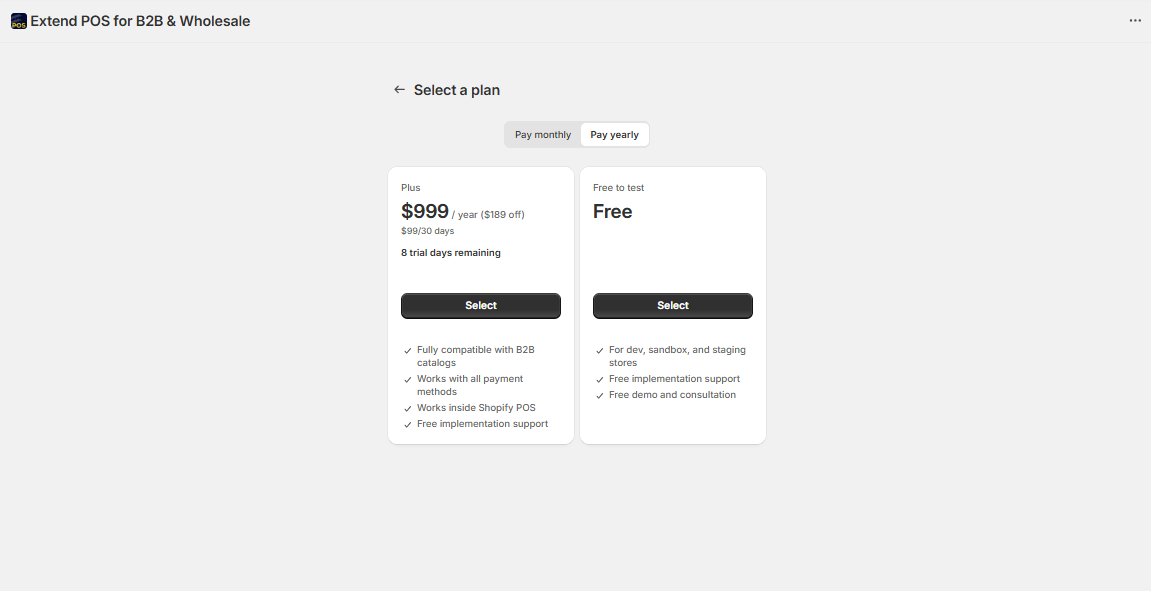
 5. **Select a Plan**\
Choose a pricing plan that best fits your business needs.
> **Note:** You’ll need to select a plan before you can use our extension. Without an active plan, the app and its features will not be functional.
5. **Select a Plan**\
Choose a pricing plan that best fits your business needs.
> **Note:** You’ll need to select a plan before you can use our extension. Without an active plan, the app and its features will not be functional.
 ## Set Up Extend POS on Your Mobile Device
1. **Install Shopify POS App**\
Download and install the Shopify POS app on your mobile device from the App Store (iOS) or Google Play Store (Android).
2. **Add the Extend app tile to POS**
* Open the Shopify POS app.
* Tap **Add Tile**.
* Select **App**.
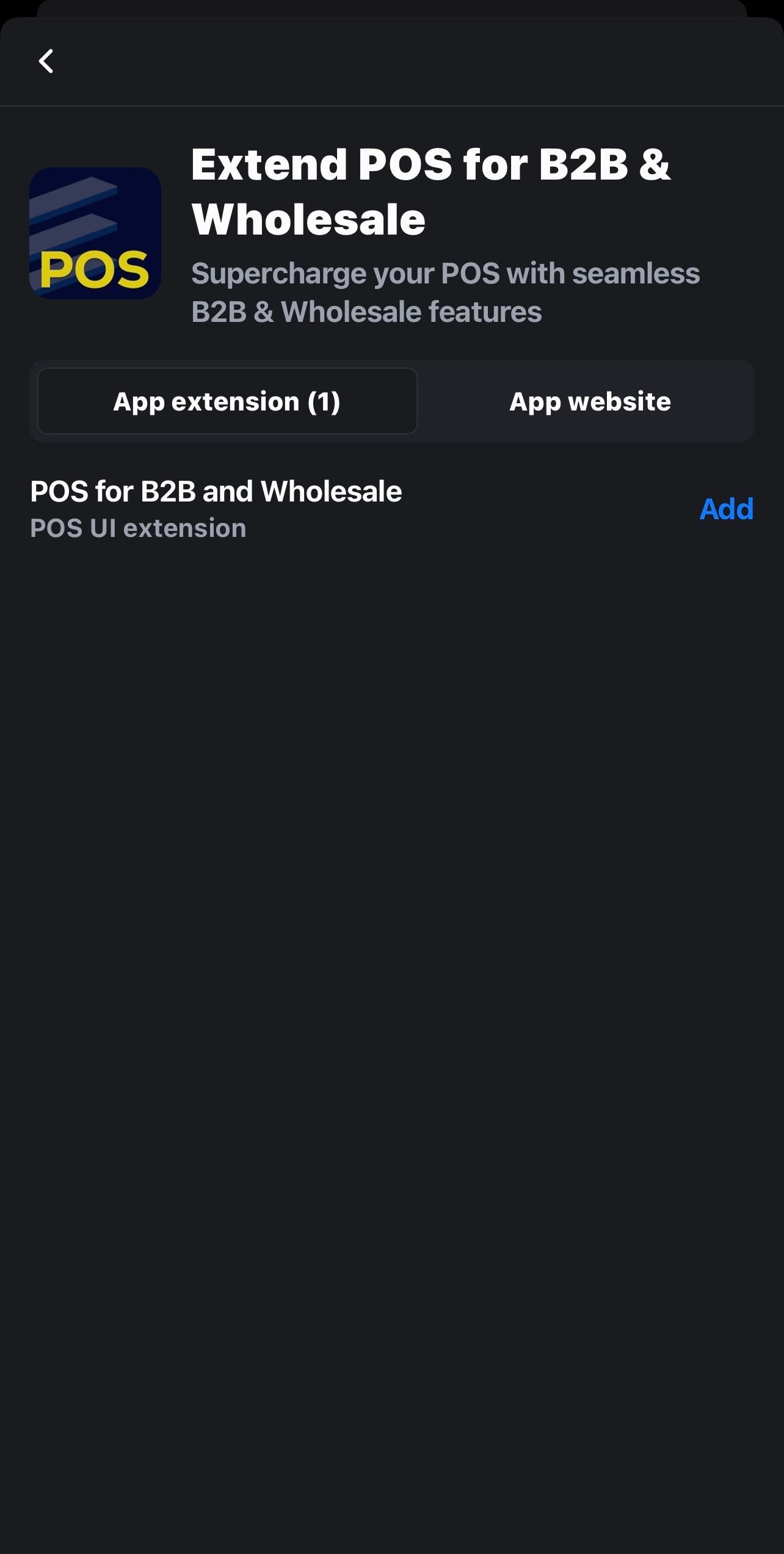
* Find and select **Extend POS for B2B & Wholesale**.
* Add it to your POS home screen. You’ll now see a **B2B Order** tile added.
## Set Up Extend POS on Your Mobile Device
1. **Install Shopify POS App**\
Download and install the Shopify POS app on your mobile device from the App Store (iOS) or Google Play Store (Android).
2. **Add the Extend app tile to POS**
* Open the Shopify POS app.
* Tap **Add Tile**.
* Select **App**.
* Find and select **Extend POS for B2B & Wholesale**.
* Add it to your POS home screen. You’ll now see a **B2B Order** tile added.
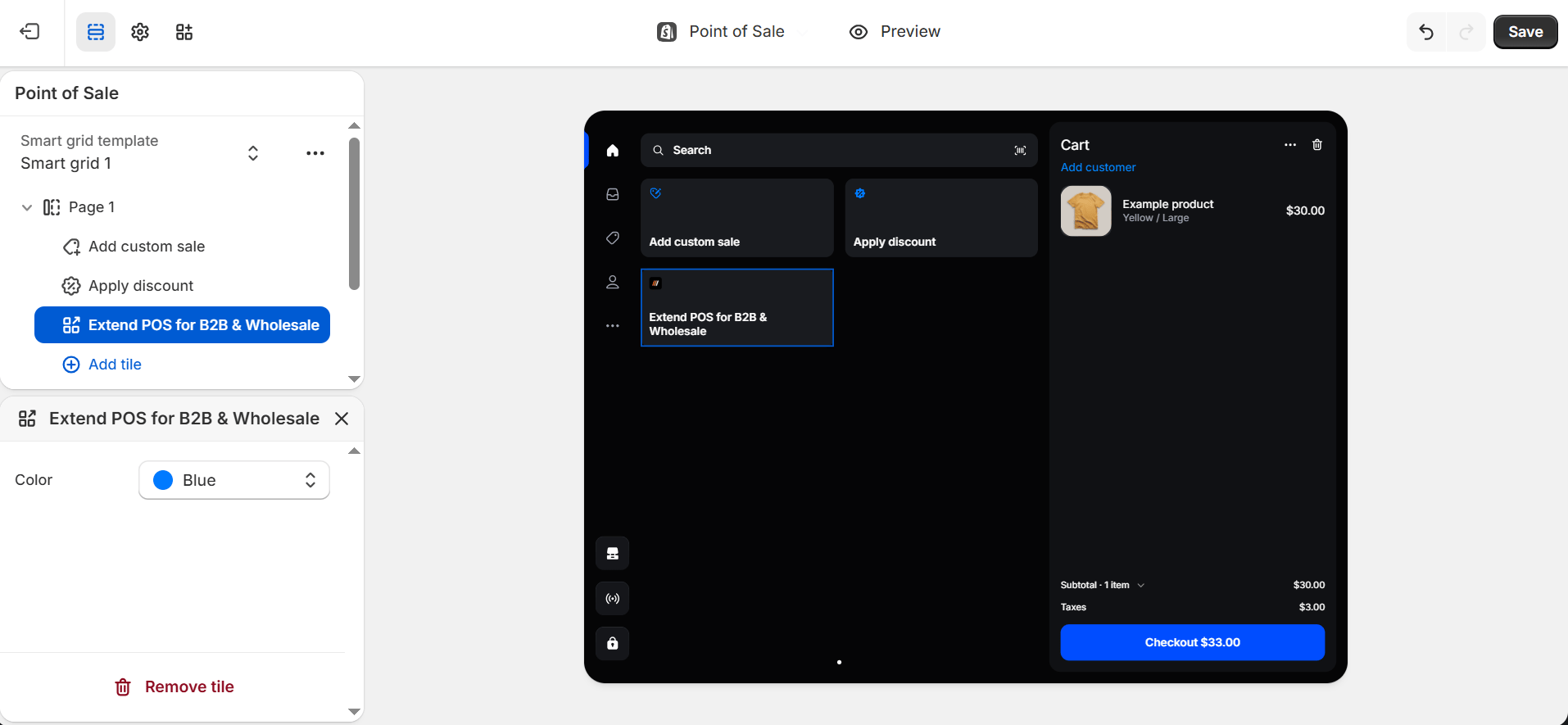
 ## Add the POS Extension from Shopify Admin (Alternative Method)
Alternatively, you can add the app extension directly from your **Shopify** Admin:
1. Log in to your Shopify admin.
2. Go to **Sales Channels** > **Point of Sale** > **Settings** > **Customizations** > **POS Apps**.
## Add the POS Extension from Shopify Admin (Alternative Method)
Alternatively, you can add the app extension directly from your **Shopify** Admin:
1. Log in to your Shopify admin.
2. Go to **Sales Channels** > **Point of Sale** > **Settings** > **Customizations** > **POS Apps**.
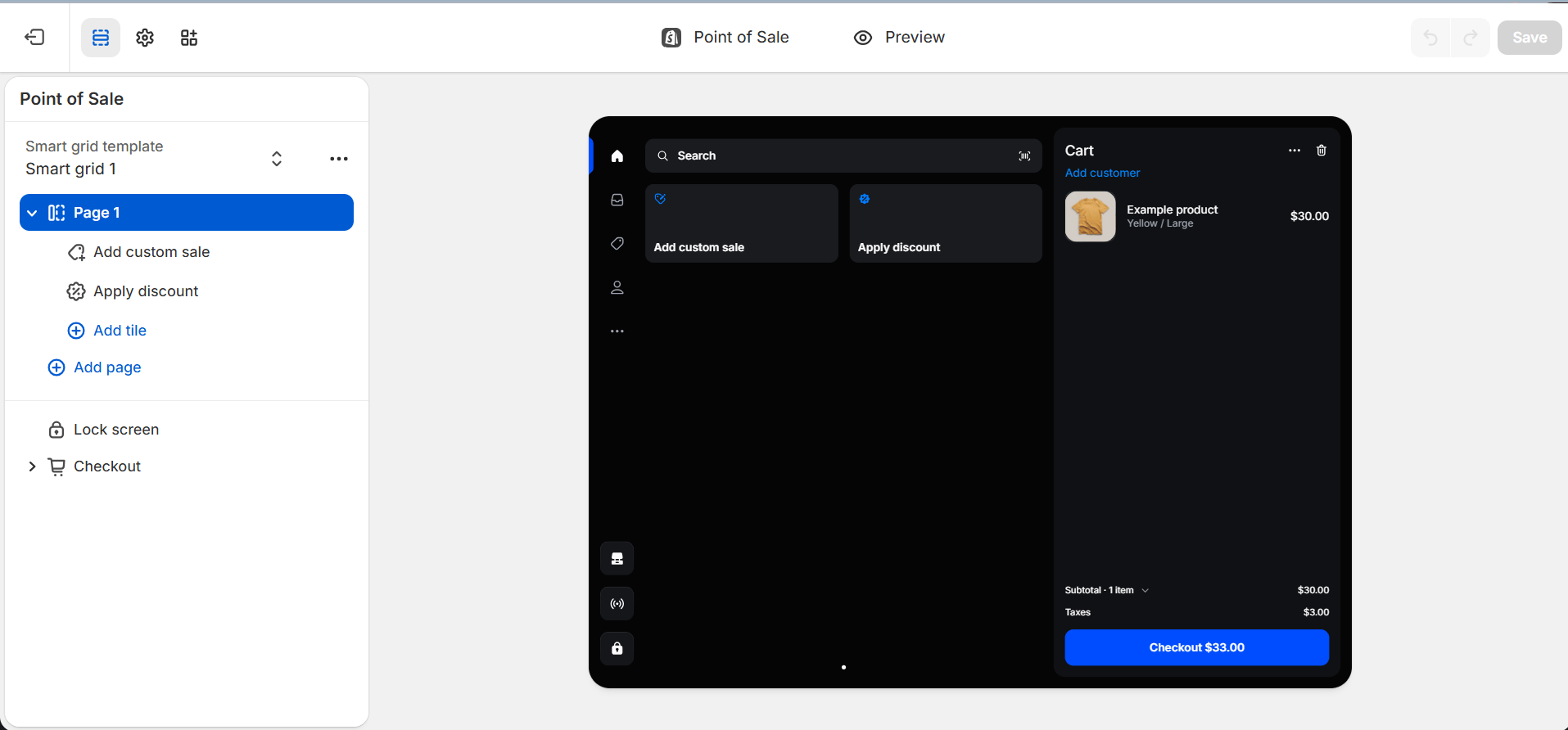
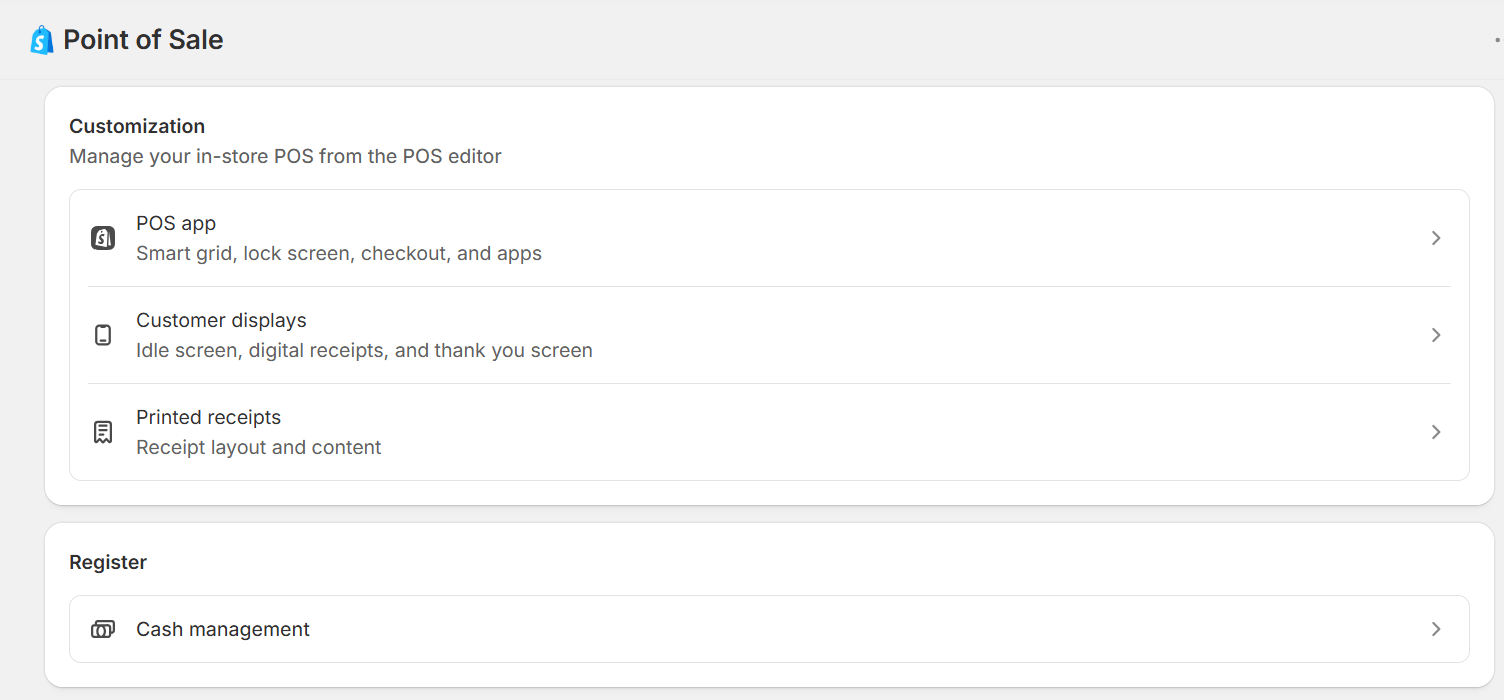 3. Under **POS Apps** go to “Add tile” then to “embedded apps”.
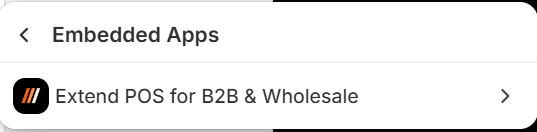
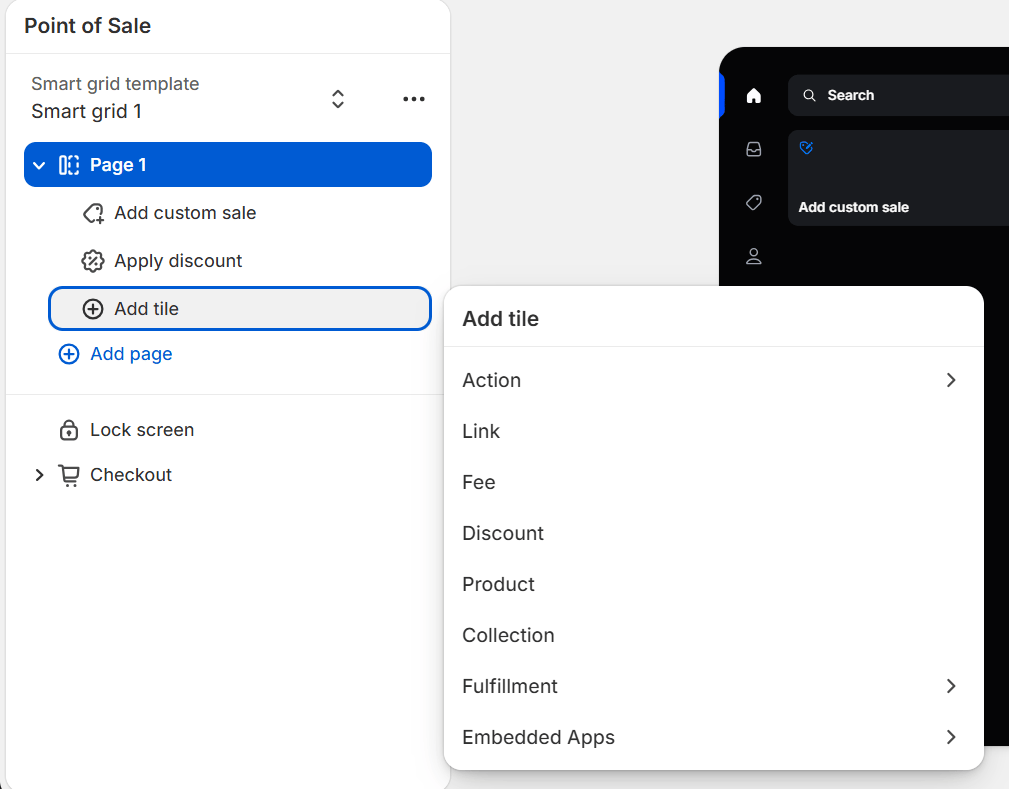 4. And chose Extend POS for B2B wholesale.
 5. Make sure to save the changes
 You’re all set!
You can now start using **Extend POS for B2B & Wholesale** to simplify and enhance your in-store wholesale and B2B ordering experience.
You’re all set!
You can now start using **Extend POS for B2B & Wholesale** to simplify and enhance your in-store wholesale and B2B ordering experience.