> ## Documentation Index
> Fetch the complete documentation index at: https://help.extendcommerce.com/llms.txt
> Use this file to discover all available pages before exploring further.

# Setting Up Trade Terms

### **1. Theme Setup**

To enable inventory enforcement on the storefront, the app requires a theme extension block:

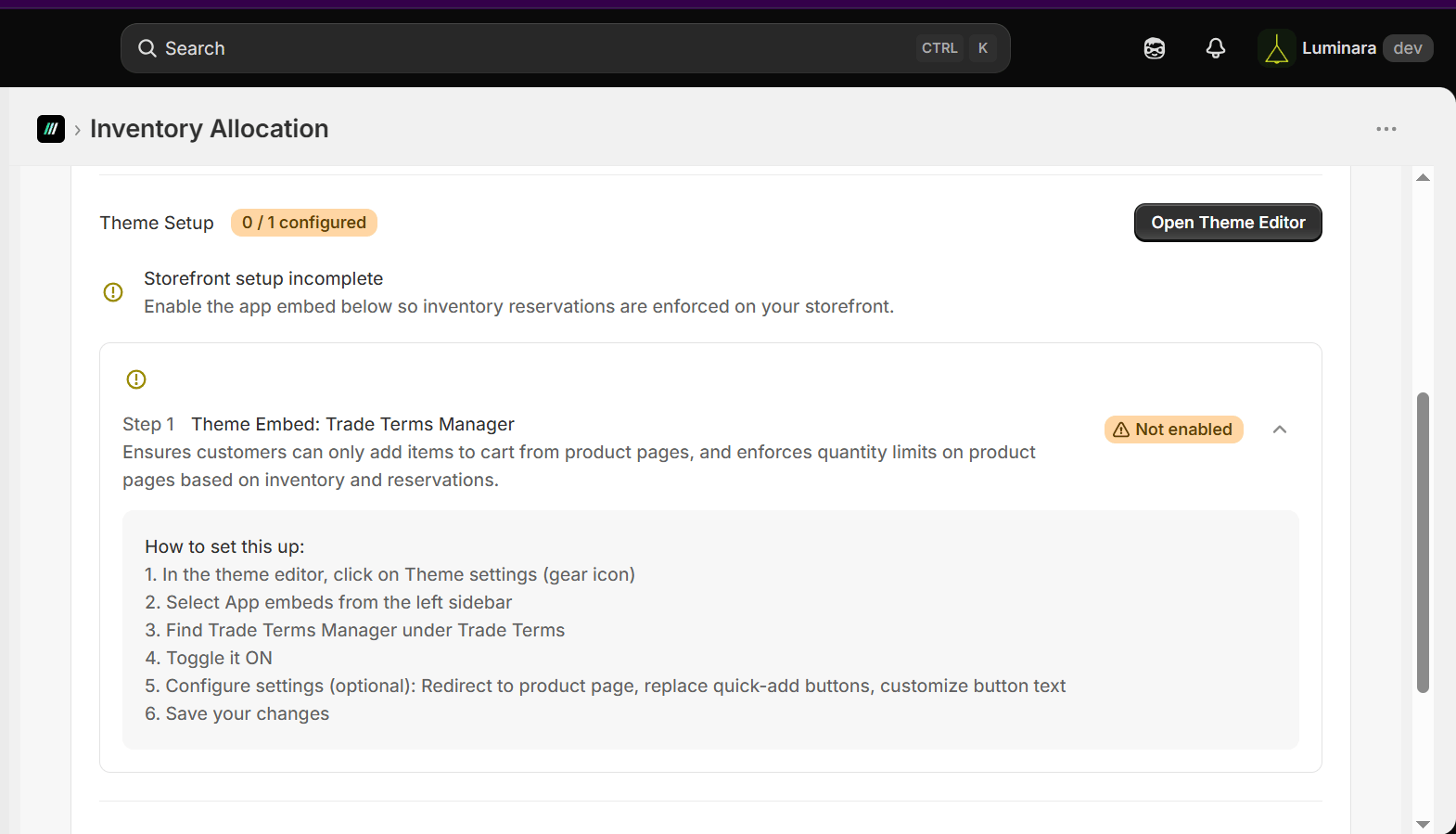
1. Go to **Online Store > Apps > Extend B2B Trade Terms**.

2. Under Theme Setup Tab, click “Open Theme Editor”.

   z
   <img src="https://mintcdn.com/extendcommerce/oZs89h1UQ7PfwKzi/images/shopify/extend-b2b-trade-terms/setting-up-trade-terms/1.png?fit=max&auto=format&n=oZs89h1UQ7PfwKzi&q=85&s=e61dd5915084ba0f5328e1c9f07514bb" alt="" width="1570" height="899" data-path="images/shopify/extend-b2b-trade-terms/setting-up-trade-terms/1.png" />

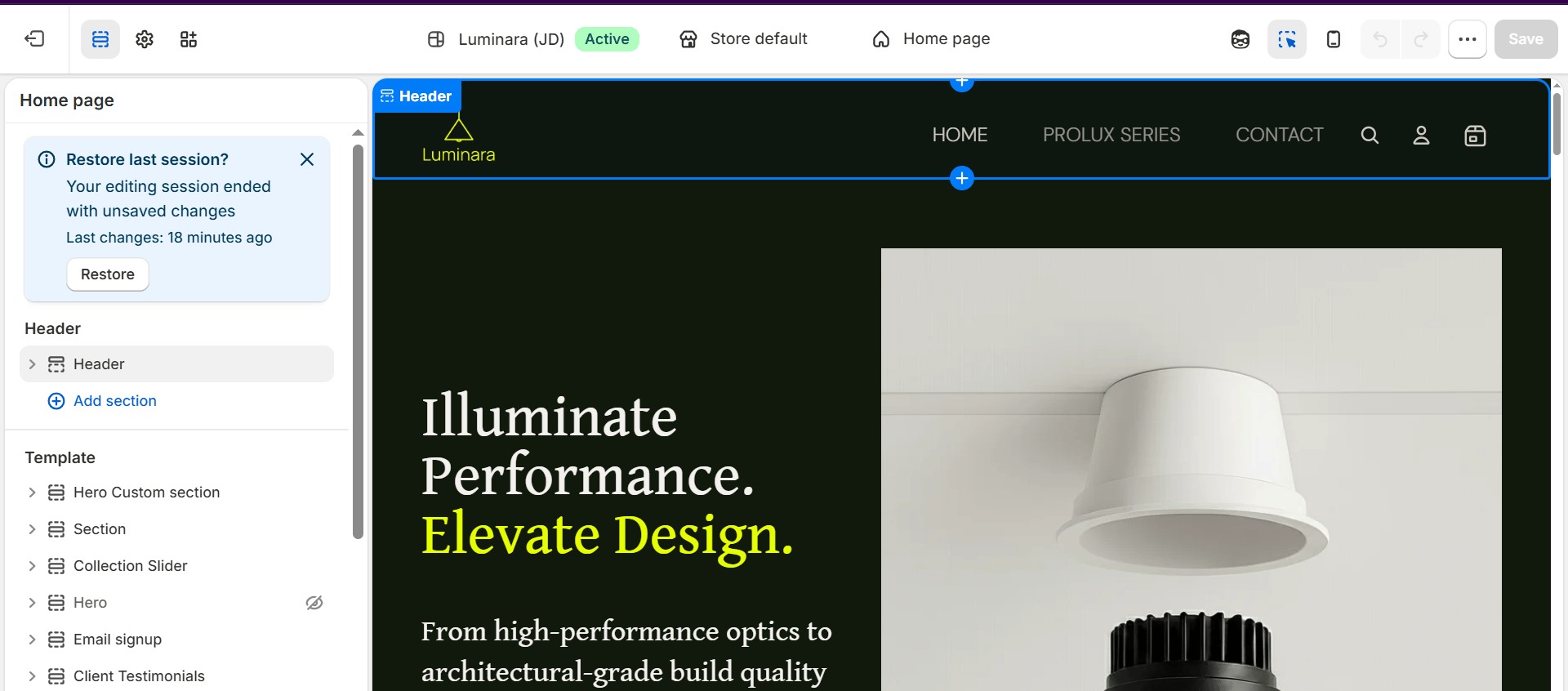
3. This would redirect you to a new tab as shown below.
   <img src="https://mintcdn.com/extendcommerce/oZs89h1UQ7PfwKzi/images/shopify/extend-b2b-trade-terms/setting-up-trade-terms/2.png?fit=max&auto=format&n=oZs89h1UQ7PfwKzi&q=85&s=d83b5e89107768cb9b286a768a9a97b8" alt="" width="1920" height="846" data-path="images/shopify/extend-b2b-trade-terms/setting-up-trade-terms/2.png" />

4. Click on the third left icon;

   <img src="https://mintcdn.com/extendcommerce/oZs89h1UQ7PfwKzi/images/shopify/extend-b2b-trade-terms/setting-up-trade-terms/3.png?fit=max&auto=format&n=oZs89h1UQ7PfwKzi&q=85&s=28f6b157d3c5ef47421d3385fca8e40a" alt="" width="53" height="54" data-path="images/shopify/extend-b2b-trade-terms/setting-up-trade-terms/3.png" />

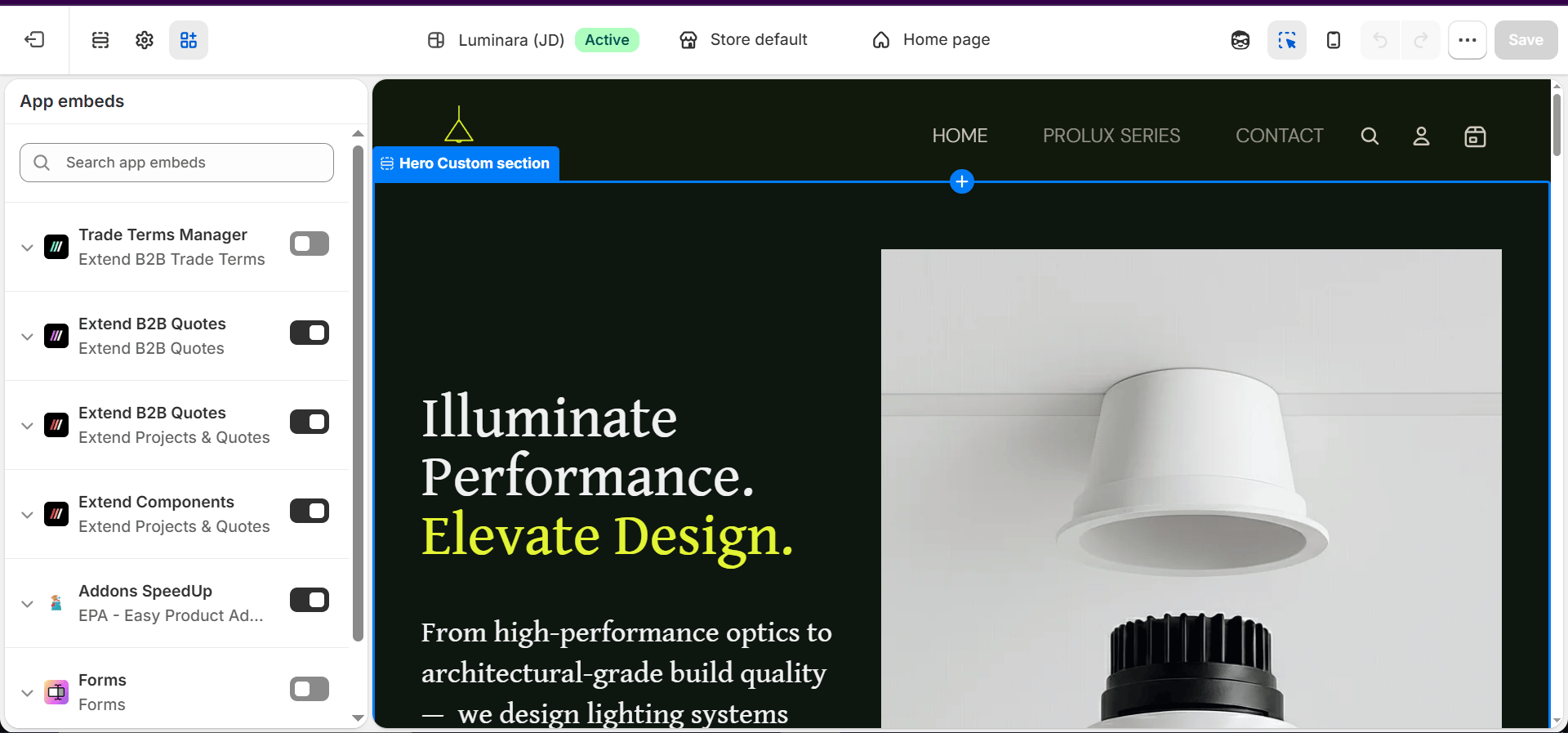
5. Toggle the Trade Terms Manager button on to embed the app in your store.
   <img src="https://mintcdn.com/extendcommerce/oZs89h1UQ7PfwKzi/images/shopify/extend-b2b-trade-terms/setting-up-trade-terms/4.png?fit=max&auto=format&n=oZs89h1UQ7PfwKzi&q=85&s=e04479191e4044a304d6ba75bf4781ba" alt="" width="1920" height="897" data-path="images/shopify/extend-b2b-trade-terms/setting-up-trade-terms/4.png" />

6. Save changes.

7. Extend B2B Trade Terms is ready to be used.
