> ## Documentation Index
> Fetch the complete documentation index at: https://help.extendcommerce.com/llms.txt
> Use this file to discover all available pages before exploring further.
# Setting Inventory Rules
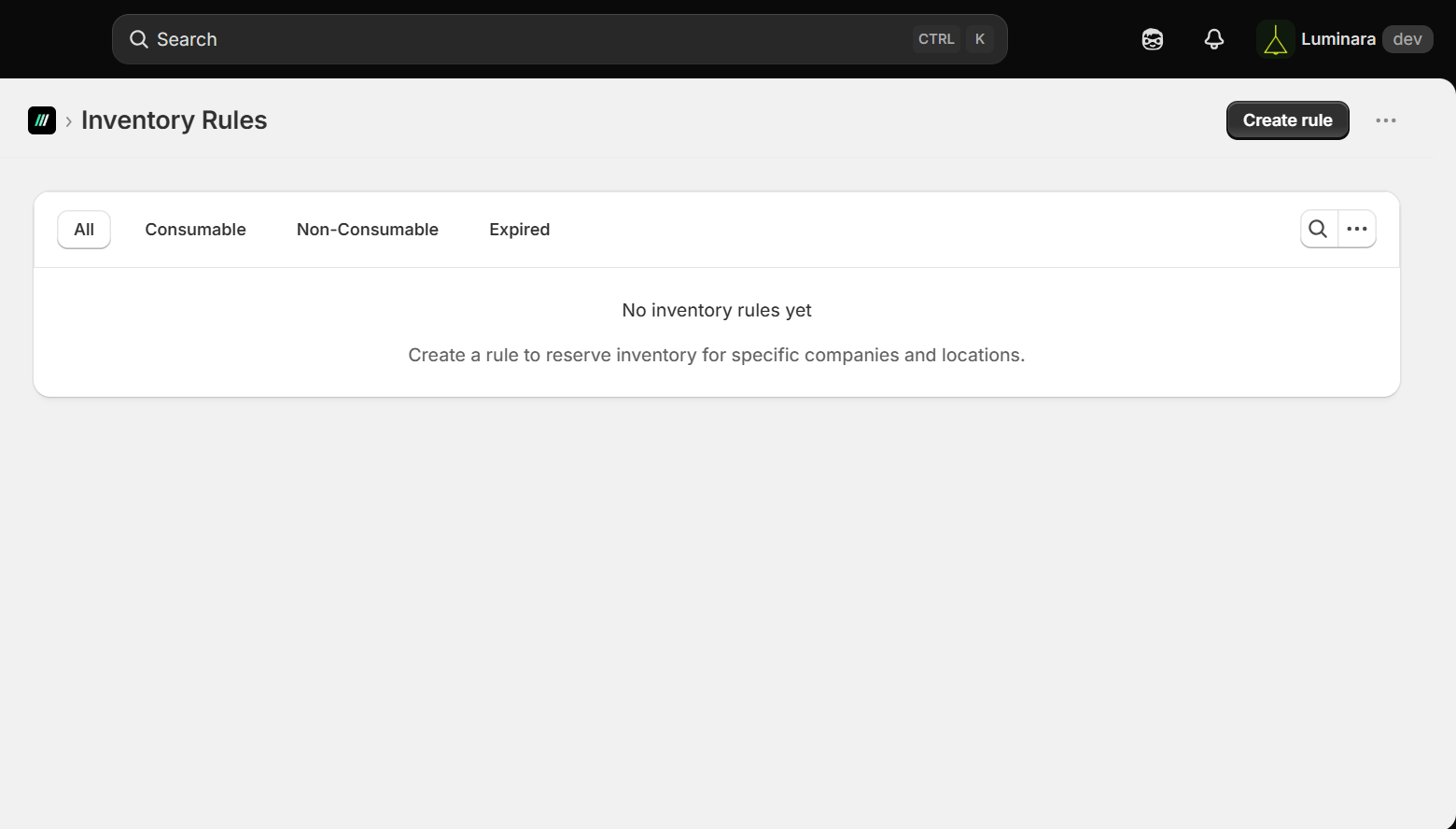
The **Inventory Rules** screen lists all current reservation rules in a table with columns:
* Product, Reservations (by location), Inventory (in stock), Reserved Qty, Type (Consumable/Non-Consumable), Expiry Date, and Actions
* Filter tabs at the top: **All / Consumable / Non-Consumable / Expired**
### **Creating a New Inventory Rule**
From **Inventory Rules > Create rule**, the flow is:
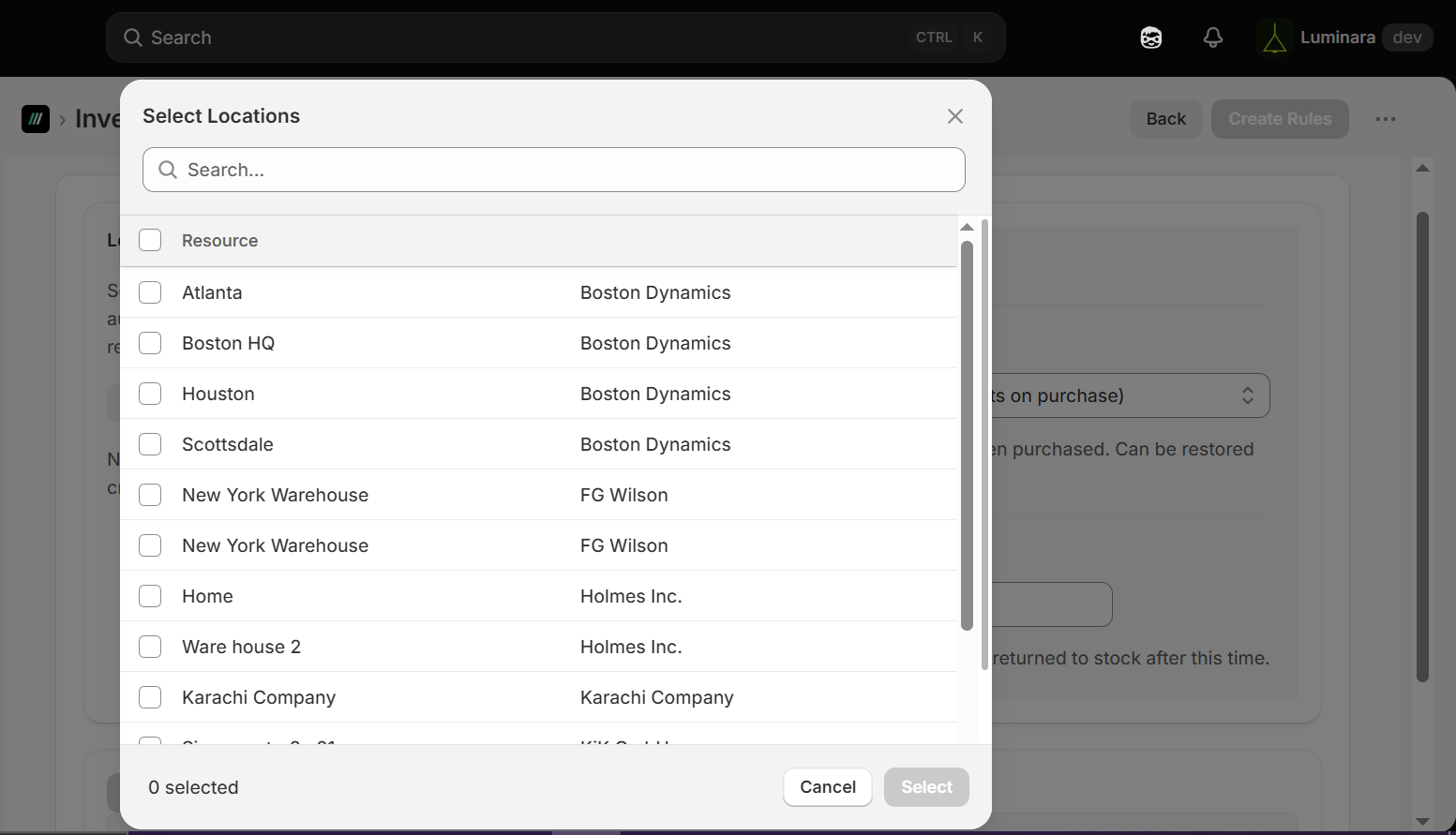
 1. **Select Locations** – choose one or more company locations (the app groups these by parent company; e.g., "Company 112" and "Test-1" each with their own locations)
 2. **Set Reservation Type**:
* *Consumable (deducts on purchase)* – inventory deducts when purchased, can be restored on cancellation
* *Non-Consumable (permanently reserved)* – inventory stays reserved regardless of purchase
3. **Set an Expiration Date** – reserved units automatically return to stock after this date.
2. **Set Reservation Type**:
* *Consumable (deducts on purchase)* – inventory deducts when purchased, can be restored on cancellation
* *Non-Consumable (permanently reserved)* – inventory stays reserved regardless of purchase
3. **Set an Expiration Date** – reserved units automatically return to stock after this date.
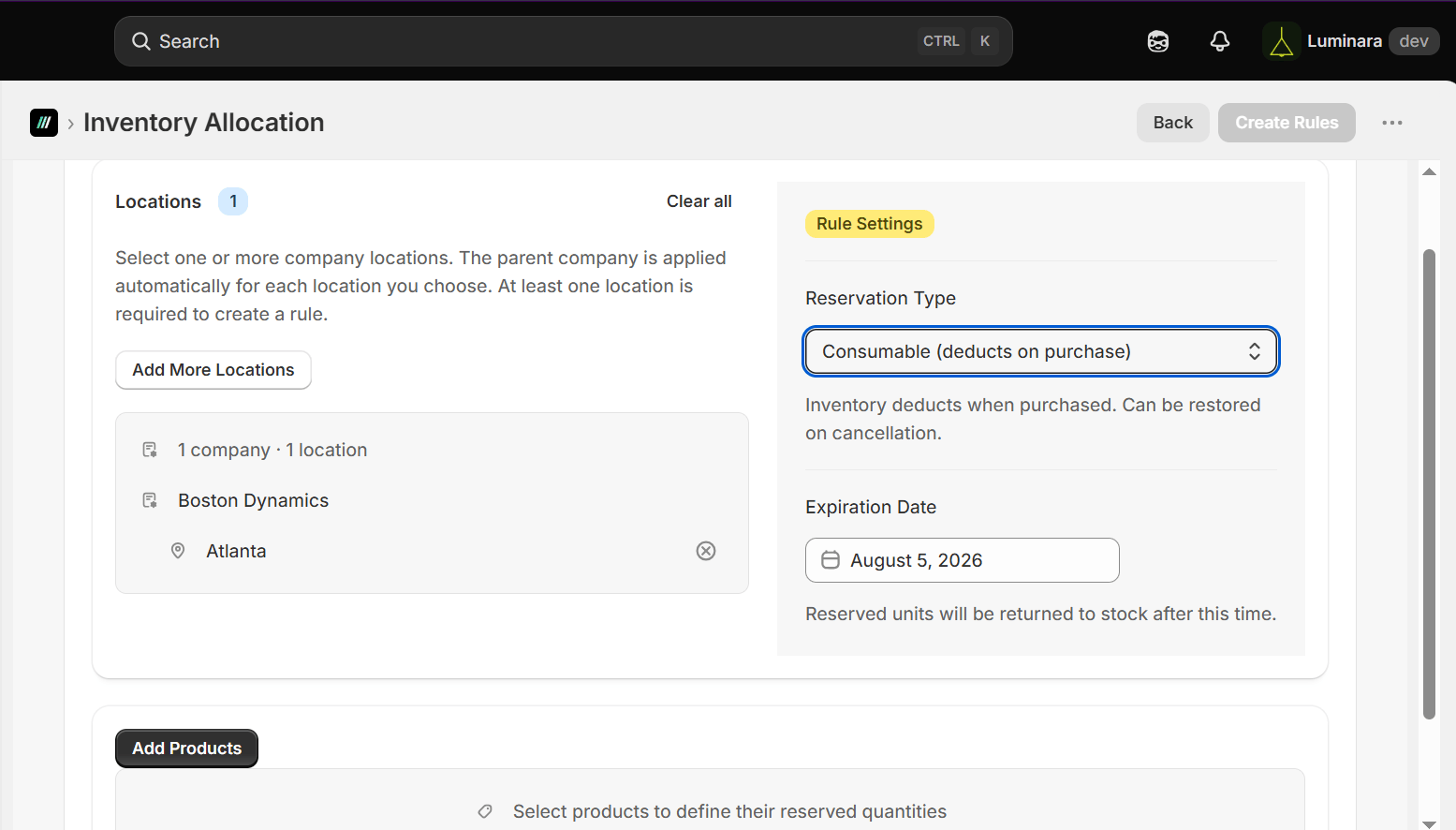 4. **Add Products** – select which products the rule applies to.
5. Click **Create Rule** to save.
4. **Add Products** – select which products the rule applies to.
5. Click **Create Rule** to save.
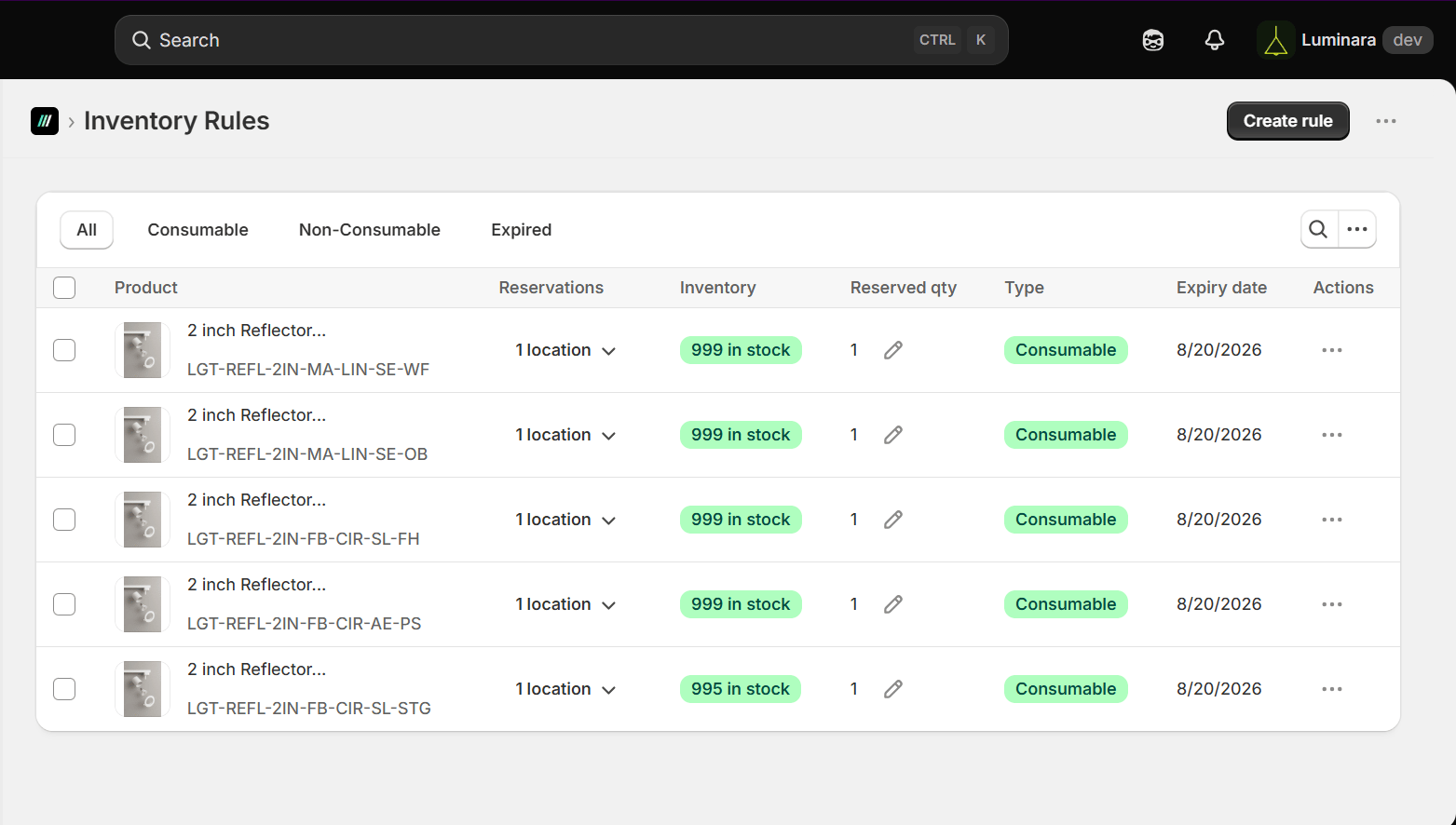 Once created, the new rule immediately appears in the Inventory Rules table with its reserved quantity, type, and expiry date as shown above.