> ## Documentation Index
> Fetch the complete documentation index at: https://help.extendcommerce.com/llms.txt
> Use this file to discover all available pages before exploring further.
# Metafields Support in Quick Order and Product Table
With **Extend B2B Buying**, you can seamlessly integrate product and variant metafields into your order tables, enhancing functionality and customization.
## **Prerequisites**
Before you get started, ensure the following:
1. **Metafields Setup**: You’ve created the required [**metafields**](https://help.shopify.com/en/manual/custom-data/metafields/metafield-definitions) for **Products** or **Variants** in your Shopify admin.
2. **Assigned Values**: The metafields have been assigned specific values for the relevant products or variants.
## **Step-by-Step Guide**
## **1. Add a New Table**
* Navigate to the **Admin Panel** of the **Extend B2B Buying** app.
* Click the **“Add New Table”** button.\
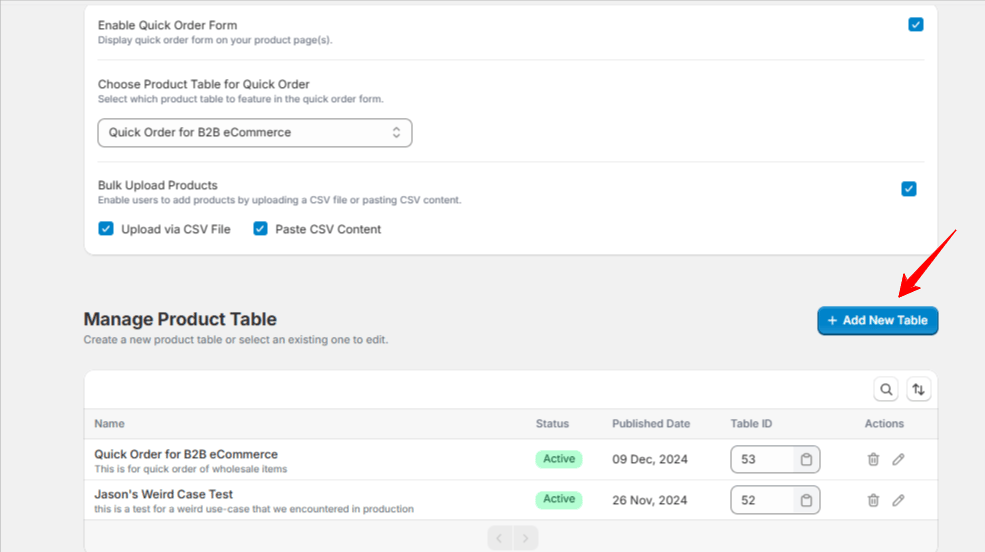 * You’ll be directed to the **Table Settings** page.
## **2. Configure Columns and Filters**
* Scroll to the **“Columns and Filters”** section.\
* You’ll be directed to the **Table Settings** page.
## **2. Configure Columns and Filters**
* Scroll to the **“Columns and Filters”** section.\
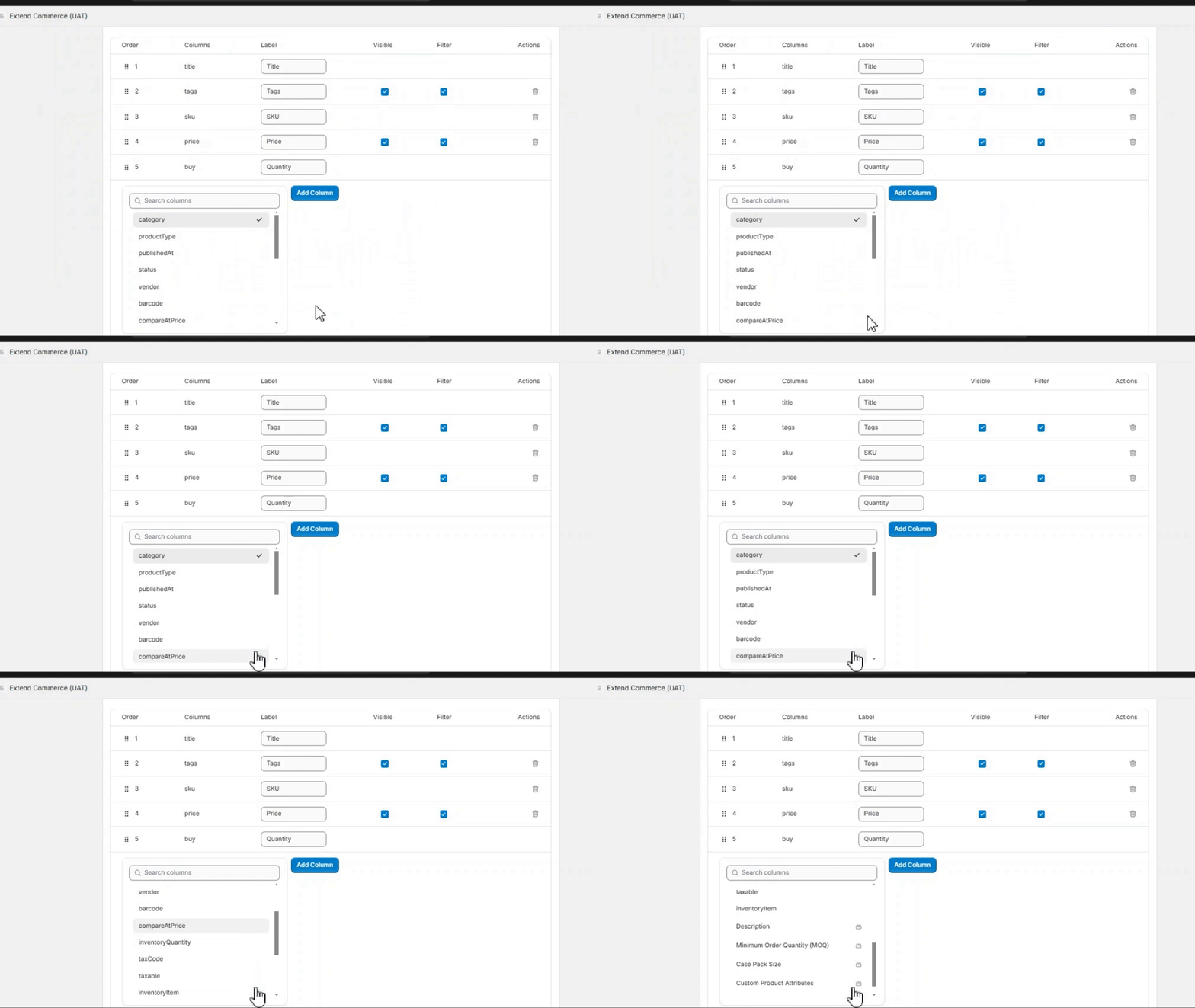
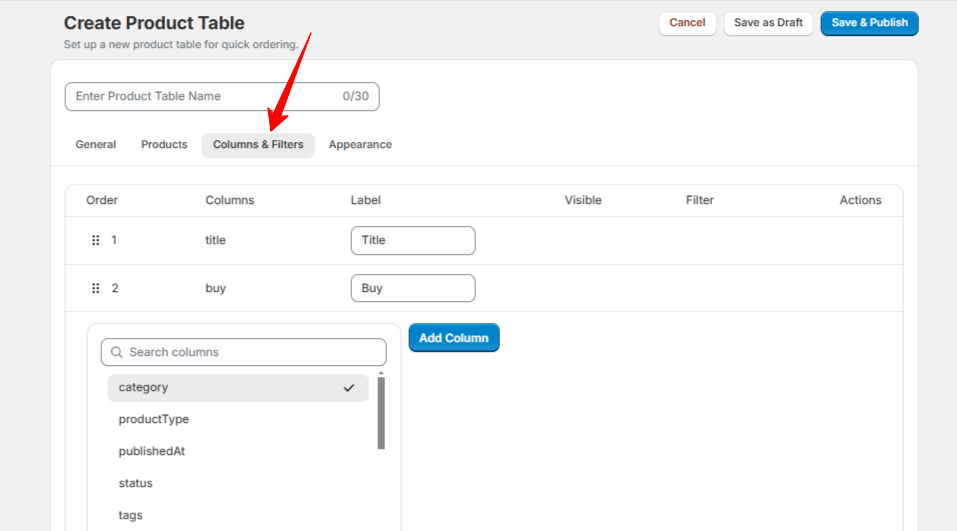 * Towards the end, you’ll find a list of all available metafields in your system.
* Select the metafields you want to display as columns in your table.\
* Towards the end, you’ll find a list of all available metafields in your system.
* Select the metafields you want to display as columns in your table.\
 ## **3. Understand Your Metafields**
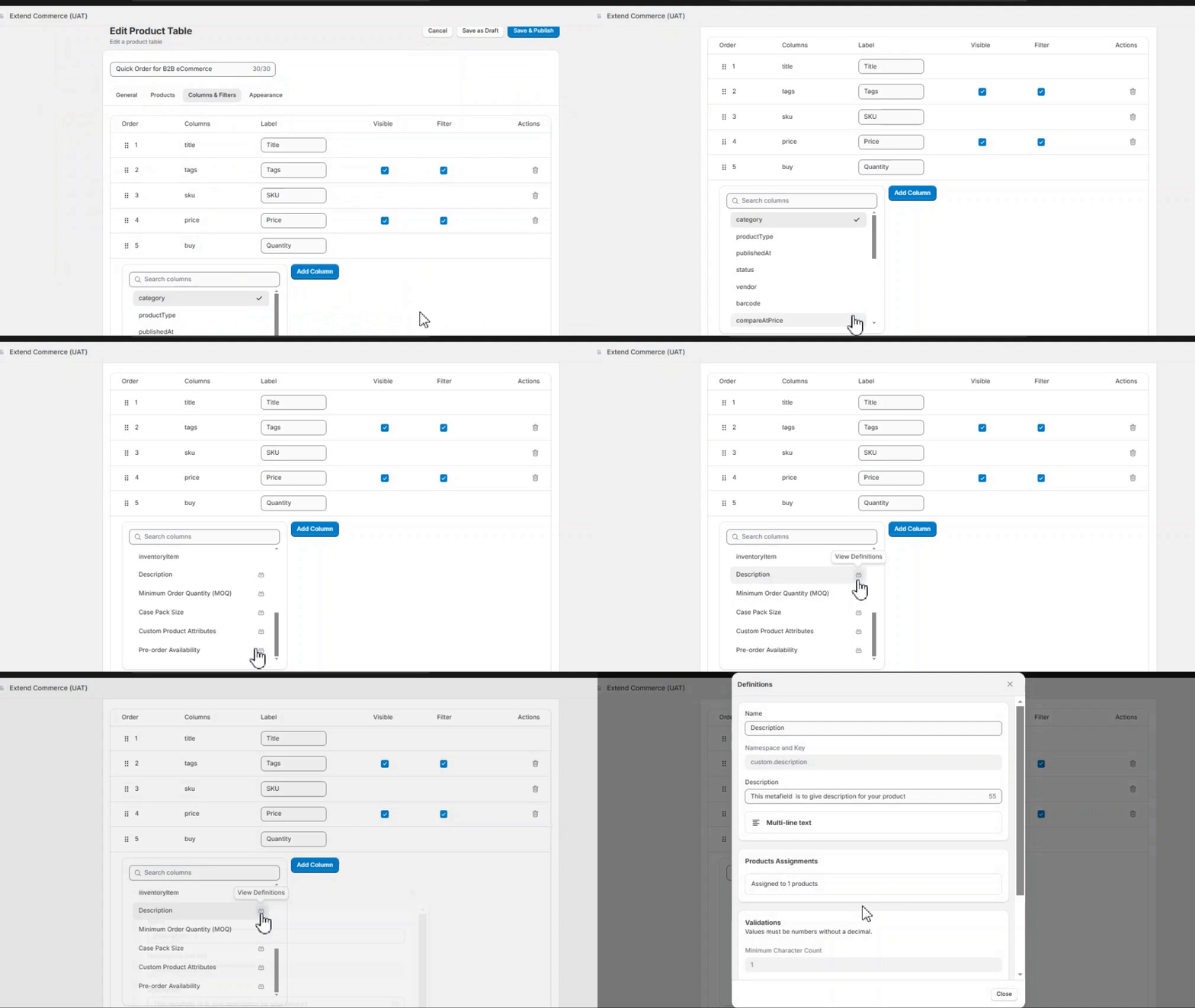
* Use the **“Definition”** icon next to each metafield to view a brief description of its purpose and details.\
## **3. Understand Your Metafields**
* Use the **“Definition”** icon next to each metafield to view a brief description of its purpose and details.\
 ## **4. Save and Publish**
* Once you’ve configured the metafields and other table settings, click **“Save and Publish”**.\
* Return to the **Quick Order Settings** page and select the newly created table from the **Choose Product Table for Quick Order** dropdown field and click **Save Settings**
## **5. View Your Metafields in Quick Order**
* Log in to your store and access the Quick Order page.
* The metafields you selected will now appear as columns in the table.
## **4. Save and Publish**
* Once you’ve configured the metafields and other table settings, click **“Save and Publish”**.\
* Return to the **Quick Order Settings** page and select the newly created table from the **Choose Product Table for Quick Order** dropdown field and click **Save Settings**
## **5. View Your Metafields in Quick Order**
* Log in to your store and access the Quick Order page.
* The metafields you selected will now appear as columns in the table.