> ## Documentation Index
> Fetch the complete documentation index at: https://help.extendcommerce.com/llms.txt
> Use this file to discover all available pages before exploring further.
# How to Configure the B2B Registration Form after Installation
When you open the app for the first time, a default B2B registration form is already created.
#### Default Fields
Default fields are mandatory. These fields ensure that:
* A **Company** can be created
* At least one **Company Location** exists (required by Shopify)
#### Adding Custom Fields Using Meta fields
To collect additional company information:
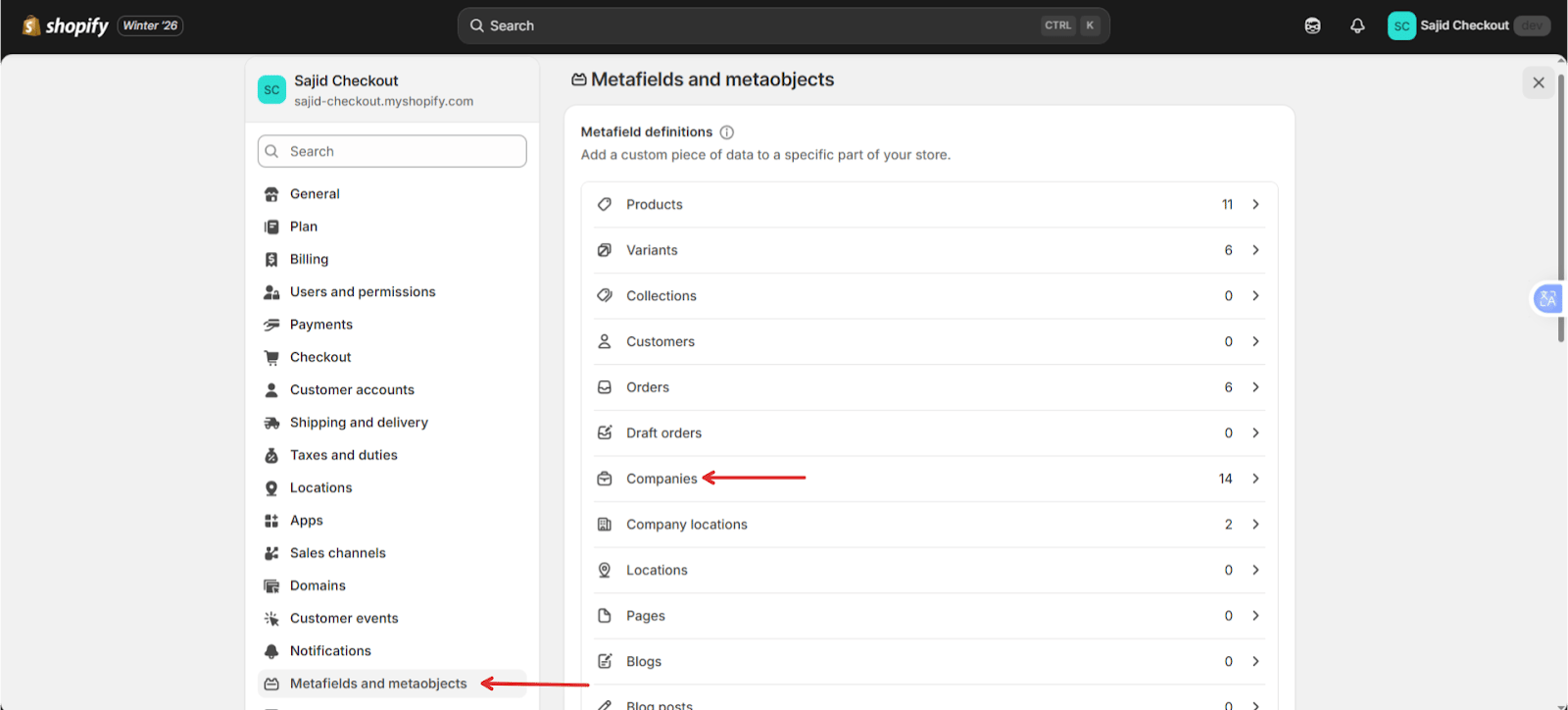
* Go to **Shopify Admin → Settings → Meta fields and metaobjects → Companies**
* Create **company-level meta fields**
* Return to the app
 The newly created meta fields will automatically appear as additional form fields.
#### Managing Form Layout
Custom fields can be:
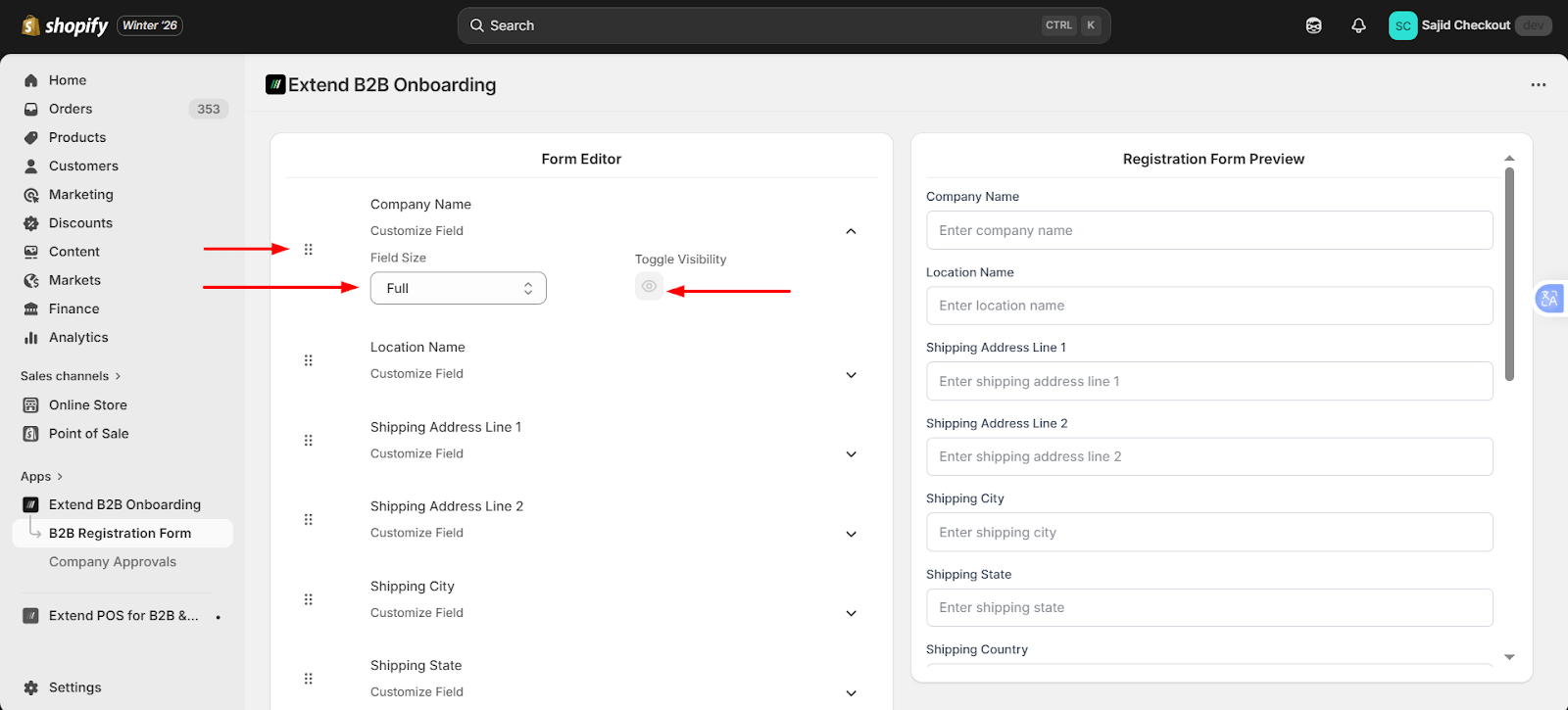
* Enabled or disabled by clicking the **view icon**
* Removed by deleting the meta fields from Shopify
Merchants can:
* Drag and drop fields to reorder them
* Resize fields to change the form layout
The newly created meta fields will automatically appear as additional form fields.
#### Managing Form Layout
Custom fields can be:
* Enabled or disabled by clicking the **view icon**
* Removed by deleting the meta fields from Shopify
Merchants can:
* Drag and drop fields to reorder them
* Resize fields to change the form layout