> ## Documentation Index
> Fetch the complete documentation index at: https://help.extendcommerce.com/llms.txt
> Use this file to discover all available pages before exploring further.
# Managing Company Location Addresses
> This article explains how additional addresses can be managed for a company location — both by the customer (via their Customer Account) and by the admin (via Shopify Admin).
## Part 1: Managing Addresses as a Customer
Prerequisites\
Before a customer can manage addresses, an admin must have:
* Added the Address Management link to the Customer Account menu (see Installing the Address Book App → Step 4).
* Enabled the Address Management extension on the Customer Account page.
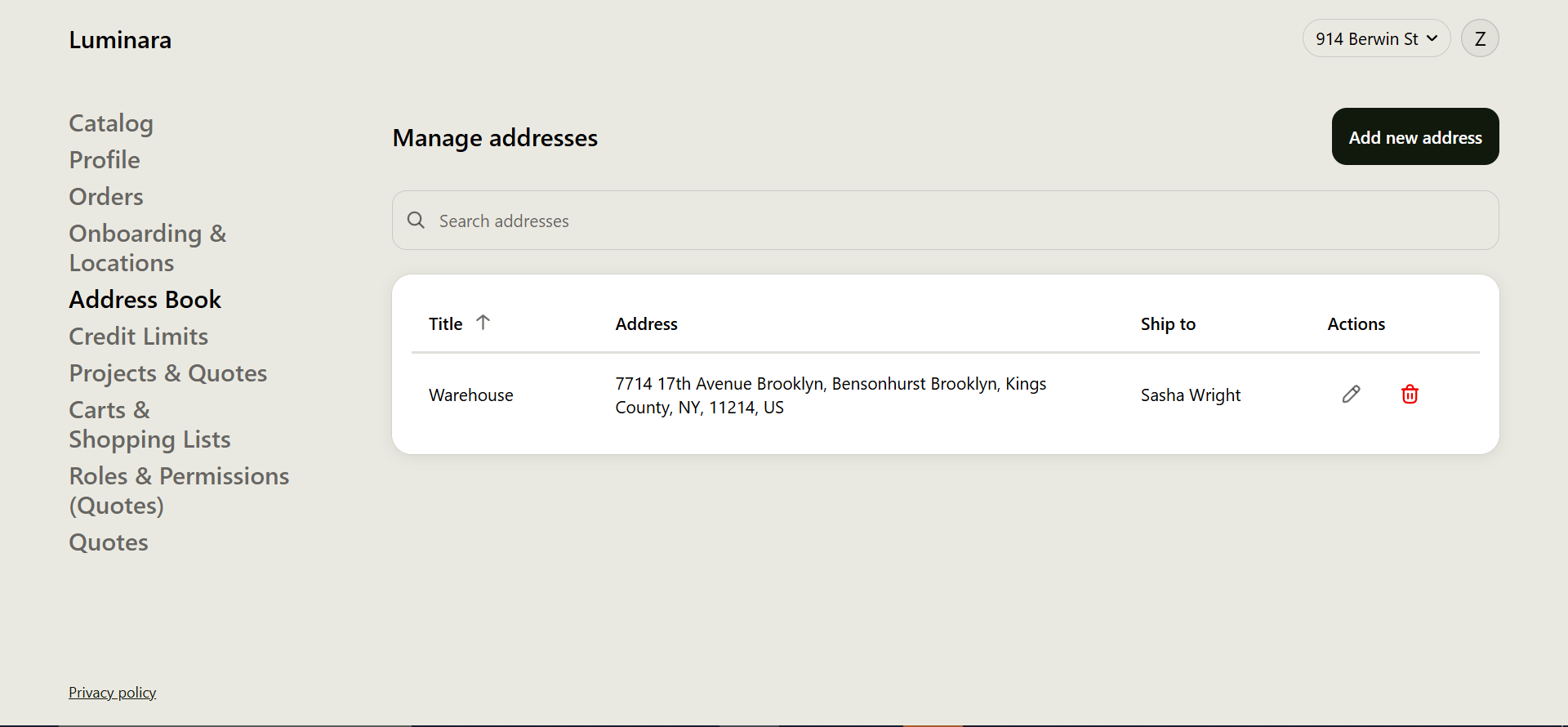
### Accessing Address Management
* Log in to your Customer Account.
* From the account menu, select Address Management.
* All addresses saved to your company location will be listed here.
* Adding a New Address
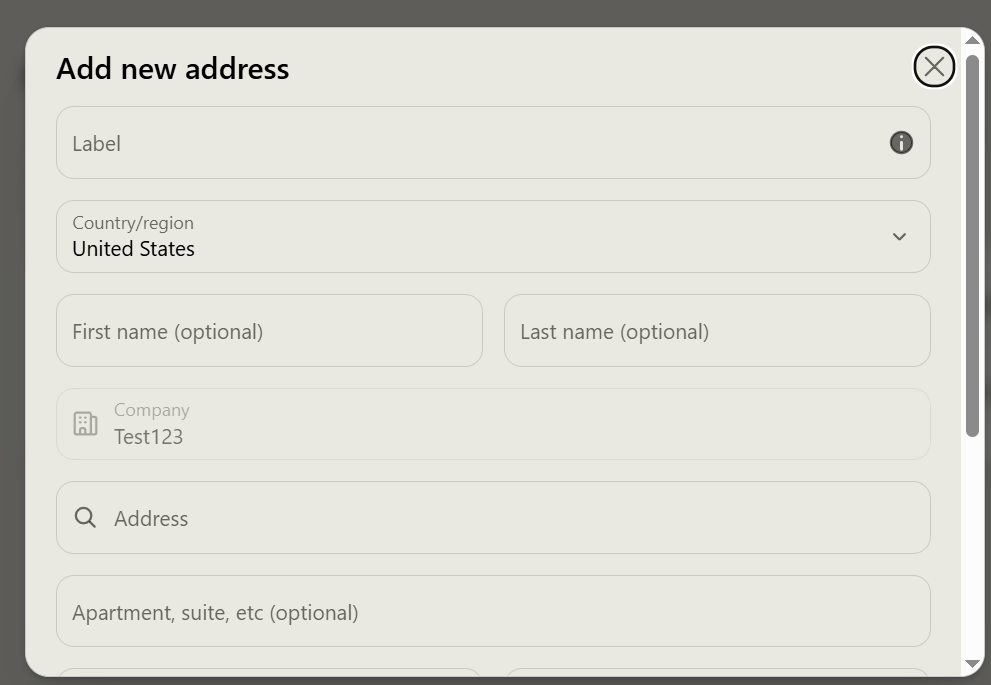
* Click Add new address.
* Fill in the required fields:
Label (e.g., "Warehouse," "Main Office")
Address
City
Zip Code
* Click Save.
The new address is saved to the company location and becomes available to select at checkout.
 ### Editing an Address
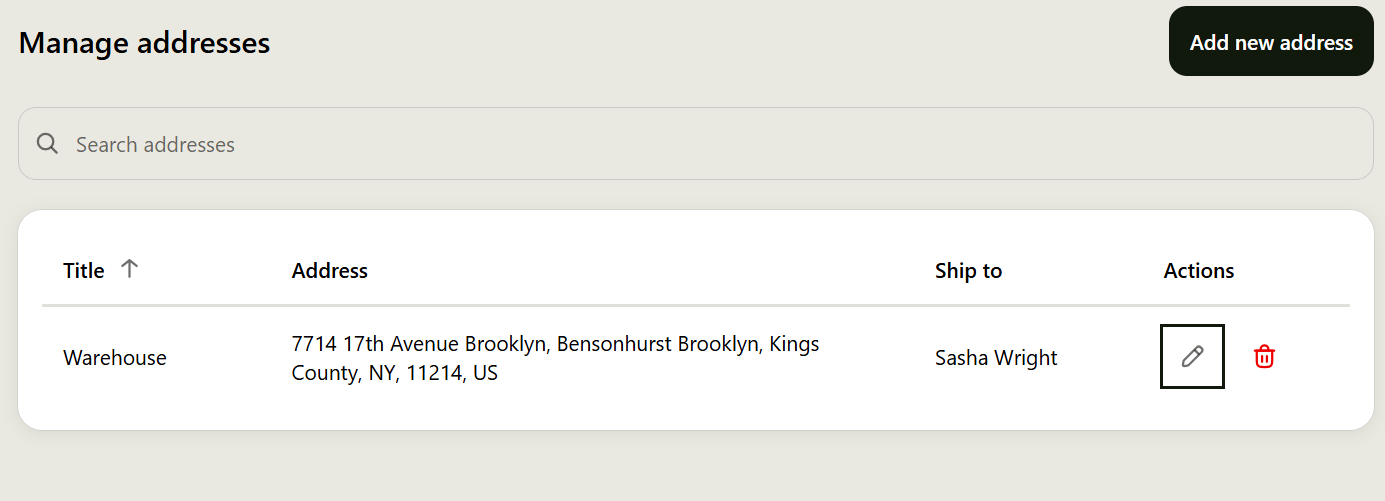
* Find the address you want to update in the list.
* Click the pencil (edit) icon next to it.
* Update the necessary fields.
* Click Save to apply your changes.
### Editing an Address
* Find the address you want to update in the list.
* Click the pencil (edit) icon next to it.
* Update the necessary fields.
* Click Save to apply your changes.
 ### Deleting an Address
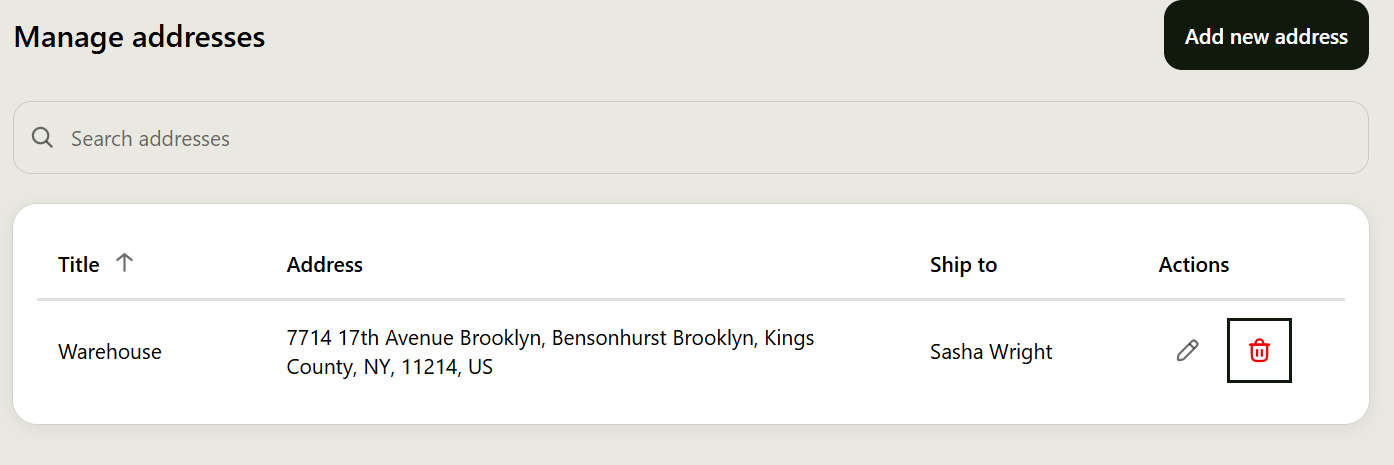
* Find the address you want to remove in the list.
* Click the trash can (delete) icon next to it.
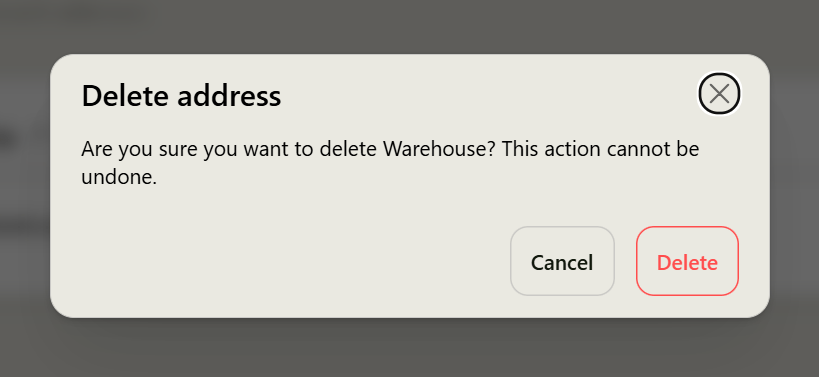
* Confirm the deletion when prompted.
Note: Deleting an address removes it permanently from the company location. It will no longer be available as an option at checkout.
### Deleting an Address
* Find the address you want to remove in the list.
* Click the trash can (delete) icon next to it.
* Confirm the deletion when prompted.
Note: Deleting an address removes it permanently from the company location. It will no longer be available as an option at checkout.
 ## Part 2: Managing Addresses as an Admin
Admins can add, edit, or delete a company location's additional addresses directly from Shopify Admin, using the Additional Addresses block installed on the Company Location Details page (see Installing the Address Book App → Step 2).
* Navigating to a Company Location
* In Shopify Admin, go to Customers.
* Select Companies.
* On the Companies list, click the company you want to manage .
* On the company's page, scroll down to the Locations section and click the specific location you want to manage.
* This opens the Location Details page, which includes shipping/billing address, payment methods, tax details, and the Additional Addresses block.
### Adding a New Address
* On the Location Details page, find the Additional Addresses block.
* Click Add address.
* Fill in the address details.
* Click Save.
* The address is now available to the company at checkout and in the customer's Address Management page.
### Editing an Address
* In the Additional Addresses block, use Search addresses to find the address if needed.
* Click the pencil (edit) icon next to the address.
* Update the necessary fields.
* Click Save.
### Deleting an Address
* In the Additional Addresses block, locate the address you want to remove.
* Click the trash can (delete) icon next to it.
* Confirm the deletion when prompted.
Note: Deleting an address here removes it for the entire company location — it will no longer appear for any customer managing addresses from their Customer Account.
## Part 2: Managing Addresses as an Admin
Admins can add, edit, or delete a company location's additional addresses directly from Shopify Admin, using the Additional Addresses block installed on the Company Location Details page (see Installing the Address Book App → Step 2).
* Navigating to a Company Location
* In Shopify Admin, go to Customers.
* Select Companies.
* On the Companies list, click the company you want to manage .
* On the company's page, scroll down to the Locations section and click the specific location you want to manage.
* This opens the Location Details page, which includes shipping/billing address, payment methods, tax details, and the Additional Addresses block.
### Adding a New Address
* On the Location Details page, find the Additional Addresses block.
* Click Add address.
* Fill in the address details.
* Click Save.
* The address is now available to the company at checkout and in the customer's Address Management page.
### Editing an Address
* In the Additional Addresses block, use Search addresses to find the address if needed.
* Click the pencil (edit) icon next to the address.
* Update the necessary fields.
* Click Save.
### Deleting an Address
* In the Additional Addresses block, locate the address you want to remove.
* Click the trash can (delete) icon next to it.
* Confirm the deletion when prompted.
Note: Deleting an address here removes it for the entire company location — it will no longer appear for any customer managing addresses from their Customer Account.