Metafield Integration in Extend POS
Learn how to display and capture Order Metafields (Date, Single Line Text, and Choice List) on the checkout screen in Extend POS.
Written By Huda
Last updated 6 days ago
Steps
1. Create Order Metafields in Shopify Admin
First, create the metafields you want to use on the checkout screen.
In the Shopify Admin, go to:
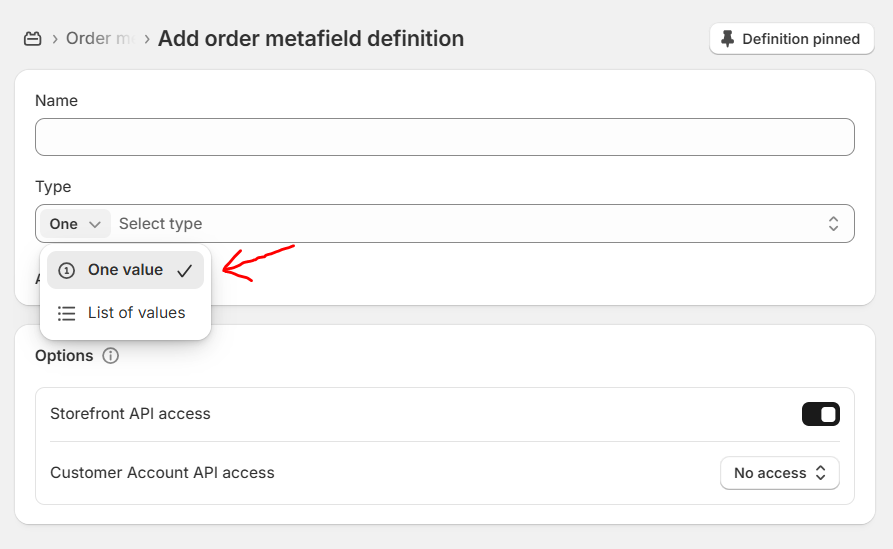
Settings → Metafields and Metaobjects → OrdersClick Add definition.
Create metafields of the following supported types:
Date
Single line text
Choice List (Single line text)
Save your metafield definitions.
Note: The Single line text and Choice List (Single line text) currently support type: One Value
2. Enable Metafields in Extend POS for B2B & Wholesale
After creating the metafields in Shopify, enable them inside our app so they appear on the Checkout screen.
In Shopify Admin, open Extend POS for B2B & Wholesale.
Go to Settings.
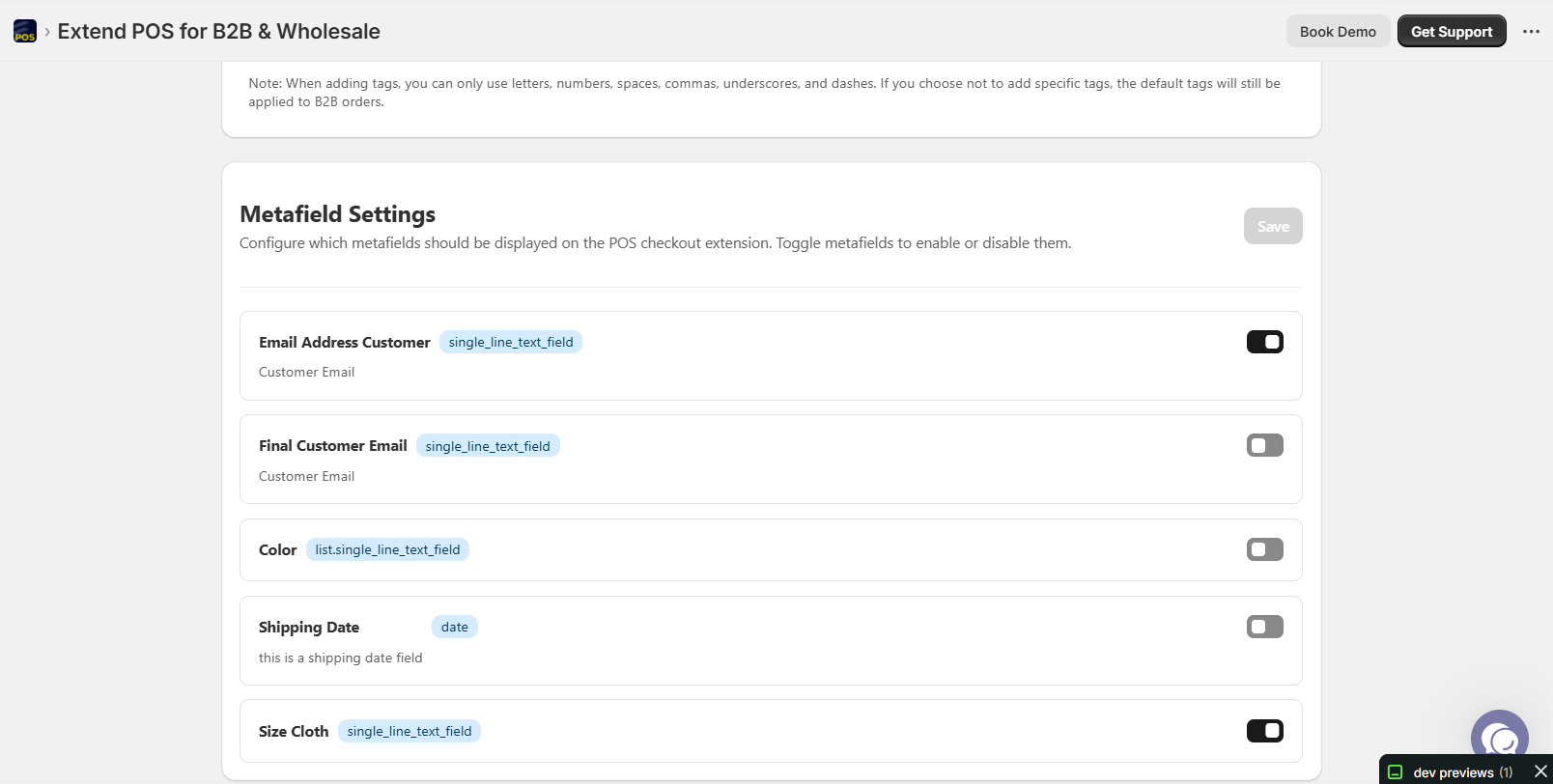
Navigate to Metafield Settings.
Enable the metafields you want to display at checkout.
3. Capture Metafields on the Extend POS Checkout Screen
Open the Extend POS for B2B & Wholesale app on Shopify.
Create a B2B Order using our app’s usual order creation flow.
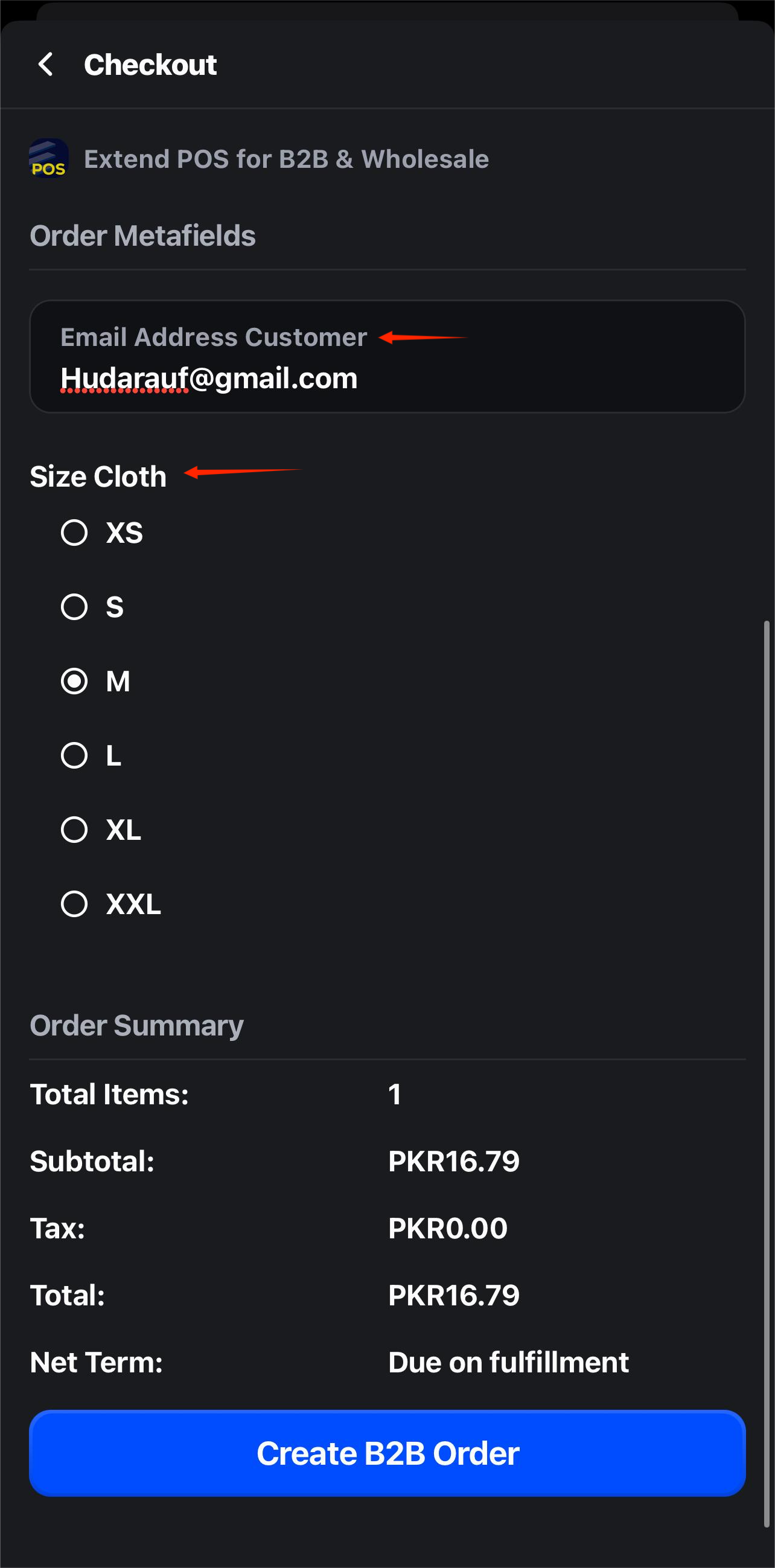
When you reach the Checkout screen, you will now see the metafields you enabled.
Enter the required values for each metafield.
Complete the order.
4. Verify Saved Metafield Values
After the order is created:
Go to the order in the Shopify Admin.
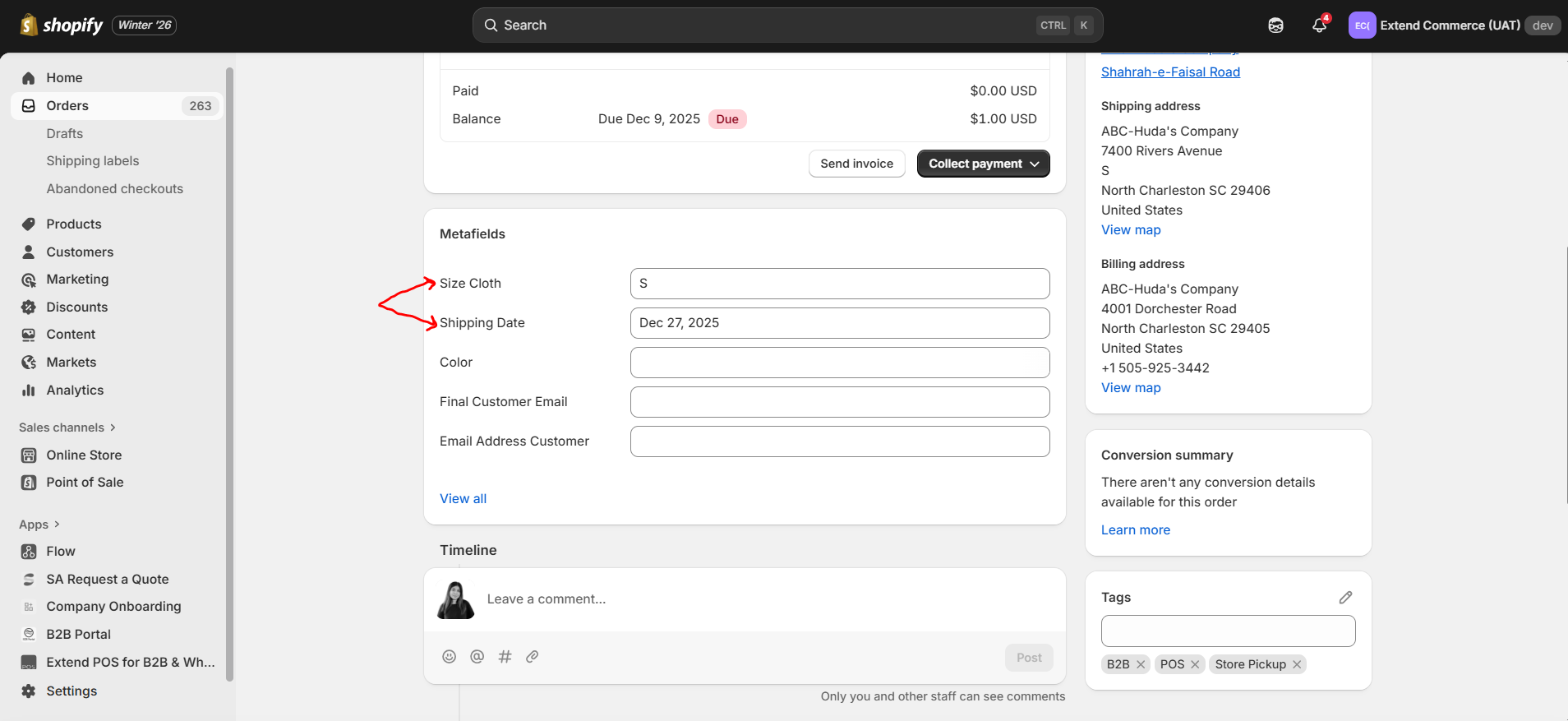
Scroll to the Metafields section of the order.
Confirm that the values you entered at checkout have been correctly saved.
By following these steps, you can easily configure and capture custom order information directly from the POS checkout screen. This ensures that all required data is stored within the order metafields, improving accuracy and streamlining your B2B order workflow.