Creating and Saving Projects
Written By Huda
Last updated About 20 hours ago
Overview
Once the Projects setup is complete:
When customers add products to their cart, the Project Extension will automatically manage and save their carts.
In the Customer Account, a new dashboard on a Page (titled using the label you entered, e.g., "Saved Carts") will appear, giving users access to saved cart features.
Company users will be able to:
View and manage saved carts as Projects
Create and assign roles
Set custom permissions
Managing Roles and Permissions
To configure roles and permissions:
Log in as the Main Contact of the company. As the Main Contact will have the permissions to Manage Project and Quotes, Create Roles and Permissions to Company users from the Dashboard.
Go to the page where you have embed the Project & Quotes Extension, on the dashboard you'll find three tabs:
Projects
Manage Roles
Quotes
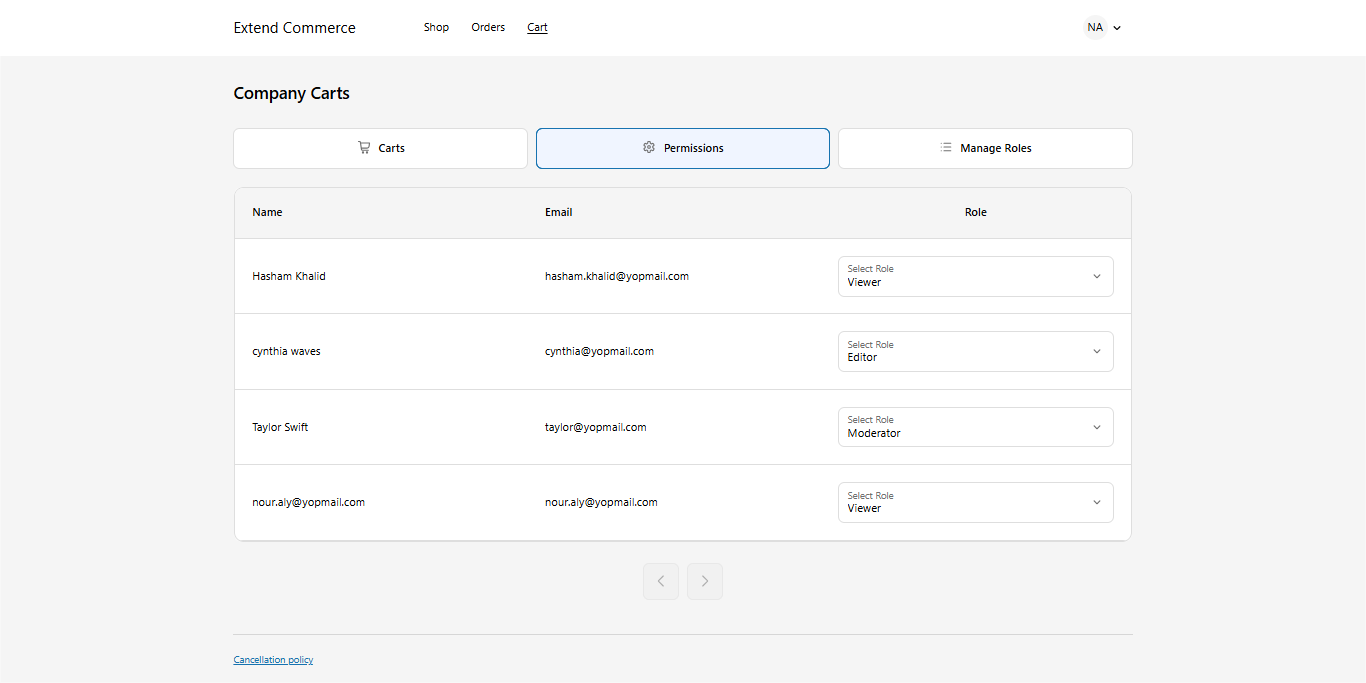
Manage Roles
In the Manage Roles tab, assign roles to company users.
By default, the following roles are available (note: these are editable and not permanent):
Viewer
Editor
Checkout Manager
Approver
You can rename these roles and customize their permissions.
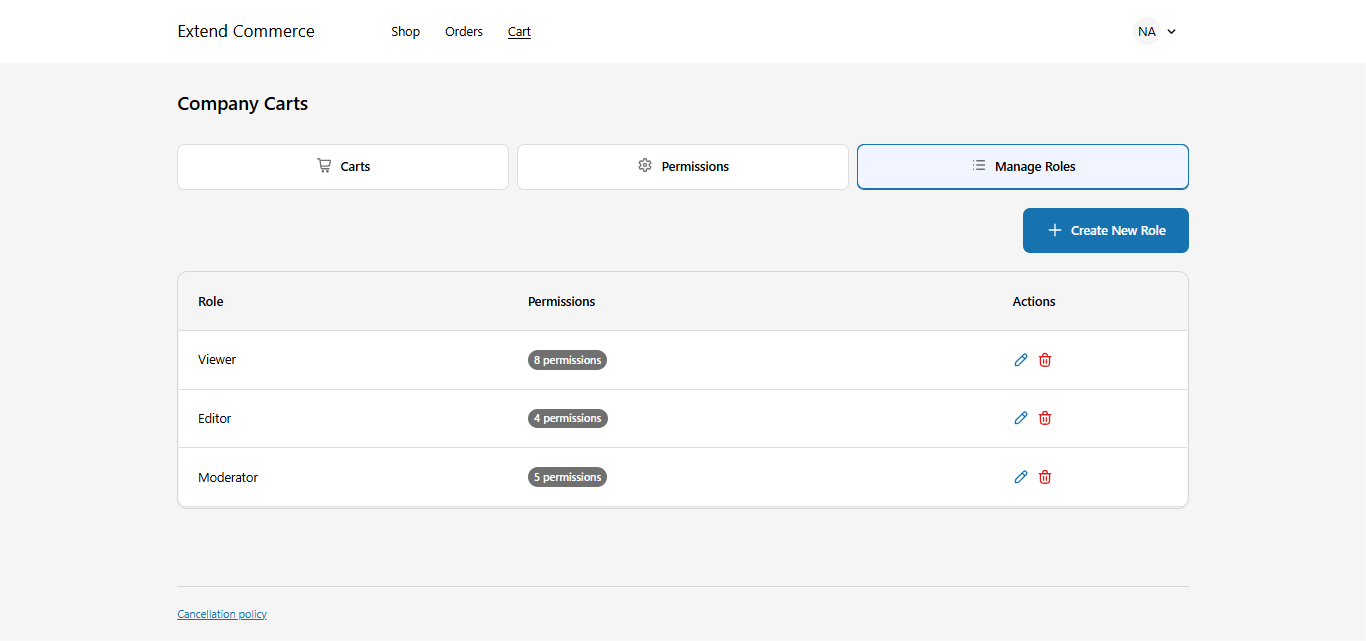
Manage Permissions
In the Manage Permissions tab, click Edit next to any role to modify its permissions.
To create a new role:
Click Create New Role.
Enter the Role Title.
Assign permissions as needed.
Click Create to save the role.
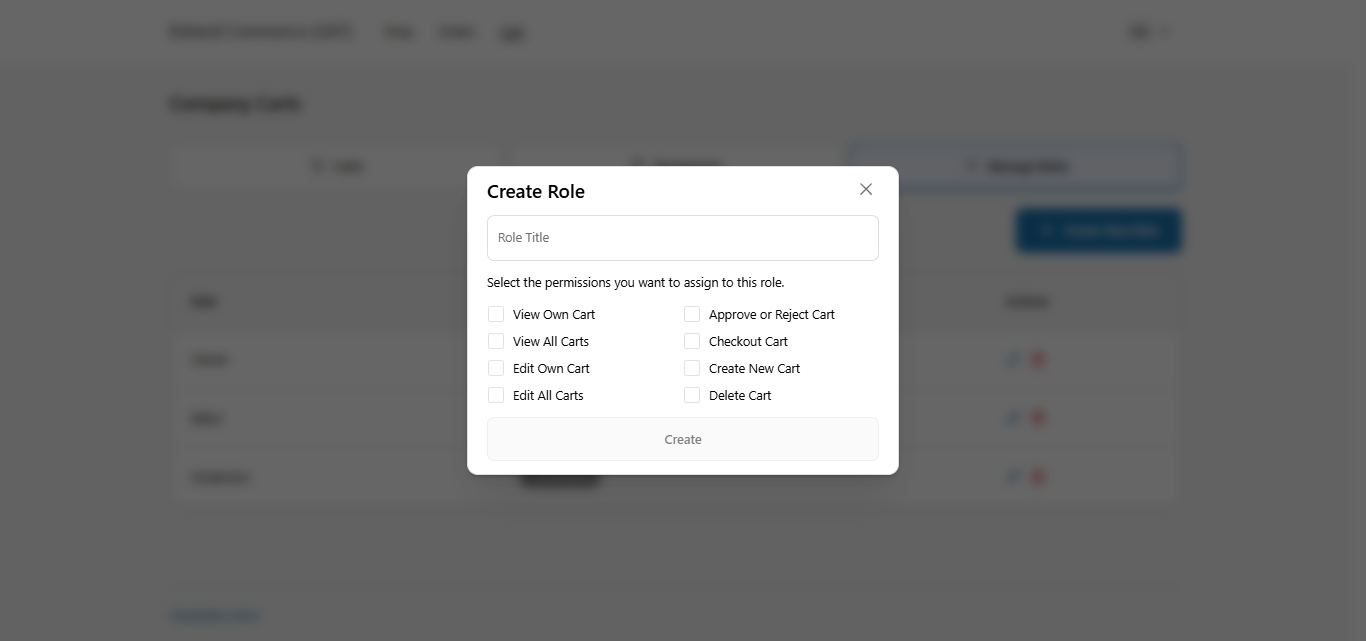
Note: Company Users' access to cart features will depend on the permissions assigned to their role.
Project Permissions Overview
This table outlines the available permissions that can be assigned to users for managing saved projects within the Multi-Cart system.
Creating and Saving a Project
Once users log in to the storefront, they will see a "Save Project" button on the Cart page (powered by the Cart Controls extension) and allows users to save their current cart for later use.
Click the "Save Cart" button on the Cart page.
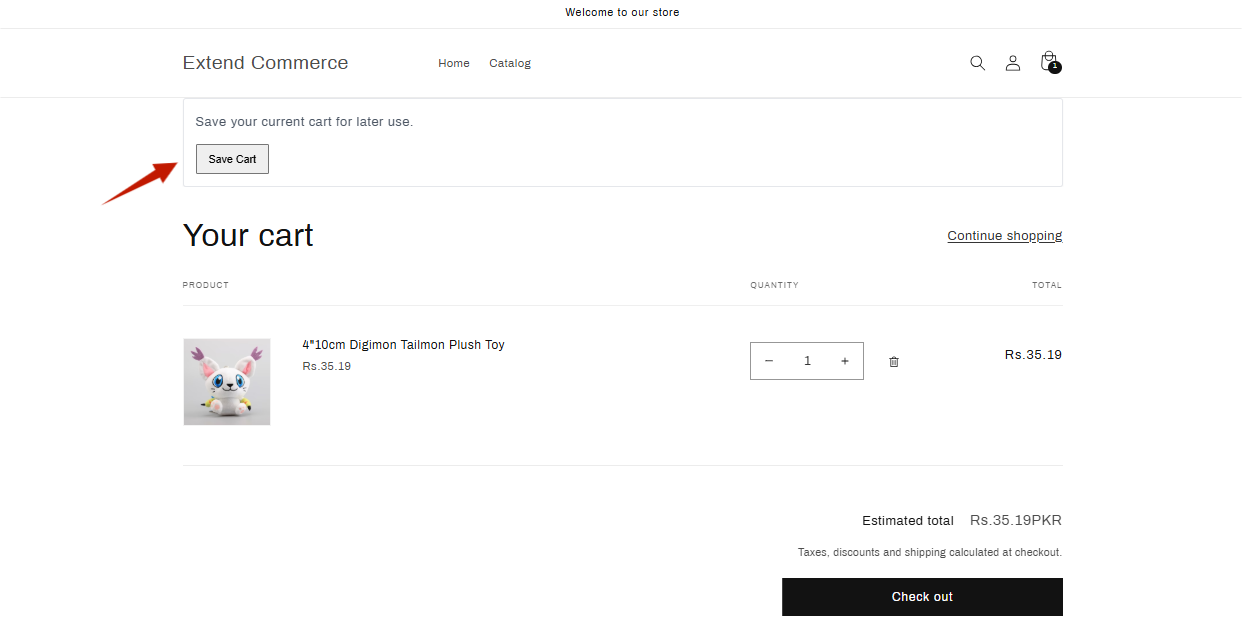
A pop-up will appear with two options:
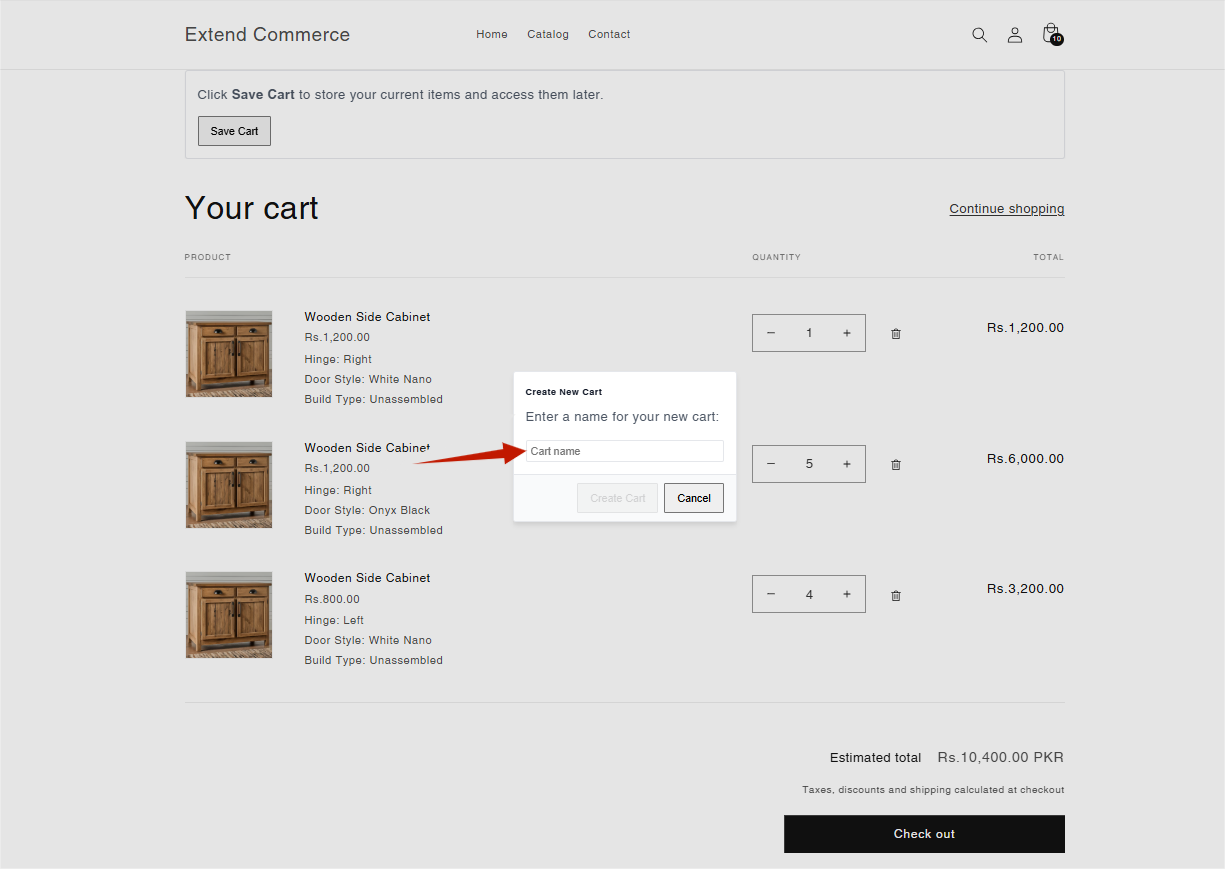
New Cart
Select this option to create a brand-new saved cart.Enter a preferred name for the new cart.
Click Save to store it.
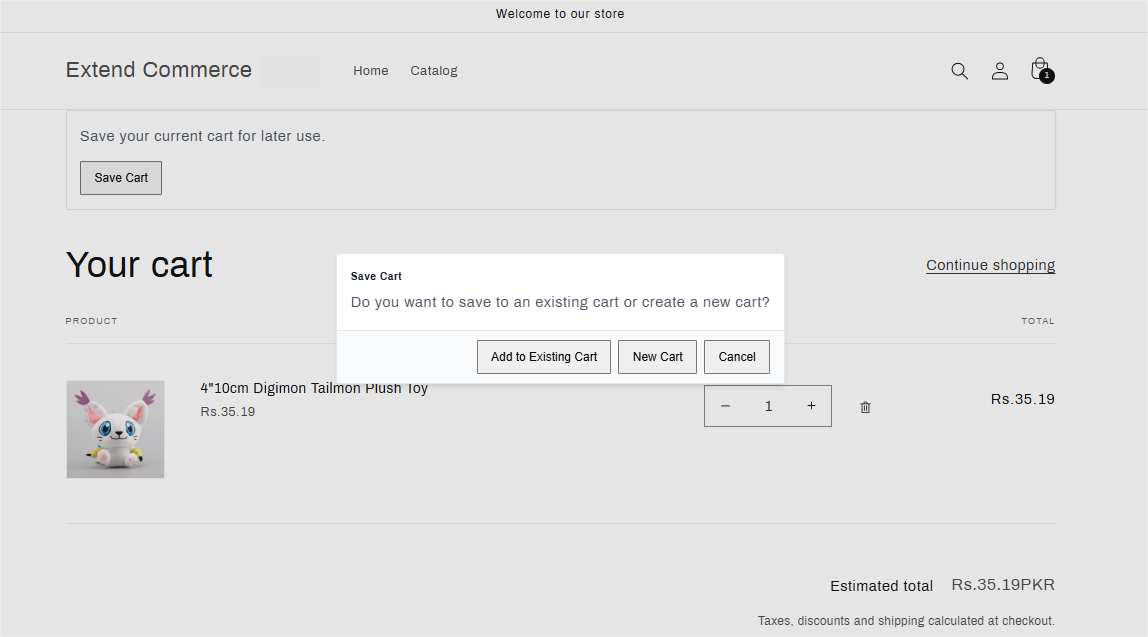
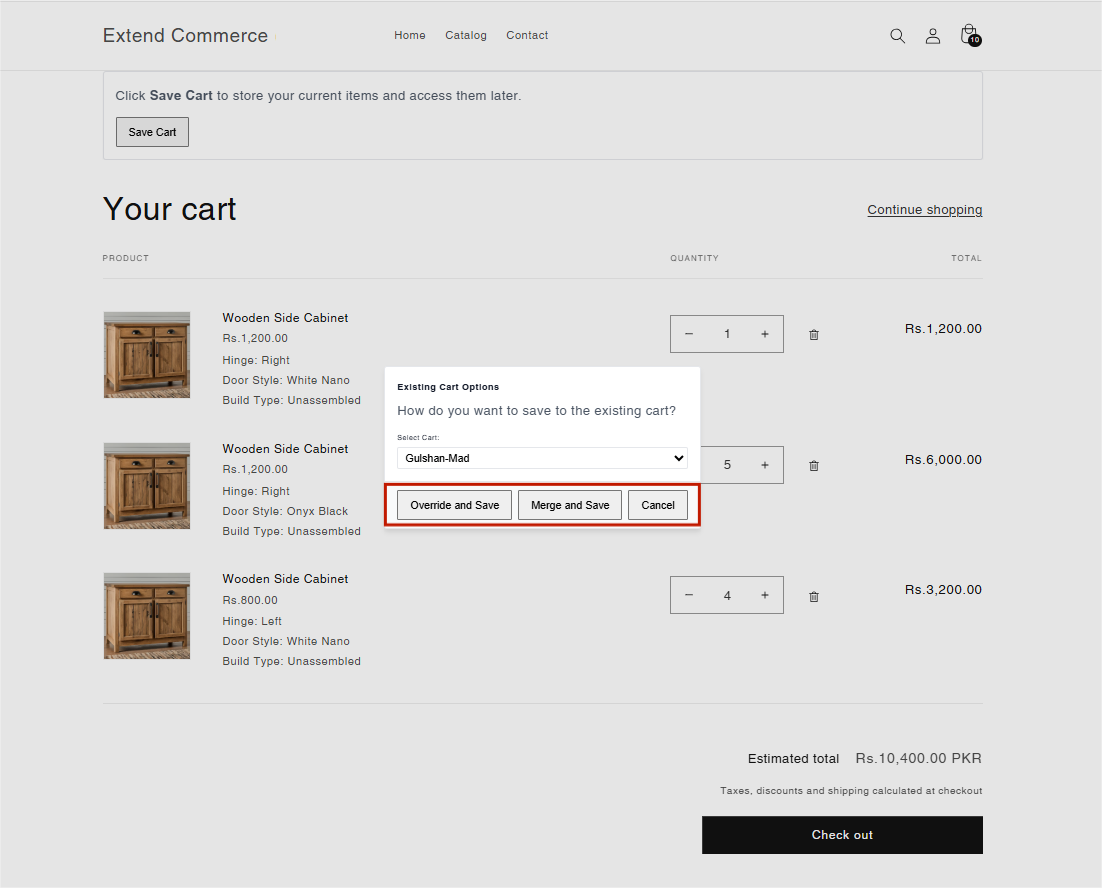
Add to Existing Cart
Choose this if you want to add the current cart items to an already saved cart.Select the target cart from the dropdown list.
Choose one of the following options:
Merge and Save – Adds the new items to the selected saved cart without removing the existing ones.
Override and Save – Replaces the contents of the selected saved cart with the current cart items.
After saving a cart, a confirmation notification will appear indicating that the cart has been successfully saved.
Accessing Saved Carts
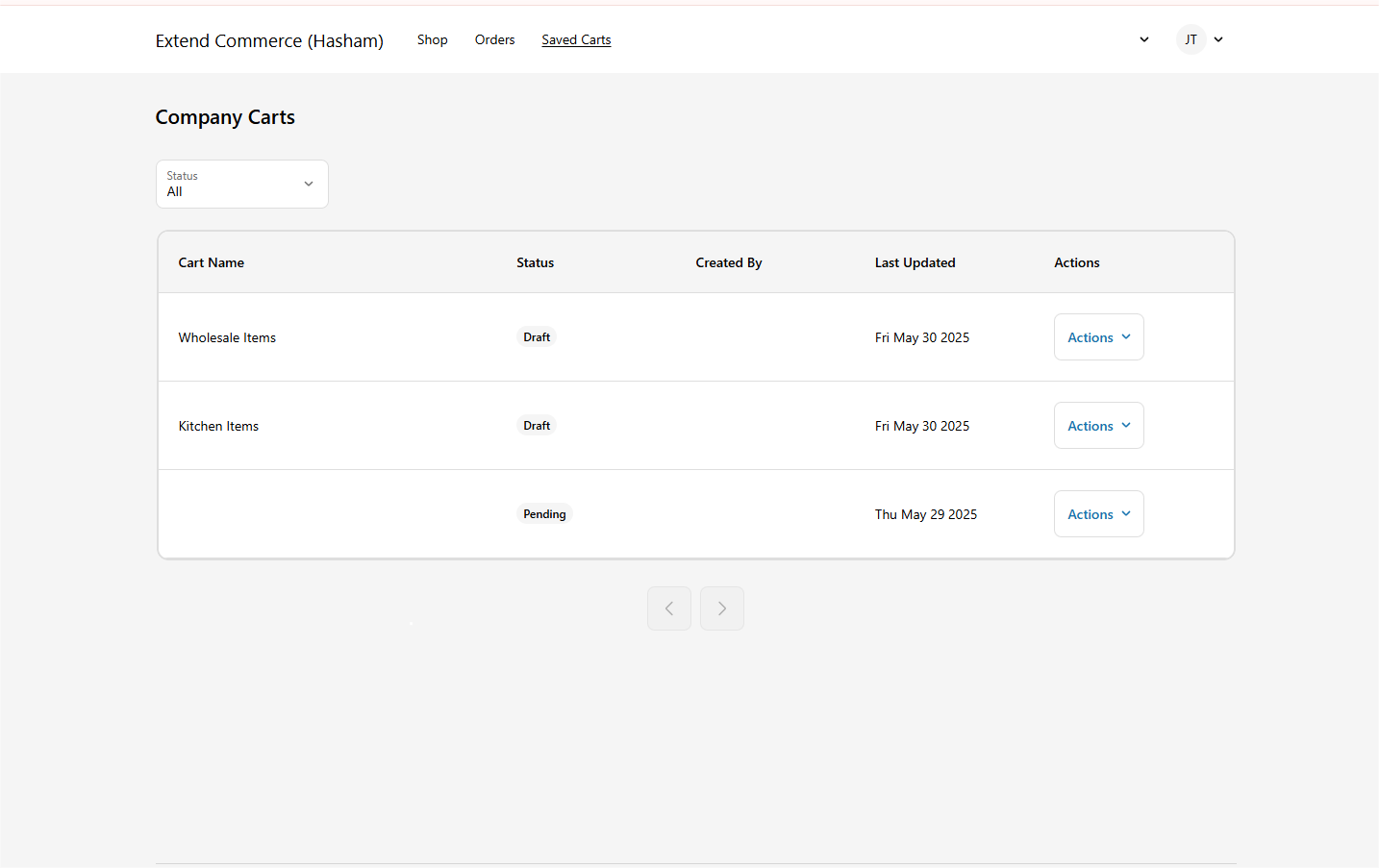
Navigate to your Customer Account.
A new page will be visible in the account menu — titled based on the label you provided earlier (e.g., "Saved Carts").
On this page, users will see a list of their saved carts or other's carts, but only if:
They have been assigned a role.
Their role includes permission to view carts.
🔒 Permissions-Based Access: Only users with the appropriate role and permissions can:
View saved carts
Create new carts
Modify or delete existing carts
Share carts with others