Selecting and Editing Addresses at Checkout
This article explains how customers can select a saved address during checkout, and how they can edit an address without leaving the checkout flow.
Written By Fatima Faisal
Last updated 5 days ago
Selecting and Editing Addresses at Checkout
Selecting a Saved Address
The customer proceeds to Checkout.
In the Shipping section, scroll down to view saved addresses.
Click to open the Address Selection Modal.
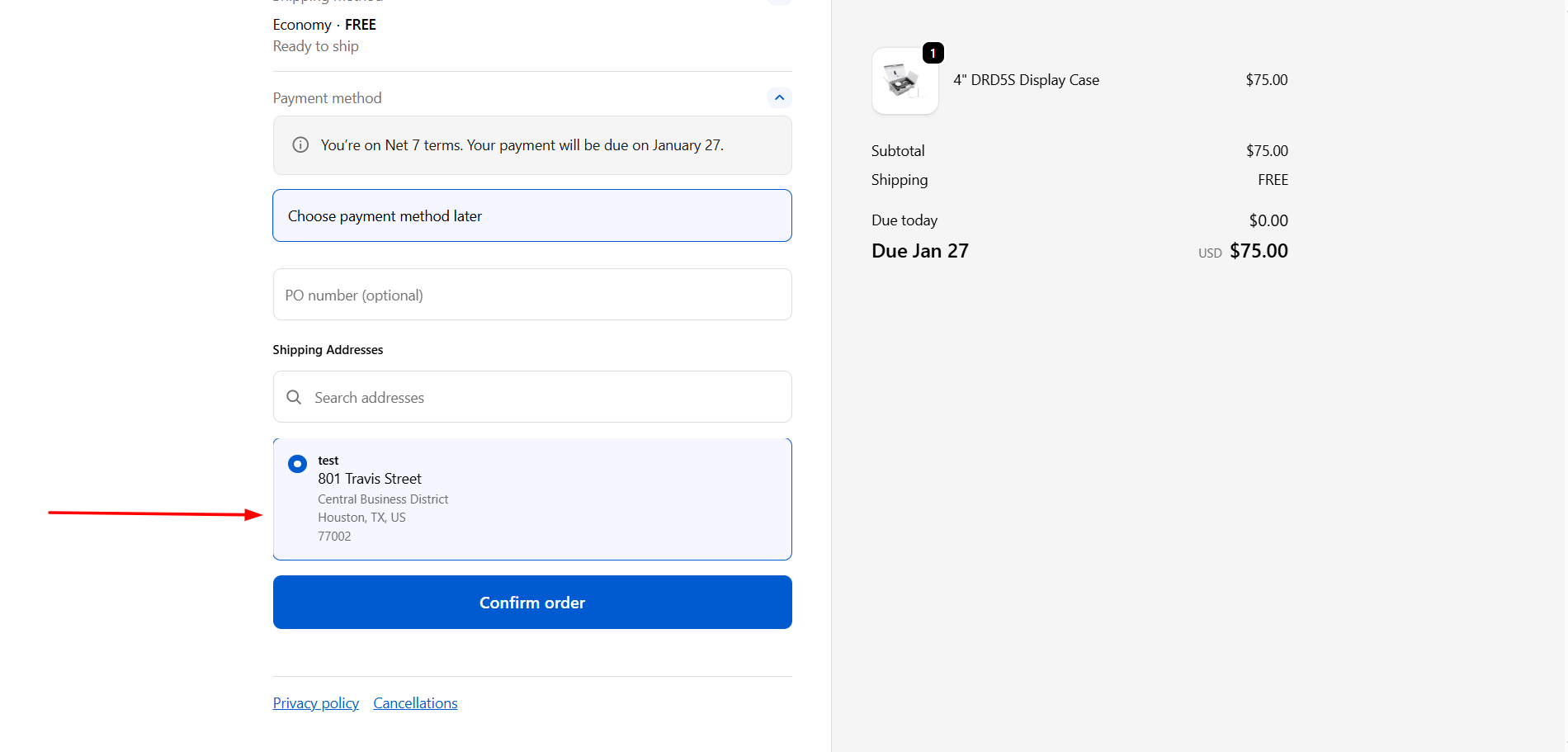
Select any saved address from the list.
Continue checkout as normal — the selected address is used for shipping.
Editing an Address at Checkout
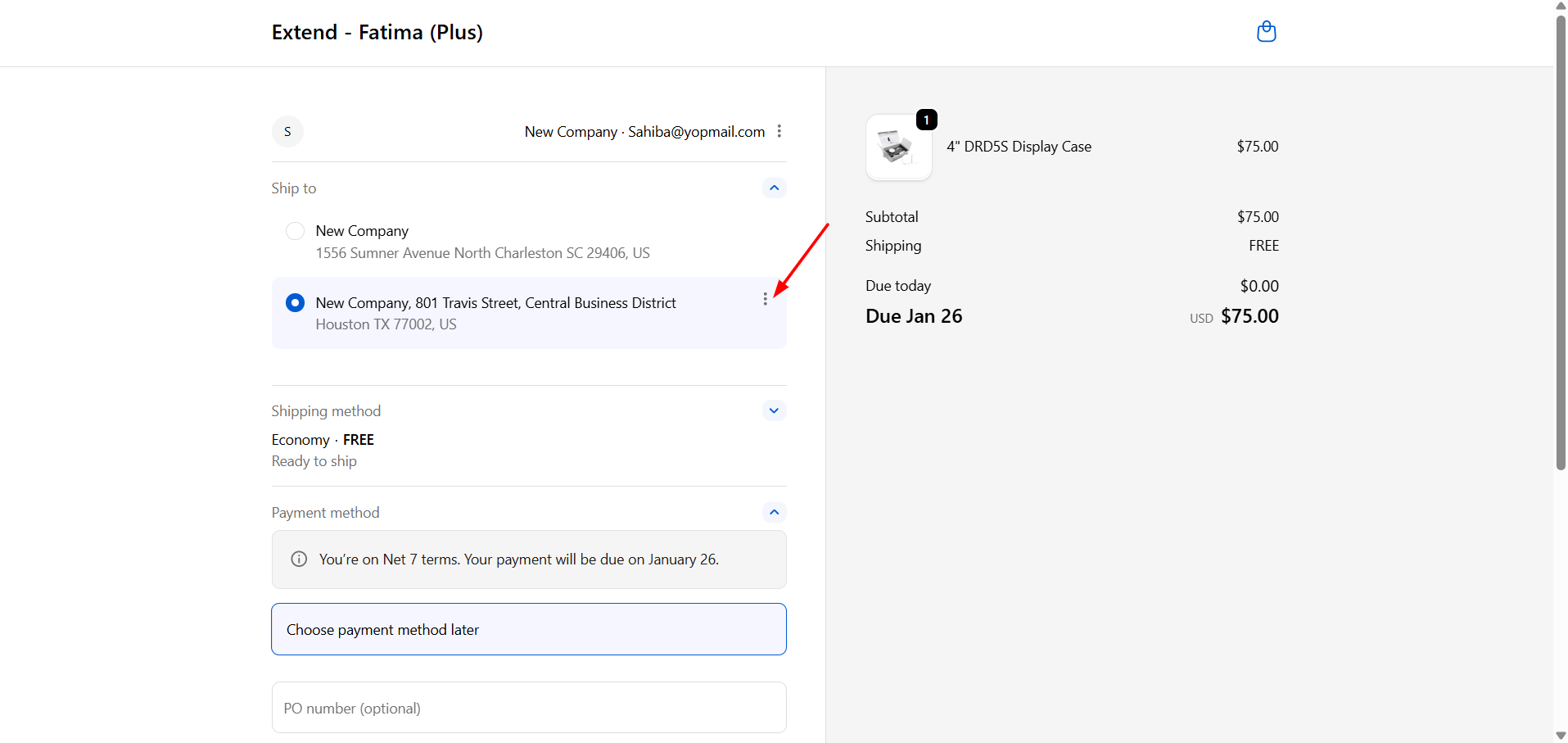
In the Shipping section, click the three-dot menu on the address you want to change.
Make the required changes to the address fields.
After editing, choose one of the following options:
Option A: Create as a New Address
Enter a new Label for the address.
Save.
This saves the edited details as a separate, new address — the original saved address is left unchanged.
After editing, the customer is prompted to choose one of the following:
Option B: Edit an Existing Address
Select the address label you want to update.
Save.
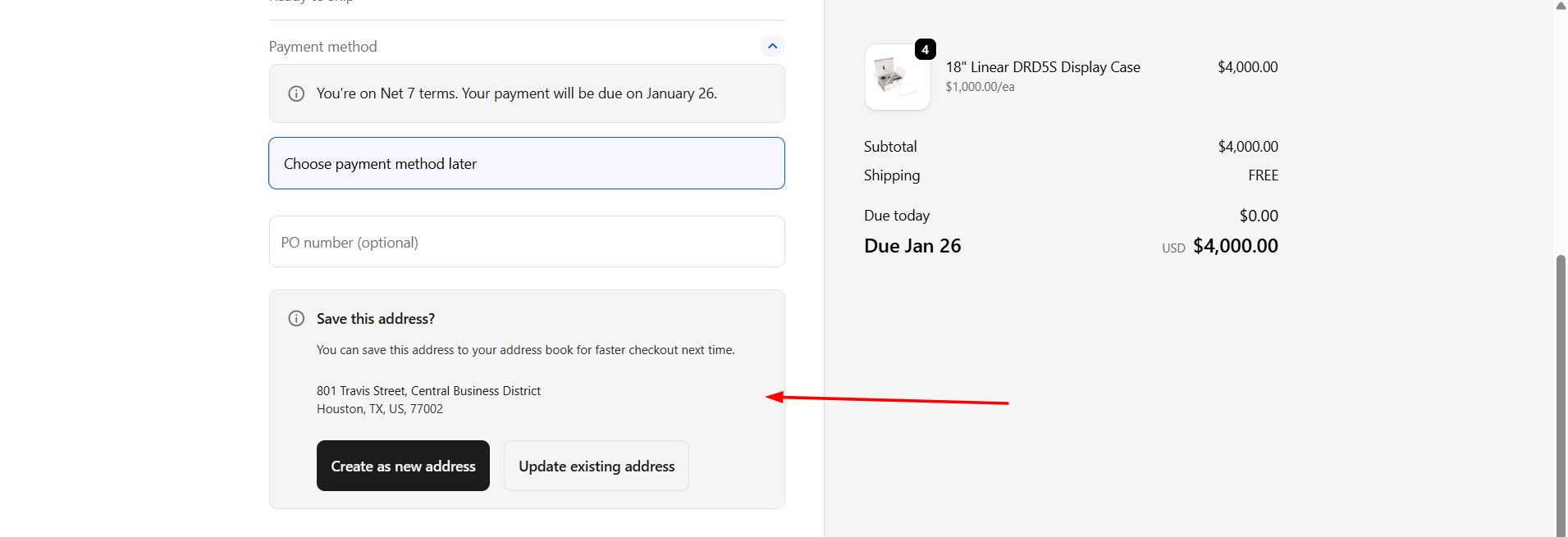
Note: Choose Create as a New Address if you want to keep the original address intact for future use. Choose Edit an Existing Address if the change should apply everywhere that address is used going forward.